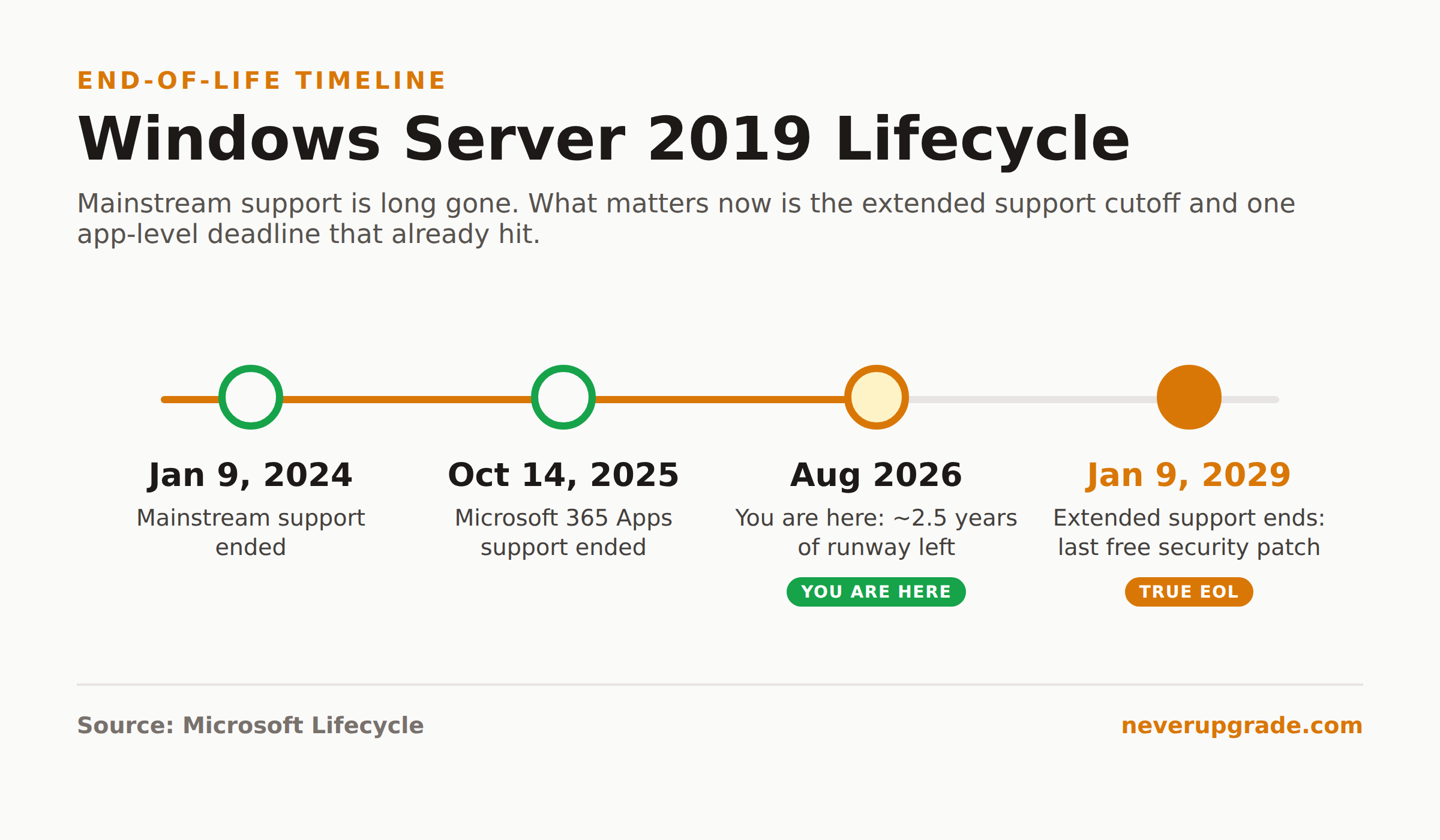
Windows Server 2019 end of life lands on January 9, 2029. That is the hard cutoff for security patches. Mainstream support already ended on January 9, 2024, so the box you are running today is in extended support: security fixes only, no new features, no free phone support. You have until early 2029 before Microsoft stops patching it, which as of this writing is roughly two and a half years of runway.
That is more breathing room than most vendors want you to believe. It is also less than it sounds once you factor in the app-level deadlines that already hit. Here is the honest timeline, what actually expires when, and how to plan a move that does not eat your weekend.
The Windows Server 2019 End of Life Date, and the Dates That Matter More
Server 2019 follows Microsoft’s Fixed Lifecycle Policy: five years of mainstream support, then five years of extended support. It went GA on November 13, 2018, which sets the whole clock.
- Mainstream support ended: January 9, 2024. No more feature updates, design changes, or non-security hotfixes.
- Extended support ends: January 9, 2029. This is the real Windows Server 2019 end of life date. Monthly security patches keep coming until then.
- Microsoft 365 Apps support ended: October 14, 2025. If you run desktop Office (Word, Excel, Outlook) on a Server 2019 session host, it is already unsupported. Microsoft ships security-only updates for those apps through October 2028, but that is a grace period, not real support.
So the platform is patched through January 2029, per Microsoft’s own lifecycle page. The gotcha is the workloads sitting on top of it. A file server or domain controller on Server 2019 is genuinely fine for now. An RDS box running Microsoft 365 Apps for your users crossed its own line back in October 2025.
Note the difference between “end of life” and “extended support.” When people ask about windows server 2019 end of life extended support, they are usually conflating two things. Extended support is the phase you are in right now. It runs to January 2029. After that, the only paid lifeline is Extended Security Updates (ESU), and Microsoft has not committed to an ESU program for Server 2019 the way it did for 2012 and 2012 R2. Do not plan around one existing.
How Much Runway You Actually Have Left
Count backward from January 9, 2029 and the math is less generous than the headline.
A clean in-place upgrade or migration is not a one-day job for anything that matters. Domain controllers, line-of-business apps, SQL instances, print servers with a hundred drivers: each needs testing, a rollback plan, and a maintenance window. Budget cycles are the other constraint. If you buy hardware on a fiscal year, you probably have two real purchasing windows left before the deadline, not three.
Our rule of thumb: treat mid-2028 as your practical wall, not January 2029. That leaves margin for the migration to go sideways once (it will) and still finish before patches stop. If you are reading this in 2026, you are in the comfortable-but-don’t-dawdle zone. If you find this in 2028, you are running late and should be moving now.
The one thing that genuinely buys time without a migration: micropatching and hardening. That is a separate conversation, and we walk through the mechanics in our Windows Server 2016 end of life guide, where the same tactics apply. It does not replace a plan. It buys you a quarter or two if procurement stalls.
In-Place Upgrade Options: Straight to 2022 or 2025
Server 2019 supports in-place upgrades, and the supported jumps are wider than the old “one version at a time” rule. As of Windows Server 2025, Microsoft lets you upgrade in place directly from Server 2019 to either Server 2022 or Server 2025. You do not have to hop through 2022 to reach 2025.
Microsoft documents both paths on its in-place upgrade page. An in-place upgrade keeps your roles, settings, and data, which is the appeal. It is also where people get burned, because “keeps your data” is not the same as “keeps your data intact when a driver or agent chokes mid-upgrade.”
Before you start: back up. A full image or a verified system-state backup plus a tested restore. Not a snapshot you assume works. An actual restore you have watched complete. In-place upgrades fail in the middle more often than Microsoft’s demo videos suggest, and the failure mode is a server that boots to nothing.
The basic sequence:
- Back up fully and confirm the restore works on a test target.
- Check application vendor support. Your antivirus, backup agent, and any LOB software must support the target OS. This is the most common blocker.
- Inventory drivers, especially storage and NIC drivers. Have updated ones staged.
- Run the setup from mounted install media (
setup.exe) and choose “Keep personal files and apps.” - Let it run, validate roles and services afterward, then reboot once more and watch the event log for a day.
If any of steps 2 through 3 turn up a blocker, stop. A blocked in-place upgrade is a clean-install-and-migrate job instead, and pretending otherwise is how you lose a weekend.
When to Skip 2022 and Land on 2025
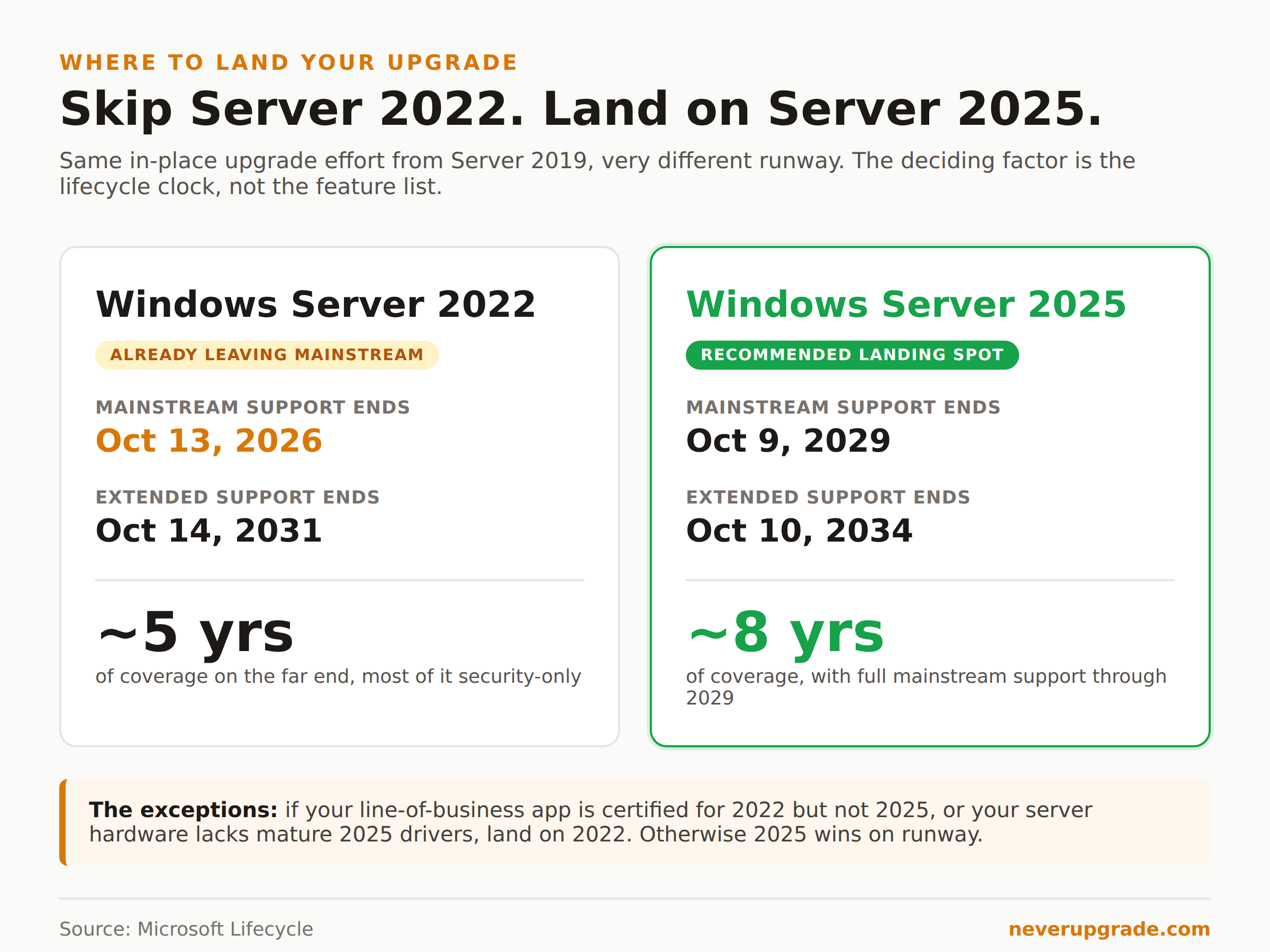
Here is the contrarian take, and it is the one we would actually make on our own servers: for most in-place upgrades happening in 2026 or later, skip Server 2022 and go straight to 2025.
The reason is the lifecycle clock, not the feature list. Server 2022’s mainstream support ends October 13, 2026, with extended support running to October 14, 2031. If you migrate to 2022 now, you are landing on a platform that is already leaving (or has just left) mainstream support. You would be doing a migration to buy yourself, at best, until 2031, and starting it in security-only mode.
Server 2025, by contrast, went GA in late 2024. Its mainstream support runs to October 9, 2029, and extended support to October 10, 2034. Same migration effort, roughly five extra years of full support on the far end.
The honest exceptions, because there always are some:
- Vendor support. If your critical LOB app is certified for 2022 but not yet for 2025, land on 2022. A supported app on an older OS beats an unsupported app on a newer one. Every time.
- Hardware and driver maturity. Server 2025 is newer, so obscure or older server hardware may have thinner driver support. Check your OEM’s compatibility list first.
- Existing 2022 estate. If you already run a fleet of 2022 and have the tooling and muscle memory for it, consistency has real operational value. Adding one more 2022 box to a 2022 shop is defensible.
Absent one of those, 2025 is the better landing spot. Do not migrate onto a platform that is itself most of the way through its own life.
Planning the Upgrade Without Weekend Downtime
The goal is a cutover that finishes inside a maintenance window and has a way back if it does not. In-place upgrades are convenient but risky on servers you cannot afford to lose. For domain controllers and anything stateful, we prefer a side-by-side migration over an in-place upgrade.
The side-by-side pattern:
- Back up everything first. Same rule, no exceptions.
- Stand up a fresh Server 2025 VM or box next to the old one.
- Install and configure roles clean, then migrate data and settings across (for a DC, that means promoting the new server, letting replication settle, and transferring FSMO roles).
- Run both in parallel briefly and validate.
- Decommission the 2019 box only after the new one has carried production load for a few days.
Side-by-side takes more resources but gives you a rollback that is just “point back at the old server.” That is worth a lot at 2 a.m. For a broader walkthrough of ranking migration approaches by how much they hurt, see our Windows Server 2012 R2 migration paths guide, which ranks the same tradeoffs for the previous generation.
Whichever path you pick, schedule it now while you have slack. The migrations that blow up are the rushed ones done the month patches stop.
FAQ
How long will Windows Server 2019 be supported?
Windows Server 2019 receives security updates until January 9, 2029. Mainstream support ended January 9, 2024, so it is currently in the extended support phase, which means security patches only, no new features and no free support incidents.
Can Server 2019 upgrade directly to Server 2025?
Yes. Microsoft supports an in-place upgrade directly from Windows Server 2019 to Windows Server 2025, and to Server 2022. You do not need to upgrade to 2022 first. Back up fully and confirm your application and driver support before you start.
Is there Extended Security Updates (ESU) for Server 2019 after 2029?
Microsoft has not announced an ESU program for Windows Server 2019 the way it did for Server 2012 and 2012 R2. Plan to be off the platform by early 2029 rather than counting on a paid extension that may never appear.
The Bottom Line
Windows Server 2019 is patched through January 9, 2029, and there is no reason to panic-migrate. There is also no reason to wait. You have the runway to do this properly: back up, test, pick 2025 unless a vendor pins you to 2022, and prefer a side-by-side migration for anything you cannot afford to lose. Start planning while the deadline is still comfortably far off. That is the whole trick to never getting caught by an end-of-life date.