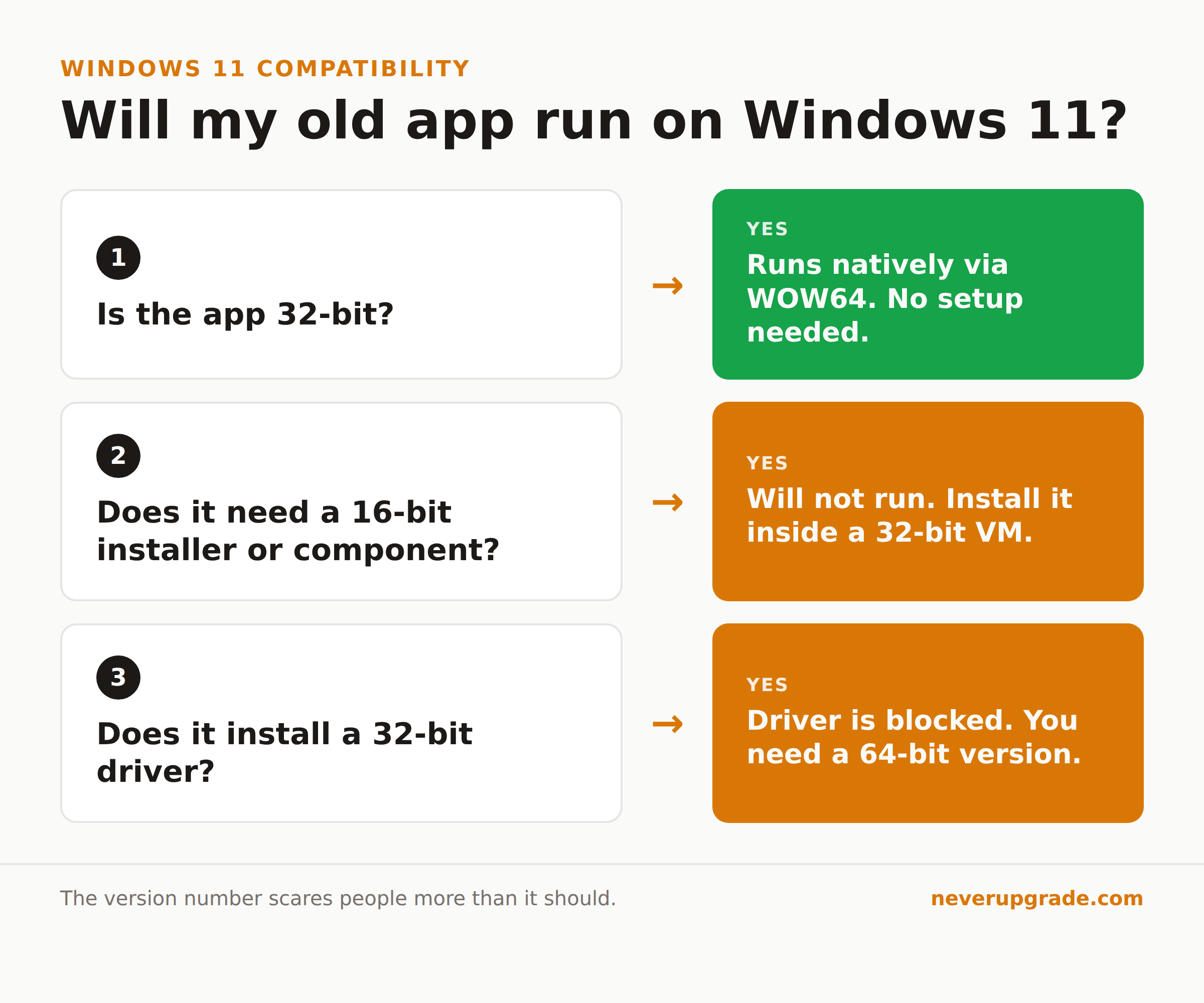
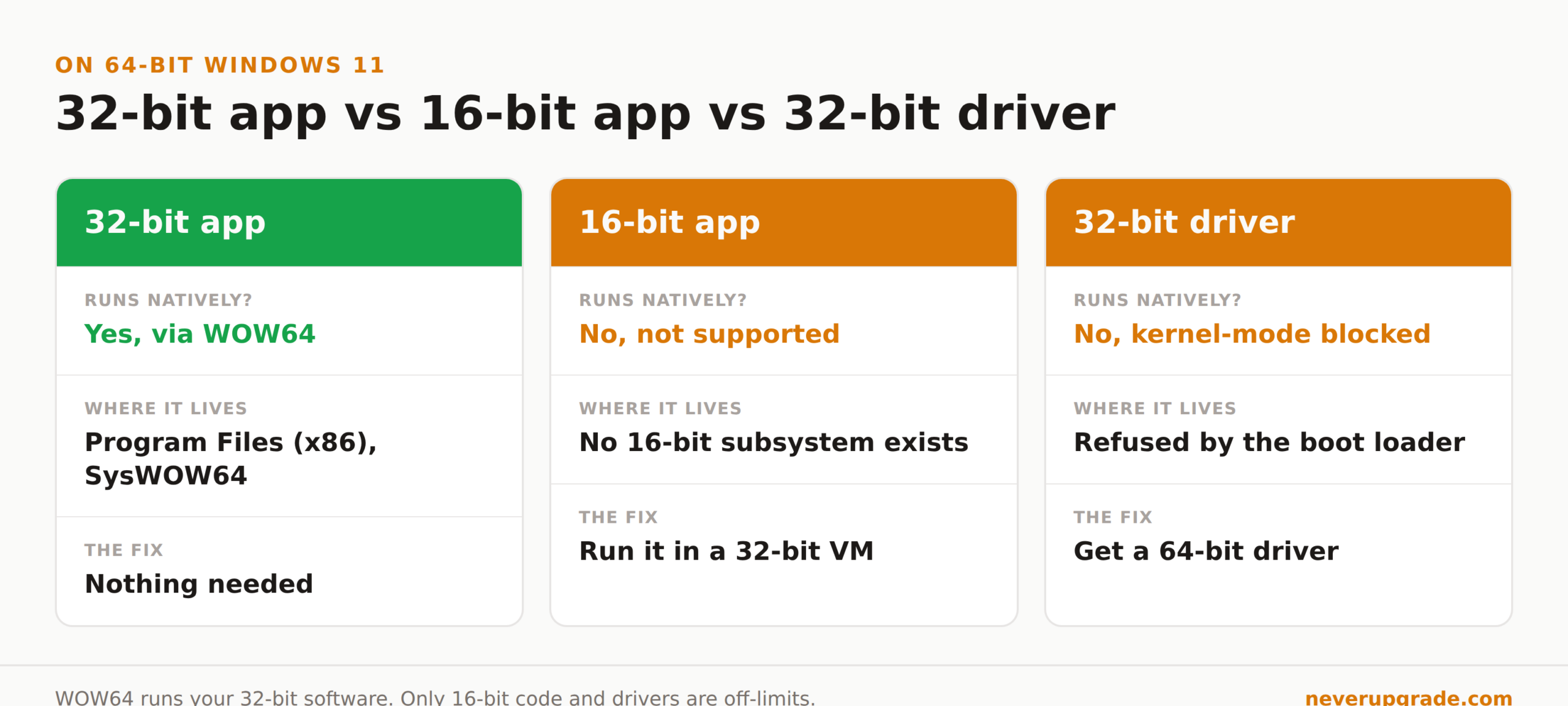
Yes. Windows 11 runs almost every 32-bit program without any special setup, even though Windows 11 itself only ships as a 64-bit operating system. A built-in translation layer called WOW64 (Windows-32-on-Windows-64) creates a 32-bit environment inside 64-bit Windows, so your old accounting tool, label printer utility, or 2011-era line-of-business app installs and launches the same way it always did. The two things that genuinely will not run are 16-bit programs and 32-bit hardware drivers. Everything below is about telling those two cases apart.
We say this a lot around here: the version number on the box scares people more than it should. A 32-bit app is not “old and broken.” It is just compiled for a 32-bit address space, and 64-bit Windows was built from day one to keep running it.
Can Windows 11 Run 32-Bit Programs? The Short Answer
Windows 11 has no 32-bit edition. Microsoft’s own documentation is blunt about it: “Windows 11 doesn’t have a 32-bit version and is 64-bit only. Installs will always be 64-bit.” That reads like bad news for legacy software until you separate two things: the operating system is 64-bit, but your 32-bit applications still run, because 64-bit Windows carries WOW64 specifically to run them.
Here is how Microsoft describes the mechanism: “The 64-bit versions of Windows use the Microsoft Windows-32-on-Windows-64 (WOW64) subsystem to run 32-bit programs without modifications.” No emulator to install, no compatibility pack, no registry surgery. You double-click the installer and it works.
A few practical signs you are already relying on WOW64 and never noticed:
- Your 32-bit apps install into
C:\Program Files (x86)instead ofC:\Program Files. That(x86)folder is the 32-bit side of the house. - 32-bit DLLs live in
C:\Windows\SysWOW64, notSystem32. Yes, the naming is backwards, and yes, it confuses everyone.SysWOW64holds the 32-bit files;System32holds the 64-bit ones. - Task Manager used to tag 32-bit processes with “(32 bit)” next to the name. It is a quick way to confirm what mode an app is running in.
For the overwhelming majority of small-business software, that is the whole story. Older Sage installs, practice-management tools, CNC and label-printer front ends: if it ran on 64-bit Windows 10, it runs on Windows 11.
What Genuinely Will Not Run: 16-Bit Apps and 32-Bit Drivers
WOW64 has exactly two hard limits, and Microsoft names both. The WOW64 subsystem does not support “programs that are compiled for 16-bit operating systems” or “kernel-mode programs that are compiled for 32-bit operating systems.” In plain terms: 16-bit software and 32-bit drivers.
16-bit programs. These are the truly ancient ones, mostly from the Windows 3.x and early-DOS era, plus a surprising number of installers that were written in 16-bit code even when the program they install is 32-bit. Microsoft’s warning is worth reading slowly: “A 16-bit installer is frequently used to install and configure a 32-bit program… you can’t use the 16-bit installer to install a 32-bit program. Programs that require 16-bit components can’t run on x64-based versions of Windows.”
That last part trips people up. The application might be perfectly fine, but if its setup routine or a helper component is 16-bit, the whole thing dies at install time on 64-bit Windows. The symptom is usually an error like “This app can’t run on your PC” or “The version of this file is not compatible with the version of Windows you’re running,” thrown before the program even opens.
32-bit drivers. Drivers run in kernel mode, and 64-bit Windows flatly refuses to load 32-bit ones. Microsoft: “All hardware device drivers and program drivers must be compiled specifically for the x64-based version of Windows.” If a 32-bit app tries to install its own driver, the install fails and Windows reports an error back to the program. This is the real reason some old hardware, an ancient scanner, a legacy USB dongle, a proprietary data-acquisition card, stops working after a move to 64-bit Windows. The app is usually fine. The driver is the problem.
How to Run 16-Bit Legacy Apps (Use a VM)
If you have a 16-bit program you genuinely need, stop fighting Windows 11 directly. The clean answer is a virtual machine running an older 32-bit version of Windows, where 16-bit support still exists.
On 32-bit Windows, 16-bit apps ran through a subsystem called NTVDM (the NT Virtual DOS Machine). 64-bit Windows dropped NTVDM entirely, which is why nothing you do in Windows 11 will bring 16-bit support back natively. A VM sidesteps the problem by giving the old app the old operating system it expects.
Here is the approach we use for a genuinely stuck 16-bit app. Before you start: back up the original install media and any license keys, because you will likely reinstall the app inside the VM.
- Install a hypervisor. Windows 11 Pro includes Hyper-V for free (enable it under “Turn Windows features on or off”). On Windows 11 Home, use VirtualBox, which is free.
- Create a VM and install a 32-bit OS inside it. 32-bit Windows XP or 32-bit Windows 7 both still run 16-bit software through NTVDM. Keep this VM offline; an unpatched XP has no business on the internet.
- Install your 16-bit app inside the VM using its original installer. The 16-bit installer that failed on Windows 11 will run fine here.
- Move data in and out through a shared folder rather than the network, so the old OS never needs a live connection.
For a single stubborn DOS application, DOSBox is lighter than a full VM and built exactly for this. Reach for it when the program is a DOS-era utility rather than a 16-bit Windows app.
The honest tradeoff: a VM is a maintenance item. You are keeping an old OS alive, so treat it like the isolated appliance it is: no email, no browsing, snapshot before changes. If you already run legacy Windows deliberately, our guide on running Windows 7 safely in 2026 covers the same isolation habits.
Compatibility Mode: When It Helps and When It Does Not
Compatibility mode is the first thing to try when a 32-bit program installs but then misbehaves, crashes on launch, throws a version-check error, or renders wrong. It tells the app that it is talking to an older Windows without actually changing your OS.
To use it: right-click the program’s .exe (or its shortcut), choose Properties, open the Compatibility tab, tick “Run this program in compatibility mode for,” and pick a version like Windows 7 or Windows XP (Service Pack 3). Apply, then relaunch.
What compatibility mode actually fixes:
- Version-check bailouts, where the app quits because it does not recognize Windows 11.
- Programs that assume an older common-controls look and break their own UI.
- Apps that expect a specific older behavior from a Windows API.
What it cannot fix:
- Anything 16-bit. Compatibility mode does not add a 16-bit subsystem, so it will not resurrect a 16-bit installer or component.
- A missing 32-bit driver. No compatibility setting makes 64-bit Windows load a 32-bit driver.
- Deep incompatibilities where the app depends on a service or component Windows 11 removed.
If compatibility mode does not do it, the built-in Program Compatibility Troubleshooter (search “Run programs made for previous versions of Windows”) tests combinations for you and applies what works. Worth one pass before you write an app off.
How to Check Whether Your Critical App Is 32-Bit or 16-Bit
Before any migration, spend ten minutes classifying your must-have software. Most of the panic around Windows 11 comes from not knowing which bucket an app is in.
Fast test: just install it. On 64-bit Windows, 32-bit apps install and run; 16-bit ones fail loudly at setup. If the installer completes and the program opens, you are on the supported 32-bit path and done.
Check a running app’s bitness. Open Task Manager, go to the Details tab, right-click the column header, choose “Select columns,” and enable “Platform.” It will label each process 32-bit or 64-bit. A 32-bit label here is completely fine on Windows 11.
Inspect the executable directly. Right-click the .exe and look at Properties. A 16-bit app often shows an “MS-DOS” or NE-format signature, while modern apps are PE-format. If you are comfortable in PowerShell, you can read the file header, or use a small free utility that reports whether a binary is 16-bit, 32-bit, or 64-bit.
When in doubt, ask the vendor. For a business-critical app, email the maker and ask two direct questions: is the application 32-bit or 64-bit, and does the installer contain any 16-bit components? Many vendors ship a 64-bit-compatible installer for exactly this reason, and a five-minute email beats a failed rollout.
If your inventory turns up software that only exists as 16-bit, that is your signal to plan a VM appliance for it rather than expecting Windows 11 to run it natively. And if the blocker is Windows 11’s hardware requirements rather than the software, our walkthrough on installing Windows 11 on unsupported hardware covers that separate problem.
Frequently Asked Questions
Will old 32-bit programs work on Windows 11?
Almost always, yes. Windows 11 is 64-bit only, but its WOW64 subsystem runs 32-bit programs without modification, so a 32-bit app that worked on 64-bit Windows 10 will run on Windows 11. The exceptions are programs that are actually 16-bit, or that rely on a 16-bit installer or a 32-bit driver.
What happens if you run a 32-bit program on a 64-bit computer?
It runs normally. WOW64 gives the program a 32-bit environment, redirects its files to Program Files (x86) and SysWOW64, and keeps it isolated from 64-bit binaries. Most 32-bit apps perform the same as they did on 32-bit Windows; memory-hungry ones can actually run better, since 64-bit Windows addresses far more RAM.
How do I run a 16-bit program on Windows 11?
Not directly. 64-bit Windows removed the NTVDM subsystem that ran 16-bit software, so no setting or compatibility mode brings it back. Run the 16-bit app inside a virtual machine with a 32-bit copy of Windows XP or 7, or use DOSBox for DOS-era programs. Keep that VM offline and treat it as an isolated appliance.
The Bottom Line
If you are holding on to a 32-bit business app, Windows 11 is not the wall you were told it is. WOW64 runs 32-bit software the same way 64-bit Windows always has. Spend the ten minutes to confirm your critical apps are 32-bit and not 16-bit, keep the one or two genuine 16-bit holdouts in an offline VM, and reach for compatibility mode when a 32-bit app sulks. That is the entire playbook, and it is a lot less dramatic than the upgrade prompts want you to believe.