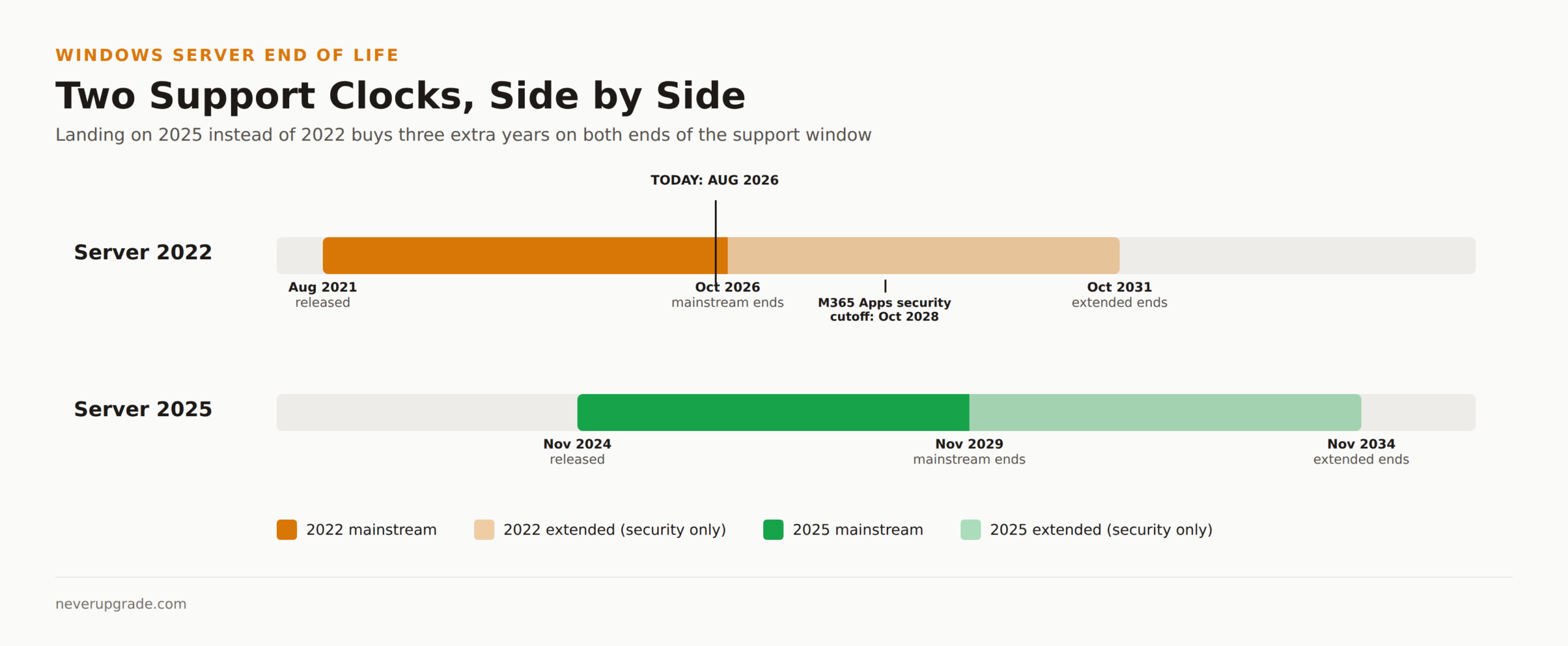
Windows Server 2022 mainstream support ends October 14, 2026, about seven weeks from now. Extended support, meaning free security patches with no new features, runs through October 15, 2031. If you are planning an upgrade project anyway, the real question is not when 2022 dies. It is whether you should land on 2022 at all, or skip straight to Windows Server 2025, which buys you three more years on both ends of that clock.
We manage a few dozen small business servers between us, and this question comes up every time a client finally admits their 2016 or 2019 box needs to move. Here is the honest Windows Server 2022 vs 2025 breakdown, not the marketing one.
The Windows Server 2022 end of life timeline, and what actually breaks first
Nothing breaks on October 14, 2026. That date only ends mainstream support, which means Microsoft stops shipping new features and non-security fixes. Security patches keep coming free through October 15, 2031, under extended support. That is the same pattern every Windows Server release follows: five years of mainstream, five more of security-only.
The date that actually bites some shops is different: Microsoft 365 Apps (the desktop Office suite) is only supported on Windows Server 2022 while it is in mainstream support. After October 2026, Office on a Server 2022 session host stops getting feature updates and freezes at whatever build shipped that month (Version 2608). Security-only patches for that frozen Office build continue until October 10, 2028, then you are on your own. If you are running RDS or Citrix session hosts with Office installed, that 2028 date matters more than the headline 2031 one.
Windows Server 2025 is younger, so its clock runs longer:
- Windows Server 2022: released August 18, 2021. Mainstream ends October 14, 2026. Extended ends October 15, 2031.
- Windows Server 2025: released November 1, 2024. Mainstream ends November 14, 2029. Extended ends November 15, 2034.
Land on 2025 today and you are not doing another OS-level server migration until 2034. Land on 2022 today and you are doing this exact exercise again in 2031, on hardware that will be even older by then. That gap is the whole argument for skipping a generation.
What is actually new in 2025 worth caring about
Most of the Windows Server 2025 changelog is enterprise plumbing you will never touch on a five-server shop: Azure Arc pay-as-you-go licensing, NUMA-aware Active Directory scaling past 64 cores, Storage Replica compression. Skip it. Here is what actually changes your day-to-day running a small environment.
OpenSSH ships installed by default. No more manually adding the feature before you can manage a box from a terminal instead of RDP.
Credential Guard is on by default on hardware that supports it. That alone closes off a common lateral-movement technique against cached credentials, and you do not have to remember to turn it on.
Active Directory gets a 32k database page option, up from the 8k page size AD has used since Windows 2000. In practice that raises the multivalued attribute limit by a factor of about 2.6. Unless you have hit that ceiling, you will never notice, but it is the first real AD DS storage change in two decades.
Hotpatch is in preview, but only for Azure Arc-connected machines. It lets you apply security updates without a reboot. On-premises boxes not enrolled in Arc do not get this yet, so do not plan your patch windows around it.
In-place upgrades now skip up to four versions at once. Microsoft’s own documentation confirms you can go directly from Windows Server 2012 R2 to 2025 in one upgrade, without stopping at 2016, 2019, or 2022 along the way.
The desktop shell also picked up the Windows 11 look, Bluetooth support, and a new file compression menu. None of that matters on a headless server, and if you are running Server Core like you should be, you will never see it.
Upgrade routes from 2012 R2, 2016, and 2019
Before you start: back up. Not “the nightly job ran green” backup, an actual verified restore, tested on a spare box or a VM snapshot you have booted. Every one of the upgrade paths below is safe, but only if the fallback exists.
- Inventory what is actually running. List every role, every third-party agent (backup, AV, monitoring), and every driver. This is the step people skip and the step that causes the 2 a.m. call.
- Confirm vendor support for the target OS. Check your backup software, AV, and any hardware management agents against Windows Server 2025 compatibility lists before you commit. A NAS integration or an old tape backup agent is the most common blocker we see.
- Pick in-place or clean install. In-place upgrade to 2025 works directly from 2012 R2, 2016, 2019, or 2022, no intermediate hop needed. If you decide to land on 2022 instead, the direct in-place path works from 2016 or 2019, but not from 2012 R2, which Microsoft only supports jumping straight to 2025 from. For domain controllers, we still recommend standing up a new DC and demoting the old one rather than upgrading in place.
- Pilot on one non-critical box first. Confirm applications and drivers actually work before touching anything production.
- Roll the fleet, then decommission the source OS once the pilot has run clean for at least a week.
If you are coming from 2012 R2 specifically, that platform is already past its own end of life and running on borrowed ESU time. We covered that migration separately in Windows Server 2012 R2 End of Life: Your 2026 Survival Plan, including the free-ESU Azure lift-and-shift option if you need more runway before committing to a full OS jump. If you are coming from 2019, the dates and in-place options are broken down in Windows Server 2019 End of Life: The Real Dates and Your Upgrade Runway.
Hardware and licensing differences
Hardware requirements did not move much between 2022 and 2025. Both want a 64-bit 1.4 GHz processor, UEFI with Secure Boot, and TPM 2.0 is recommended, not required, on Standard and Datacenter editions. If your hardware runs 2022 today, it will almost certainly run 2025. This is the one place where a Windows Server 2025 vs 2022 comparison gets boring fast: nobody is buying new hardware just to make this jump.
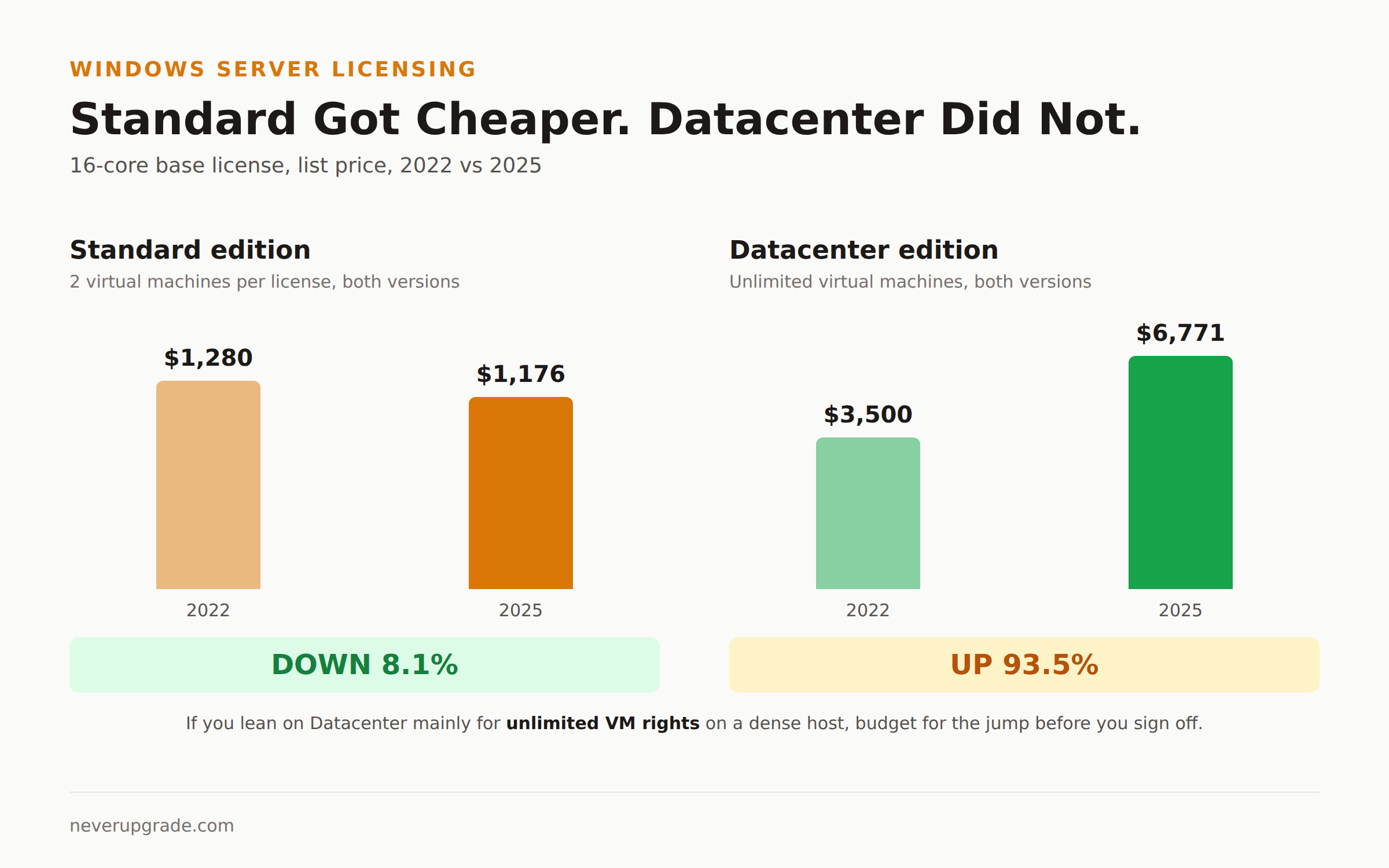
Licensing rights are also unchanged where it matters most: Standard edition still licenses two virtual machines per license, Datacenter still gives unlimited VMs on the same box. What changed is price, and it changed in opposite directions depending on edition.
Standard edition list pricing actually dropped, from roughly $1,280 to $1,176 for a 16-core license, about an 8 percent cut. Datacenter edition went the other way hard: roughly $3,500 to $6,771 for the same 16-core baseline, a jump of over 90 percent. If you run mostly Standard-licensed hosts, 2025 is a small win on cost. If you lean on Datacenter for unlimited VM rights on a busy hypervisor, budget for that jump before you sign off on the project, because it changes the math on whether Datacenter still pencils out versus separately licensing fewer, denser hosts.
Our pick for a small shop upgrading once
Land on Windows Server 2025 directly. The runway math is not close: three extra years of mainstream support, three extra years of extended support, and an in-place upgrade path that gets you there from almost anything you are running today without a stopover on 2022.
The one exception: if a piece of software you actually depend on, a backup agent, a line-of-business app, a NAS integration, has not been certified against 2025 yet by its vendor, do not force it. Windows Server 2022 still has five years of security patches ahead of it. Land there as a stopgap, keep the vendor ticket open, and plan the jump to 2025 (or whatever ships next) before 2031 instead of after. That is the one case where staying a generation behind is the responsible move, not the lazy one.
FAQ
When does Windows Server 2022 end of life happen?
Windows Server 2022 has two dates that matter. Mainstream support ends October 14, 2026, which stops new features and non-security fixes. Extended support, free security patches only, continues through October 15, 2031.
Should I upgrade straight to Windows Server 2025 or land on 2022 first?
For most shops starting the upgrade now, go straight to 2025. It gives you three more years of support on both ends compared to landing on 2022, and the in-place upgrade path supports jumping directly from 2012 R2, 2016, or 2019. Land on 2022 only if a critical vendor has not certified your software against 2025 yet.
Can I upgrade Windows Server 2022 directly to Windows Server 2025?
Yes. In-place upgrade from 2022 to 2025 is supported and is the most common path for shops that already moved off 2012 R2, 2016, or 2019 in the last few years and are not ready for another clean install.
Whatever you land on, do not let this decision happen by default because a support contract renewal reminder showed up in your inbox. Pick the target, confirm your vendors support it, and back up before you touch anything.