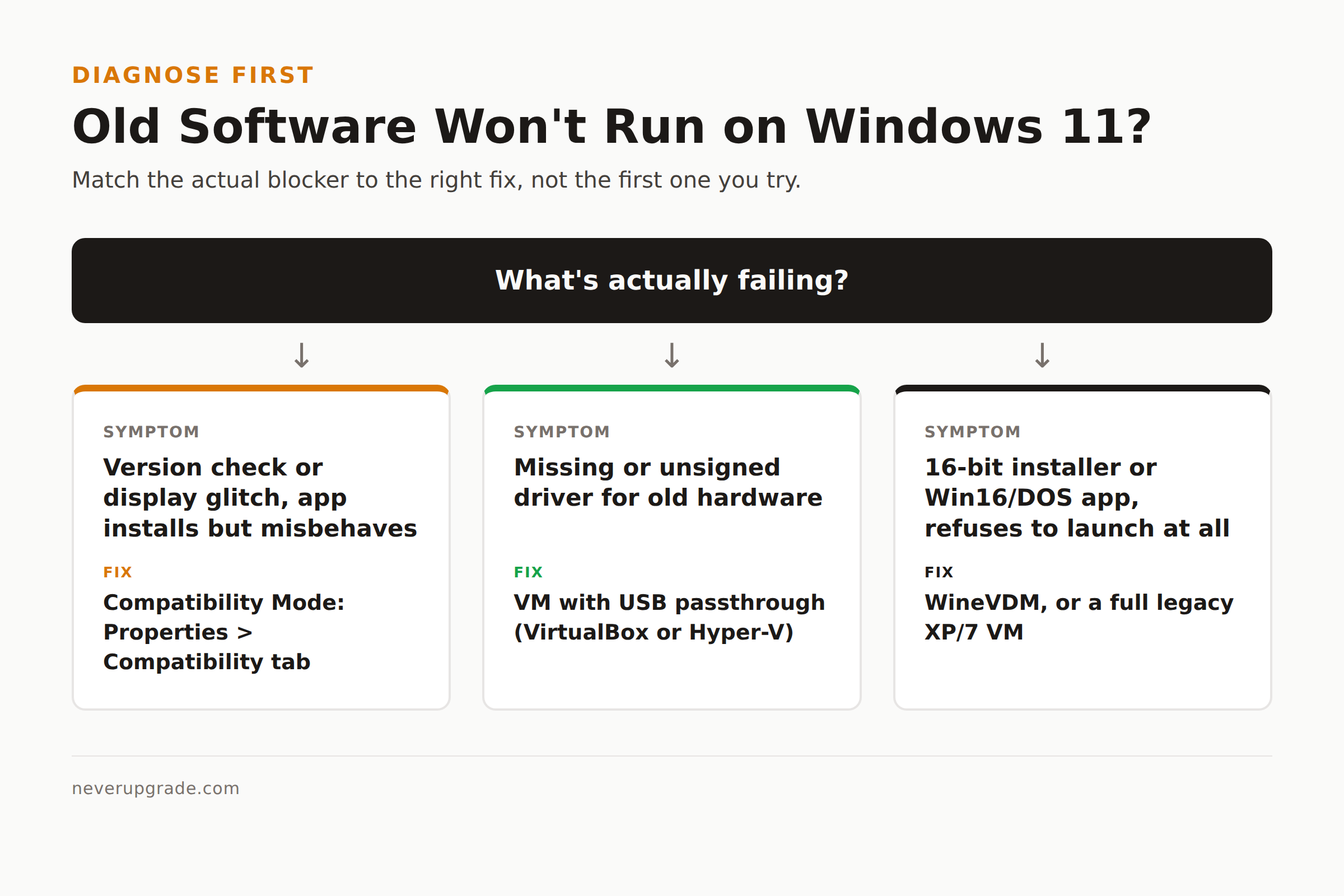
If you need to run old software on Windows 11, start with the built-in Compatibility tab: right-click the program’s .exe or shortcut, open Properties, go to Compatibility, and pick the older Windows version it was built for. That fixes maybe a third of what breaks. For anything that needs a genuinely old operating system underneath it, a VirtualBox or Hyper-V virtual machine running Windows XP or 7 is the only reliable fix, and for true 16-bit installers, Windows 11 can’t run them natively at all, on any edition.
We’ve spent enough years babysitting legacy software and line-of-business apps that predate the current sysadmin’s driver’s license to know which of these tools actually earns its place, and which ones just waste an afternoon. Here’s the order to try them in, if your goal is to run old software on Windows 11 without breaking anything else on the machine.
Before you start: back up the machine, or at minimum the folder holding whatever this old app’s data lives in. Compatibility hacks and driver installs are exactly the kind of thing that occasionally takes a working system down with them.
Start with compatibility mode: what it fixes and what it doesn’t
Compatibility mode in Windows 11 is a shim layer. It tells the app “you’re running on Windows XP” (or 7, or Vista) and feeds it slightly different answers to a handful of API calls, mostly around version checks, DPI scaling, and color depth. That’s it. It doesn’t emulate an older CPU instruction set, doesn’t restore removed system components, and doesn’t touch security policy.
To set it manually:
- Right-click the program file or its shortcut and select Properties.
- Open the Compatibility tab.
- Check Run this program in compatibility mode for, then pick the Windows version the app was originally built for.
- If the app fails to save files or write settings, also check Run this program as an administrator.
- Click Apply, then OK, and launch it.
Windows 11 also has an automated version: Settings > System > Troubleshoot > Other troubleshooters > Program Compatibility Troubleshooter. It walks through the same settings by trial and error. Microsoft’s own documentation is upfront that this only goes so far: apps can still show flickering windows, unresponsiveness, or an outright “This app can’t run on your device” error, because the real cause is architectural, not cosmetic. If compatibility mode were going to fix it, it usually does so within the first two settings you try. If you’re three checkboxes deep with no change, stop and move to a VM.
One thing we’ve noticed that rarely gets mentioned: installers are a different problem from the app itself. An old app might run fine once compatibility mode is set, but the installer that predates Windows 11 sometimes refuses to even launch. Right-click the installer specifically (not just the final .exe) and apply the same compatibility settings there first.
Run old software on Windows 11 with an XP or 7 virtual machine
Windows XP Mode, the free licensed XP virtual machine Microsoft bundled with Windows 7 Professional and up, has been gone since Windows 8 shipped. There’s no equivalent built into Windows 11. If you want an XP or Windows 7 sandbox today, you’re building it yourself: a hypervisor plus a legitimately licensed install ISO and product key.
This matters for two reasons beyond nostalgia. First, licensing: you need a real XP or 7 key, not one pulled off a forum. Second, and more important, security: an XP VM has had no patches since April 2014, and Windows 7 has had none since January 2023 outside paid ESU. That VM cannot touch the internet, full stop. No browser, no email client, no shared folders with unrestricted write access back to the host. Treat it as an appliance that runs exactly one program and nothing else.
The upside is real: inside that VM, the old app sees an actual period-correct Windows kernel, not a shim. Drivers, 16-bit installers, and oddball hardware dongles that compatibility mode can’t touch usually just work, because as far as the software is concerned, it is running on the OS it was written for.
Hyper-V vs VirtualBox for a legacy sandbox
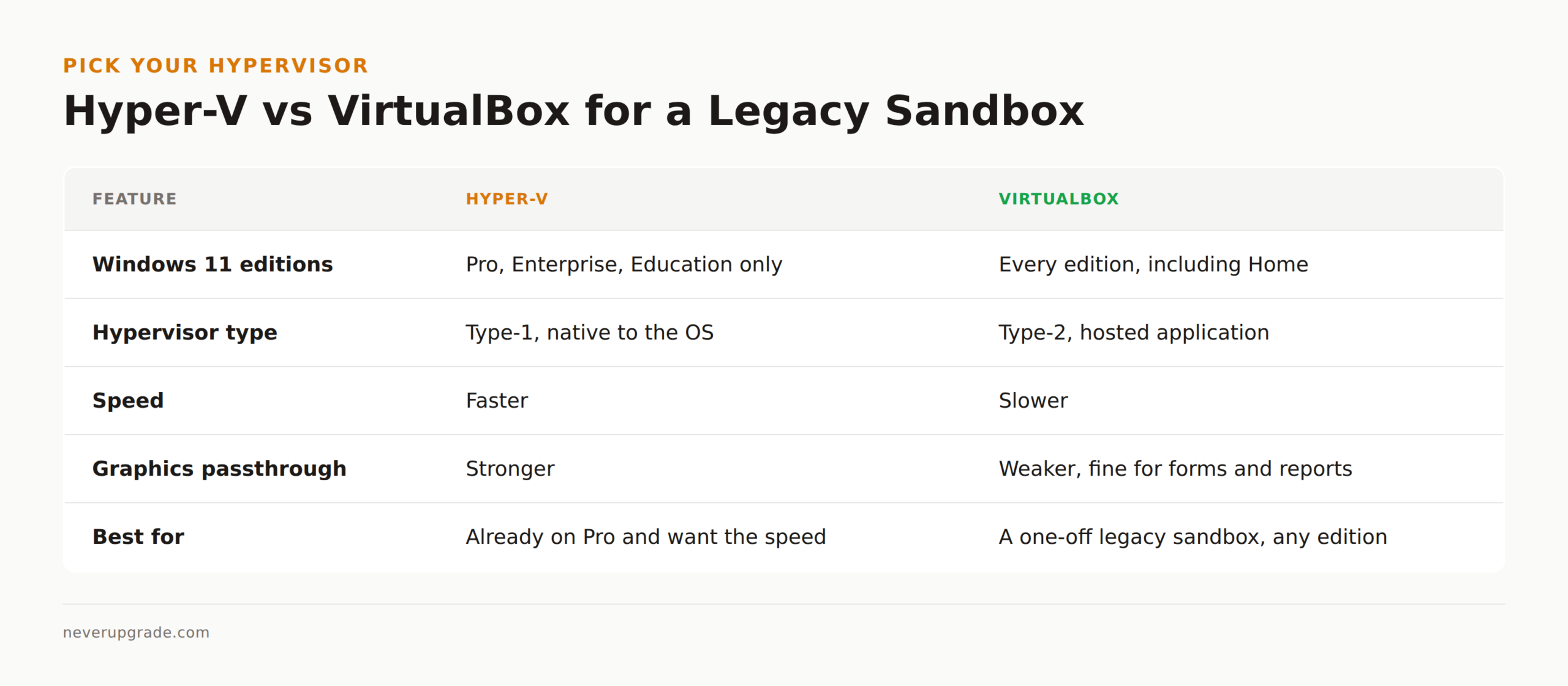
Which hypervisor you use mostly comes down to which Windows 11 edition you’re on.
Hyper-V ships with Windows 11 Pro, Enterprise, and Education (enable it under “Turn Windows features on or off”). It’s fast, since it’s a native Type-1 hypervisor sitting close to the hardware, and it integrates cleanly with Windows networking and snapshotting. The catch: it isn’t available on Windows 11 Home at all, and it can conflict with other virtualization software (older VirtualBox versions, some emulators) that expect exclusive access to the CPU’s virtualization extensions.
VirtualBox runs on every Windows 11 edition, including Home. It’s a Type-2 hypervisor, so it’s somewhat slower and its 3D/graphics passthrough is weaker, which matters if the old app does anything graphically demanding. For a line-of-business app that mostly does forms and reports, that gap is irrelevant. VirtualBox’s snapshot and shared-folder tools are also more forgiving for a one-off legacy box you’re setting up once and rarely touching again.
Our default: VirtualBox unless you’re already on Pro and have Hyper-V enabled for something else. Don’t run both hypervisors’ virtualization features active at once, that’s the single most common “my VM won’t boot” support thread on every forum we checked.
Dealing with old drivers and 16-bit installers
Two separate problems get lumped together as “old software won’t install,” and they need different fixes.
Old drivers (a specific USB dongle, a legacy scanner, an ancient label printer) are a hardware problem. If the manufacturer never shipped a 64-bit driver, no amount of compatibility mode helps, because compatibility mode doesn’t touch kernel-mode driver signing requirements. Your options are: find an unsigned driver and enable test-signing mode (risky, and Windows will nag you every boot), or run the hardware inside a VM with USB passthrough, which sidesteps the signing problem entirely because the VM’s guest OS handles the driver.
16-bit installers and apps are a hard wall, not a compatibility setting. Every 64-bit version of Windows, including every edition of Windows 11, dropped NTVDM, the subsystem that let 32-bit Windows run 16-bit MS-DOS and Win16 code. There is no registry tweak or compatibility flag that brings it back on 64-bit Windows. Your two real options: run the 16-bit installer inside an actual old VM (see above), or use WineVDM, a community project that reimplements enough of the Win16 API to run some 16-bit apps directly on 64-bit Windows without a full VM. WineVDM works for a meaningful chunk of old Win16 software, but it’s a community project maintained by volunteers, not Microsoft, so test it on a non-critical machine first.
When to keep a dedicated legacy box instead
Sometimes the honest answer isn’t compatibility mode or a VM, it’s a physical machine you never touch the internet with again. This makes sense when:
- The app talks to specialized hardware a VM can’t pass through cleanly (certain industrial controllers, some CNC and lab equipment).
- You’re already running the box air-gapped for a regulated process, and adding virtualization adds an attack surface you don’t need.
- The software is load-bearing enough (a production accounting system, a machine controller) that “it works because it’s the exact original hardware and OS” is worth more to you than convenience.
If that’s your situation, isolate it properly: no network connection, or a firewalled VLAN with explicit allow-listing if it truly needs one; a full disk image taken now, while it still boots; and a written note somewhere that says what this machine does and why it exists, so the next person who finds it doesn’t unplug it by accident. We’ve written a full walkthrough on locking down a Windows 7 box you refuse to retire if you want the detailed checklist, most of it applies to any legacy box regardless of OS.
This is also the one case where the honest advice is to actually replace the software instead of the machine. If you’re keeping ancient hardware alive purely because nobody’s had time to find a modern replacement app, that’s a different problem than genuine hardware lock-in, and it’s usually cheaper to solve this year than next year.
FAQ
Can I run 16-bit programs on Windows 11 at all?
Not natively, on any edition, including Home, Pro, or Enterprise. 64-bit Windows removed the NTVDM subsystem that made 16-bit support possible. Your options are a virtual machine running an old 32-bit or 16-bit-capable Windows version, or a community tool like WineVDM for specific apps.
Does Windows 11 still have XP Mode like Windows 7 did?
No. XP Mode was discontinued starting with Windows 8 and was never brought back. To get an XP environment today you need to build your own virtual machine with a legitimately licensed XP install, and it should never be connected to the internet given XP hasn’t been patched since 2014.
Is Hyper-V or VirtualBox better for running old software?
Hyper-V is faster and built into Windows 11 Pro and above, but it’s unavailable on Windows 11 Home and can conflict with other virtualization tools. VirtualBox runs on every edition and is the simpler choice if you’re just setting up a one-off legacy sandbox rather than a permanent Hyper-V host.
If you’re specifically dealing with an app that says it needs “32-bit mode” rather than a truly ancient 16-bit installer, our guide on running 32-bit programs on Windows 11 covers that narrower case in more detail, including how to tell which kind of old you’re actually dealing with.