If you just tried to enable .NET Framework 3.5 on Windows 11 and got a download error, the fix depends on which Windows 11 build you’re running. Through version 25H2, you turn it on as a built-in Windows feature. Starting with 26H1 (build 28000), Microsoft pulled it entirely and you now need a standalone installer instead. Get the wrong method for your build and you’ll chase the same error in circles.
We manage a handful of machines that still run line-of-business software built on .NET 2.0 through 3.5, mostly warehouse scanners and one accounting tool nobody wants to touch. Here’s what actually works, split by build, plus the error codes that eat the most support tickets.
Why Windows 11 does not ship .NET Framework 3.5 by default
Windows 11 comes with .NET Framework 4.8 (or 4.8.1) preinstalled, but 4.8 cannot run apps built for .NET Framework 1.0 through 3.5. Those are different runtimes, not just version numbers, and Microsoft has never made 4.x backward compatible with them. It’s the same reason a lot of old 32-bit software still needs its own compatibility fixes on Windows 11 even though the CPU architecture supports it fine.
Through Windows 11 25H2, 3.5 exists as a “Feature on Demand”: the metadata is on your machine, but the actual binaries live on Windows Update. Enabling the feature triggers a download, and that download is exactly where things break.
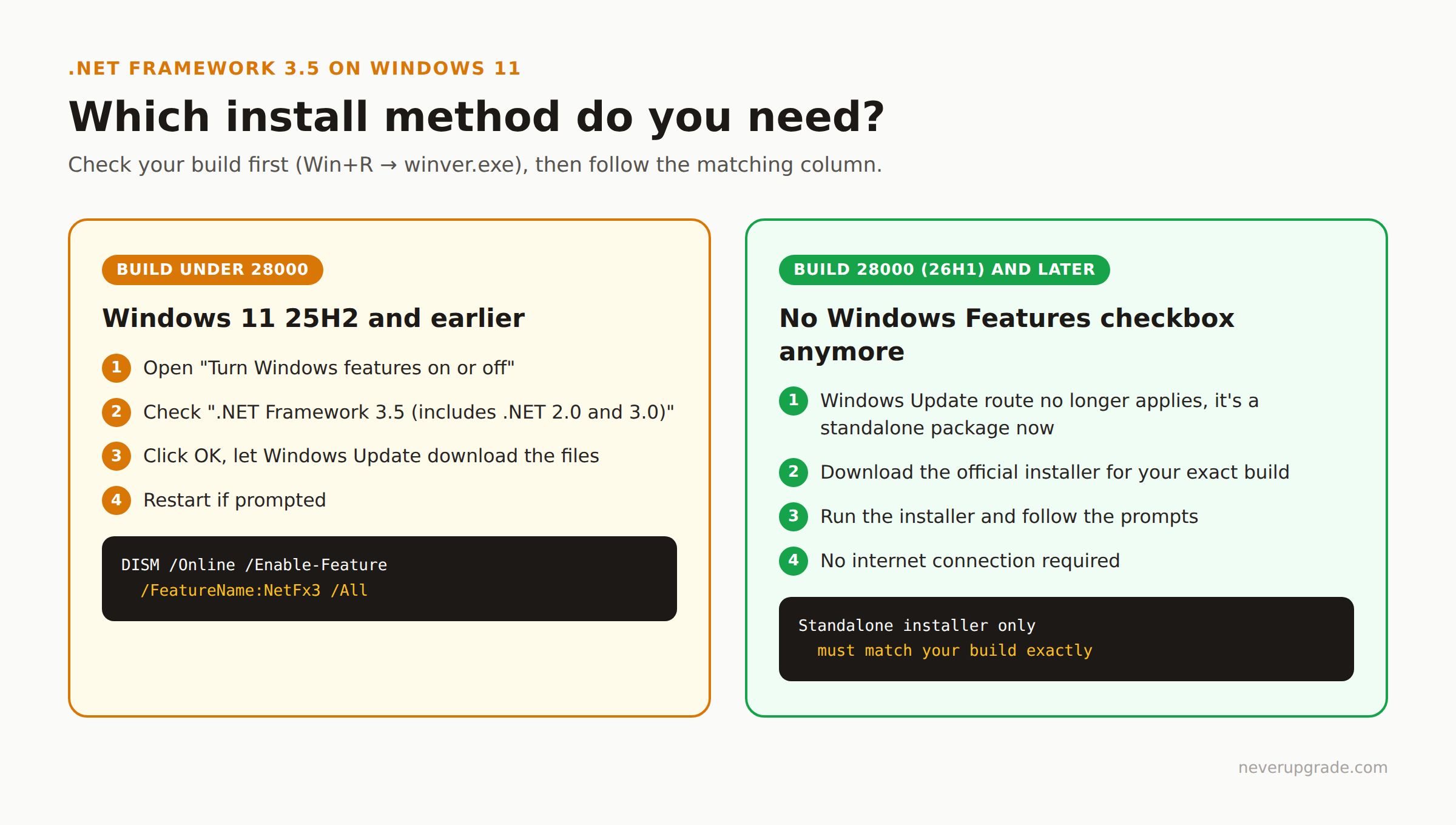
That changed with Windows 11 26H1 (build 28000). Microsoft removed .NET Framework 3.5, ASP.NET 3.5, .NET Extensibility 3.5, and both WCF activation components from the Feature-on-Demand catalog entirely. If you’re on 26H1 or later, “Turn Windows features on or off” won’t even offer .NET 3.5 as an option anymore. Check your build first (Win+R, type winver.exe) so you don’t waste time on a method that no longer applies to your machine.
The two supported install routes: Windows Features vs standalone installer
Windows 11 25H2 and earlier: enable the feature
- Press the Windows key, type
turn windows features on or off, and press Enter. - Check the box next to .NET Framework 3.5 (includes .NET 2.0 and 3.0).
- Click OK, then choose Let Windows Update download the files for you if prompted.
- Restart if Windows asks you to.
Same result, faster, from an elevated command prompt:
DISM /Online /Enable-Feature /FeatureName:NetFx3 /All
Both routes need a working path to Windows Update. If your PC is behind a proxy, a strict firewall, or WSUS, that’s where installs go sideways, more on that below.
Windows 11 26H1 (build 28000) and later: standalone installer only
There’s no Windows Features checkbox anymore. Instead:
- Go to the official .NET Framework 3.5 download for Windows 11 26H1.
- Download and run the installer that matches your exact build. Microsoft states plainly that these installers only work with the Windows version they’re built for, an installer meant for 26H1 won’t work on 25H2 and vice versa.
- Follow the prompts. No Windows Update connection required.
If you’re a developer who needs the optional components too (ASP.NET 3.5, WCF activation), those were removed from Windows outright on 26H1. Microsoft ships a separate Enable-ASPNet35.ps1 PowerShell script for that case, worth knowing about if IIS suddenly can’t find ASP.NET 3.5 after an upgrade, but it restores functionality rather than reinstalling the actual missing components.
Fixing the classic 0x800F0954 and 0x800F081F install failures
Almost every failed .NET 3.5 install on 25H2 and earlier comes down to one thing: the download can’t reach Windows Update, and DISM doesn’t have another source to fall back on.
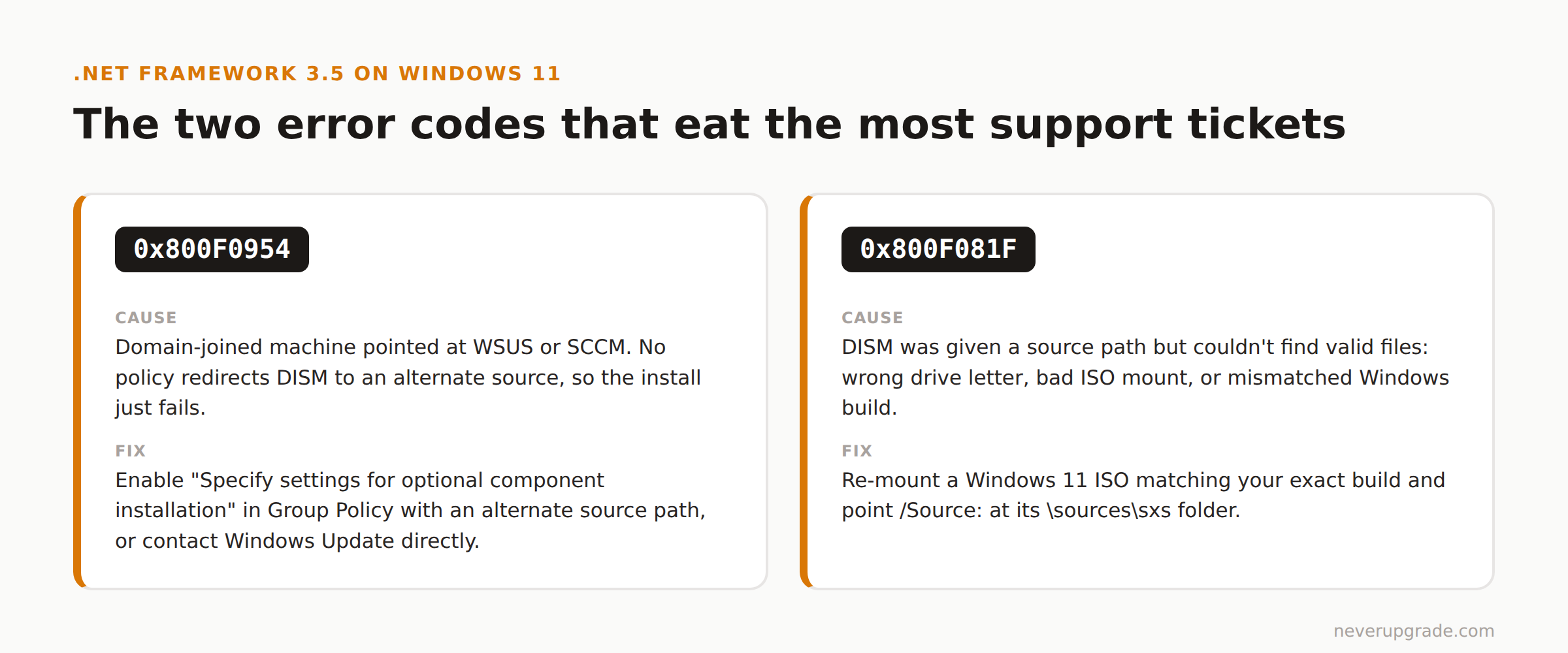
0x800F0954 shows up constantly on domain-joined machines pointed at WSUS or SCCM. The policy that’s supposed to redirect DISM to an alternate source either isn’t set or isn’t set correctly, so the feature install just fails instead of falling back.
0x800F081F means DISM was given a source path but couldn’t find valid files there, wrong drive letter, a corrupted ISO mount, or a source folder that doesn’t match your Windows build. Mixing sxs files from a different Windows version won’t just fail cleanly either; Microsoft warns it can leave the system in an unserviceable state, so don’t grab a random ISO off the internet to fix this.
Both point to the same underlying issue: no working file source. There are three ways to give DISM one.
Fix 1: check what’s actually blocking Windows Update
Before touching Group Policy, try reaching update.microsoft.com directly in a browser on the same machine. If that’s also blocked, it’s a network or proxy problem, not a .NET Framework problem, and no amount of DISM flags will fix it.
Fix 2: point Group Policy at an alternate source
If a domain administrator has WSUS configured to intercept feature installs, the fix lives in Group Policy, not on your local machine:
- Open Local Group Policy Editor (or Group Policy Management Console on a domain).
- Navigate to Computer Configuration > Administrative Templates > System.
- Enable Specify settings for optional component installation and component repair.
- Either set an Alternate source file path pointing to a shared
\sources\sxsfolder, or check Contact Windows Update directly to download repair content instead of WSUS. - Run
gpupdate /forcefrom an elevated prompt.
If you don’t manage the domain, this is a five-minute ask for whoever does, faster than troubleshooting the same download failure across a dozen machines.
Fix 3: install from Windows installation media (the offline installer route)
This is the one to use when Windows Update is blocked, slow, or managed by policy you can’t change, and you don’t want to wait on IT.
- Download the Windows 11 ISO matching your build from Microsoft (Media Creation Tool or the direct ISO download).
- Mount it (right-click, Mount, or double-click in File Explorer). Note the drive letter it’s assigned.
- Open an elevated command prompt and run:
DISM /Online /Enable-Feature /FeatureName:NetFx3 /All /LimitAccess /Source:D:\sources\sxs
Swap D: for your mounted drive letter. /LimitAccess stops DISM from trying Windows Update first, which is what makes this route work even with WSUS or a firewall in the way.
The one rule that matters here: the ISO has to match your installed Windows version. A Windows 10 sxs folder will not correctly service a Windows 11 machine, even though the error messages don’t always make that obvious.
Confirming it actually installed and testing the legacy app
Don’t just trust the “installation complete” dialog. Check the feature state directly:
DISM /Online /Get-Features /Format:Table
Look for NetFx3 in the list with a status of Enabled. If it says Enable Pending, the machine needs a restart to finish.
Then open the actual legacy application, the thing you needed .NET 3.5 for in the first place, and confirm it launches without the “this app requires a feature that isn’t currently installed” prompt. A green checkbox in Windows Features doesn’t always mean every dependency the app needs got pulled down; some older installers also bundle their own redistributables that check separately.
If you’re dealing with more than one legacy Windows app on a machine that’s otherwise on modern hardware, it’s worth reading up on running old software on Windows 11 more broadly, compatibility mode and VMs solve a different set of problems than a missing runtime does.
FAQ
Is there an offline installer for .NET Framework 3.5 on Windows 11?
Yes, two kinds. On Windows 11 25H2 and earlier, use the DISM ... /Source:D:\sources\sxs command against a mounted Windows 11 ISO. On 26H1 and later, use Microsoft’s dedicated standalone installer for that specific build, downloaded directly rather than pulled from installation media.
Why does .NET Framework 3.5 fail to install with error 0x800F081F?
That code means DISM found a source path but couldn’t read valid installation files from it. Usually the drive letter is wrong, the ISO didn’t mount properly, or the sxs files come from a different Windows version than the one you’re installing on. Re-mount the correct ISO and double check the path in your command.
Does .NET Framework 3.5 still work on Windows 11 26H1?
The runtime itself still runs fine, Microsoft didn’t drop support for apps that need it. What changed is how you get it installed: it’s no longer a Windows Feature you can toggle on, so you need the standalone installer built specifically for 26H1.
Can I use a Windows 10 ISO to fix a .NET 3.5 install on Windows 11?
No. The sxs source files have to match your exact Windows version. Using files from a different OS version either fails outright or, per Microsoft’s own guidance, can leave your system in an unsupported and unserviceable state. Use a Windows 11 ISO that matches your build.