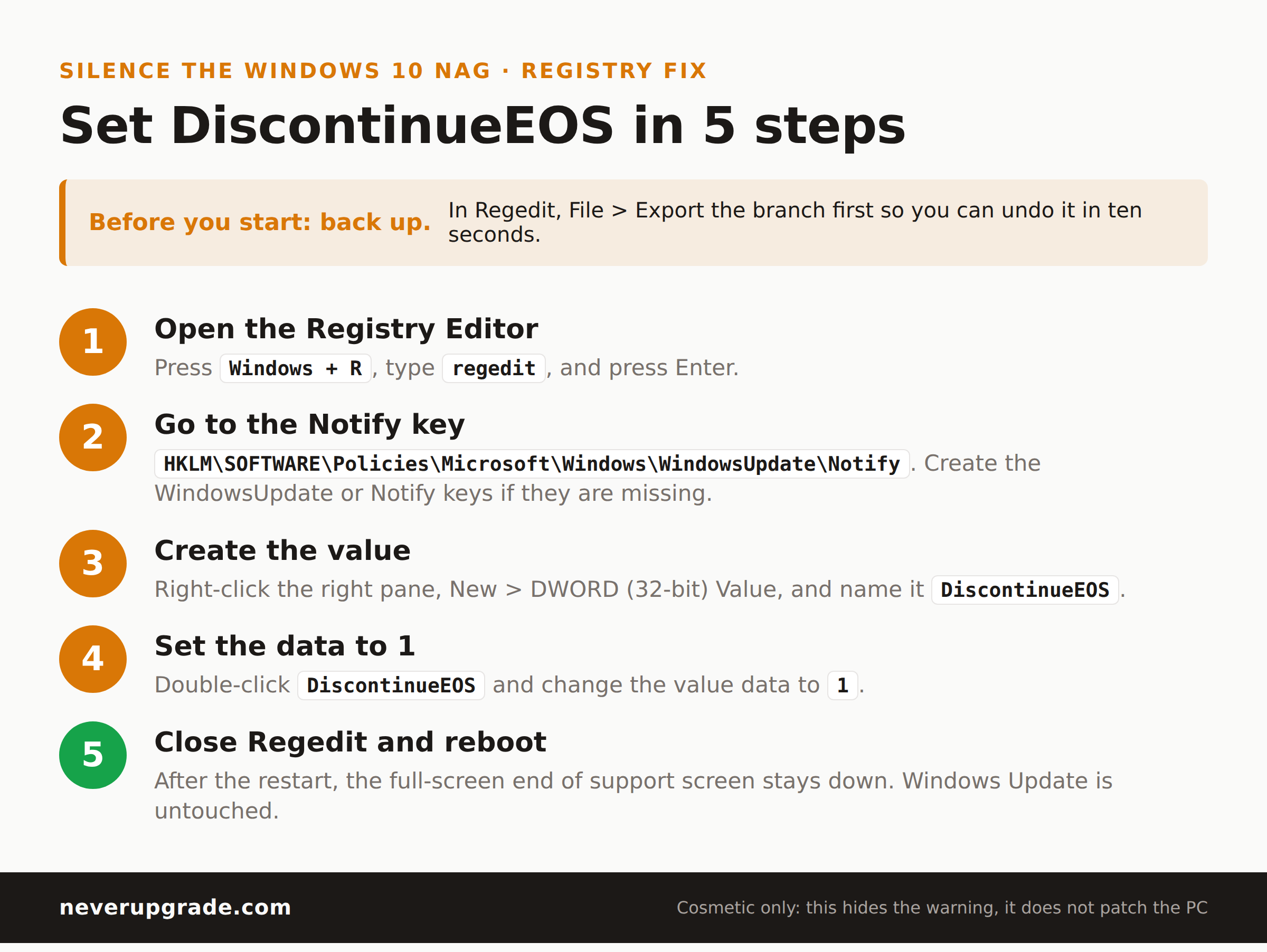
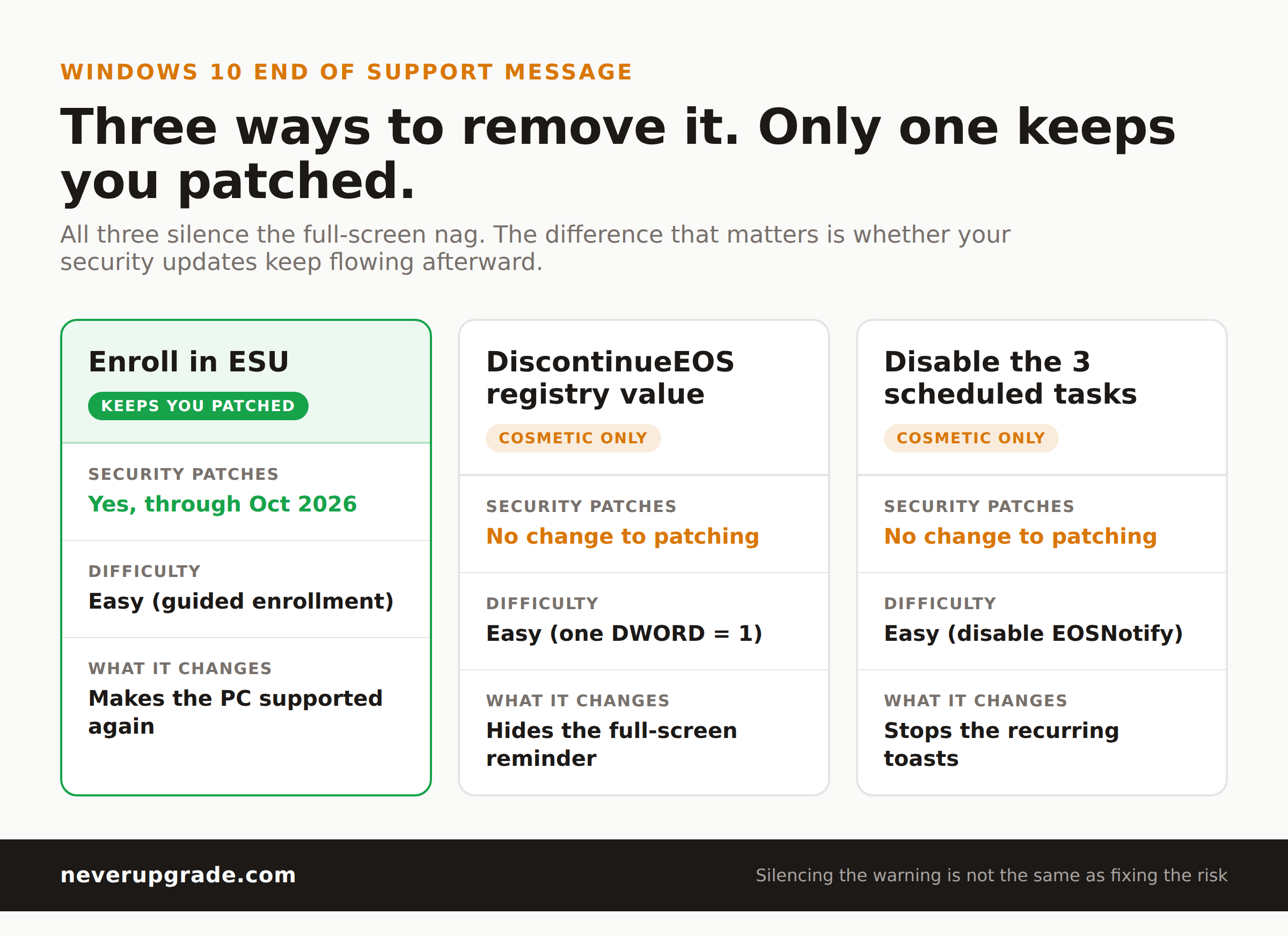
The Windows 10 end of support message shows up because Microsoft stopped supporting Windows 10 on October 14, 2025, and the OS now wants you on Windows 11. You can shut it off in about five minutes without touching a single security setting. There are three clean ways to do it: enroll in Extended Security Updates and the message stops on its own, flip one registry value called DiscontinueEOS, or disable the three scheduled tasks that trigger the pop-ups. None of them stops Windows Update, and none of them makes your PC one bit less patched than it was this morning.
Below is each method, what it actually changes, and the one thing you should not disable while you are in there.
Why the Windows 10 end of support message started
On October 14, 2025, Microsoft ended free support for Windows 10 Home, Pro, and Education. No more feature updates, and no more free monthly security patches unless you take action. To make sure nobody misses the memo, Microsoft shipped a notification package that does two things: it drops toast notifications in the corner, and it throws up a full-screen “your version of Windows has reached end of service” reminder that looks a lot like the one Windows 7 users got in 2020.
The full-screen version is the one people want gone. It usually fires after a reboot or a sign-in, and it is deliberately designed to be easy to click straight into the Windows 11 upgrade flow. That is the whole point of it.
A quick reality check before you start deleting things: in early November 2025, a genuine bug caused some machines that were already enrolled in Extended Security Updates to see the “out of support” screen anyway. If you paid for ESU and still see the nag, you are not imagining it, and the fix below still applies.
The supported fix: enroll in ESU
If you want the message gone the way Microsoft intends, enroll the machine in the Extended Security Updates (ESU) program. Once the device is enrolled and recognized, it is a supported machine again, so the end-of-service screen has no reason to appear.
ESU is the consumer bridge that keeps critical and important security patches flowing for one extra year, through October 13, 2026, for the consumer track. For a home PC you can get the first year for free by syncing your PC settings to a Microsoft account, or pay a one-time fee for the license. We walk through every enrollment path in our step-by-step ESU enrollment guide, including what to do when the “Enroll now” button never appears.
This is the option we recommend for any machine that touches email, banking, or customer data. You are not just hiding a warning, you are keeping the patches coming. Everything below silences the message but does nothing for your security, so treat those methods as cosmetic.
The registry switch that silences the message
If the machine is air-gapped, a kiosk, or a lab box you have already decided to leave unpatched, the fastest kill switch is a single registry value.
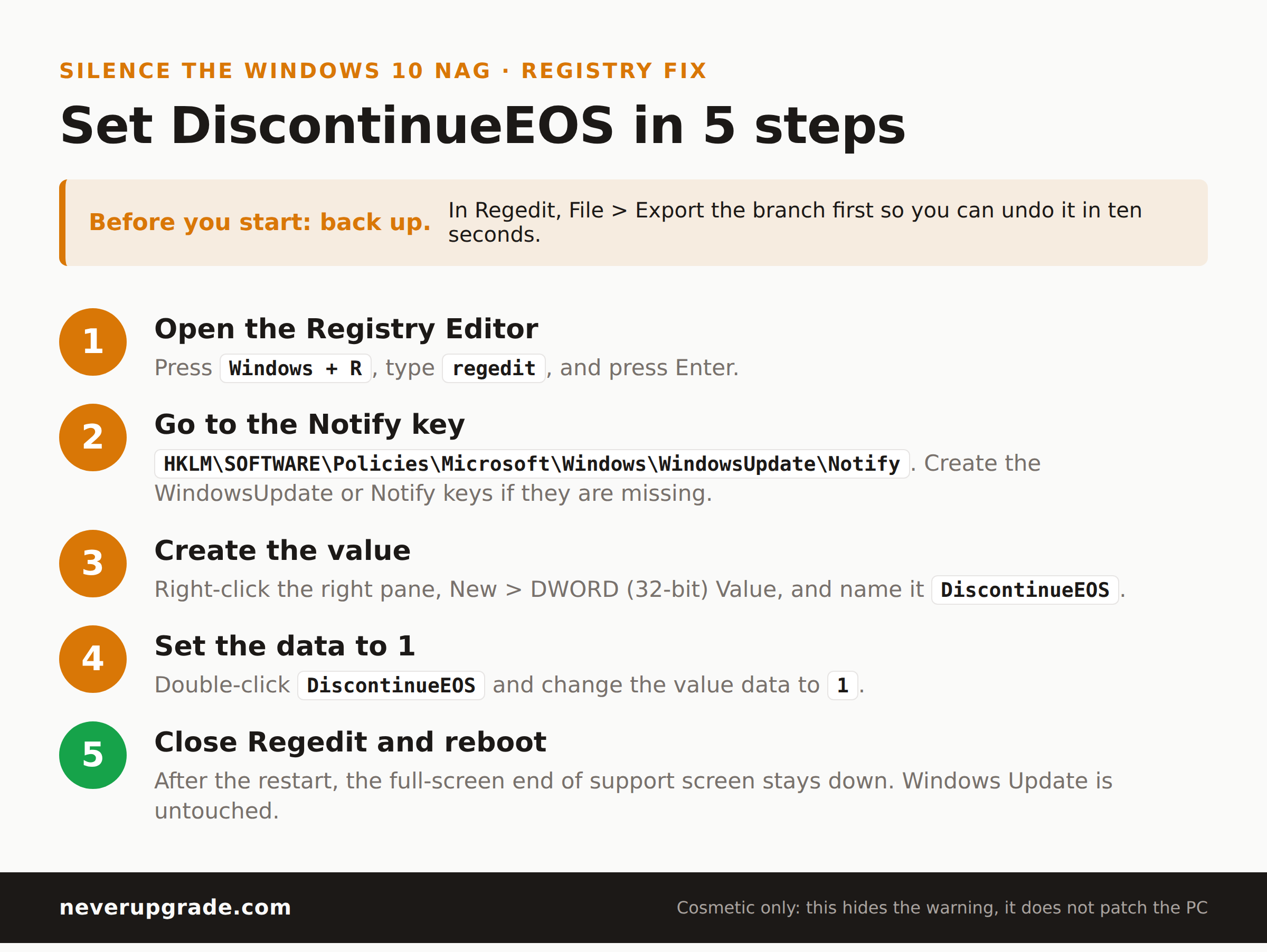
Before you start: back up. Export the registry branch you are about to edit (File, Export in Regedit) so you can put it back in ten seconds if anything looks wrong.
- Press Windows key + R, type
regedit, and press Enter. - Navigate to
HKEY_LOCAL_MACHINE\SOFTWARE\Policies\Microsoft\Windows\WindowsUpdate\Notify. If theWindowsUpdateorNotifykeys do not exist, right-click and create them. - Right-click in the right pane, choose New, then DWORD (32-bit) Value, and name it
DiscontinueEOS. - Double-click
DiscontinueEOSand set the value data to1. - Close Regedit and reboot.
After the restart, the full-screen end of support screen stays down. This value lives under the Policies branch, which is where Microsoft reads administrative overrides, so it survives the notification package trying to re-nag you.
Disable the scheduled tasks that trigger it
The registry value handles the full-screen reminder. The recurring toast notifications are launched by three scheduled tasks, and killing those is the belt-and-suspenders move.
- Open the Start menu, search for Task Scheduler, and open it.
- In the left pane, expand Task Scheduler Library, then Microsoft, then Windows, then Setup.
- Look for three tasks:
EOSNotify,EOSNotify2, andOobeupdater. - Right-click each one and choose Disable. Do not delete them, because a disabled task is trivial to turn back on if you change your mind.
Prefer the command line? An elevated PowerShell one-liner does the same job:
Get-ScheduledTask -TaskName "EOSNotify*" | Disable-ScheduledTask
Disabling these tasks stops the reminders from being scheduled again. It has zero effect on the Windows Update service, so your machine keeps checking for and installing whatever patches it is still entitled to.
What NOT to disable
This is where people go from “quiet PC” to “unprotected PC,” so read this part.
- Do not disable the Windows Update service (
wuauserv). It is tempting to think the update service and the nag are the same thing. They are not. Kill wuauserv and you stop the ESU security patches you may be paying for. - Do not delete the scheduled tasks outright, and do not go on a spree disabling everything under Task Scheduler Library, Microsoft, Windows, WindowsUpdate. Those run the actual patching.
- Do not install a random “remove Windows 10 nag” utility from a forum link. You are handing SYSTEM-level access to a stranger to save yourself four registry clicks. Not worth it.
- Do not touch the Windows 10 end of support screen by editing unrelated Group Policy keys you found in a thread. The
DiscontinueEOSvalue above is the documented one. Stick to it.
The honest version of this: if a method promises to silence the warning by turning off updates, it is not silencing the warning, it is proving the warning right.
Keeping the machine safe once the warnings are gone
Silencing the message does not change your risk. A Windows 10 box with no patches is exposed whether or not it reminds you. So once the screen is gone, spend two minutes making sure the machine is actually covered.
- If it holds anything sensitive, get it on ESU so it keeps receiving security updates through October 2026. If you are on the fence about whether a given PC even needs it, our honest risk assessment of running Windows 10 in 2026 lays out which machines are fine and which are not.
- If you run Office, note that Microsoft 365 apps like Word, Excel, and Outlook keep getting security updates on Windows 10 until October 10, 2028, even after the OS itself falls out of support. Your apps are safer than your operating system, so plan around the OS gap, not the app gap.
- Layer on the basics that do not depend on Microsoft: a current third-party browser, a reputable antivirus, an account that is not a local administrator for daily use, and a real backup you have actually tested restoring.
Getting rid of the reminder is a five-minute job. Keeping the machine defensible is the part that matters, and it is worth the extra ten minutes.
Frequently asked questions
Does removing the Windows 10 end of support message stop security updates?
No. The registry value and the scheduled tasks only control the notifications. Windows Update keeps running, and if you are enrolled in ESU, your monthly security patches keep installing. The one way to break updates is to disable the Windows Update service itself, which you should not do.
Why does the end of support screen come back after I close it?
Because it is scheduled to re-appear on reboots and sign-ins by the EOSNotify tasks. Closing the window does not disable the task that launched it. Set DiscontinueEOS to 1 and disable the three Setup tasks, and it stops coming back.
Is it safe to edit the registry to hide the notification?
Editing one documented DWORD value is low risk, as long as you export the key first so you can undo it. The danger is not this edit, it is guessing at other keys. Change only DiscontinueEOS, reboot, and leave the rest of the registry alone.
The bottom line
The Windows 10 end of support message is a reminder, not a lock. Enroll in ESU and it disappears on its own while your patches keep flowing. Prefer to kill it manually? Set DiscontinueEOS to 1, disable EOSNotify, EOSNotify2, and Oobeupdater, and leave Windows Update alone. The screen goes quiet, your security does not.
We track every safe way to keep unsupported Windows running at NeverUpgrade.