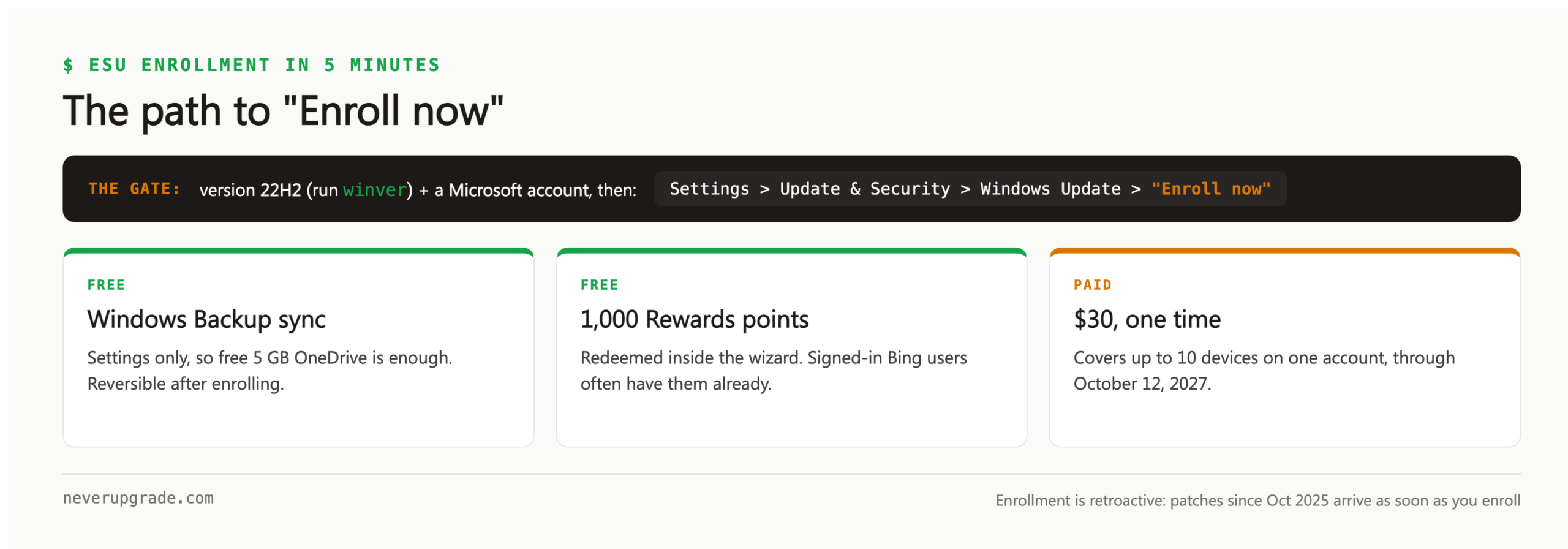
To enroll in extended security updates on Windows 10, go to Settings > Update & Security > Windows Update, click the “Enroll now” link, sign in with a Microsoft account, and pick one of the three routes (two are free). The whole thing takes about five minutes on a machine that meets the requirements.
That last clause is doing a lot of work. Look at what people actually search for around this topic: “enrollment option missing”, “Something went wrong”, “without Microsoft account”. The happy path is four steps; the failure modes are where guides usually stop. This one doesn’t.
If you want the background first (what ESU covers, what it costs, how long it lasts), read our plain-English ESU guide. This page is just the how.
Before you start: two checks and a backup
- Confirm you are on version 22H2. Press Win+R, type
winver, press Enter. The dialog must say version 22H2. Anything older cannot enroll, per Microsoft’s device prerequisites. Run Windows Update until you get there. - Have a Microsoft account ready. You need one even for the paid route. Local-account holdouts, see the section below before you give up.
- Image the disk. Standard house rule: no system change without a rollback path. Enrollment is low-risk, but the cumulative updates that follow it are exactly the kind of thing you want an undo button for.
How to enroll in Windows 10 extended security updates, step by step
- Open Settings > Update & Security > Windows Update.
- Look for “Enroll now”. It is not a big banner. On most machines it is a small link near the top right of the Windows Update page, under the “You’re up to date” area. Reddit threads are full of people who stared straight past it.
- Click it and sign in with your Microsoft account when prompted. The wizard offers the three routes: sync your settings with Windows Backup (free), redeem 1,000 Microsoft Rewards points (free), or pay $30 once.
- Pick a route and finish. The wizard confirms enrollment on the final screen.
One license covers up to 10 devices signed into the same Microsoft account, so a household enrolls once, not five times.
Enrollment is open until the program ends on October 12, 2027, and it is retroactive: the moment you enroll, Windows Update delivers every critical and important patch released since October 14, 2025. A machine enrolled late is unprotected while you wait, not after.
The Microsoft account requirement (what local-account users can do)
There is no way to enroll in the extended security updates ESU program while staying purely on a local account. The wizard requires the sign-in for all three routes, including the $30 purchase; PCMag’s walkthrough hit the same wall and reached the same conclusion.
What actually works:
- Sign in with a Microsoft account for the enrollment only, then switch the machine back to your local account (Settings > Accounts > “Sign in with a local account instead”). The ESU entitlement stays attached to the device and keeps delivering updates.
- Use a throwaway-quality Microsoft account you keep only for licensing. Keep the recovery email real; you will need the same account if you re-install.
Our take: fifteen minutes of pragmatism beats months of missed patches. Sign in, enroll, sign back out.
Enrollment option missing? Work down this list
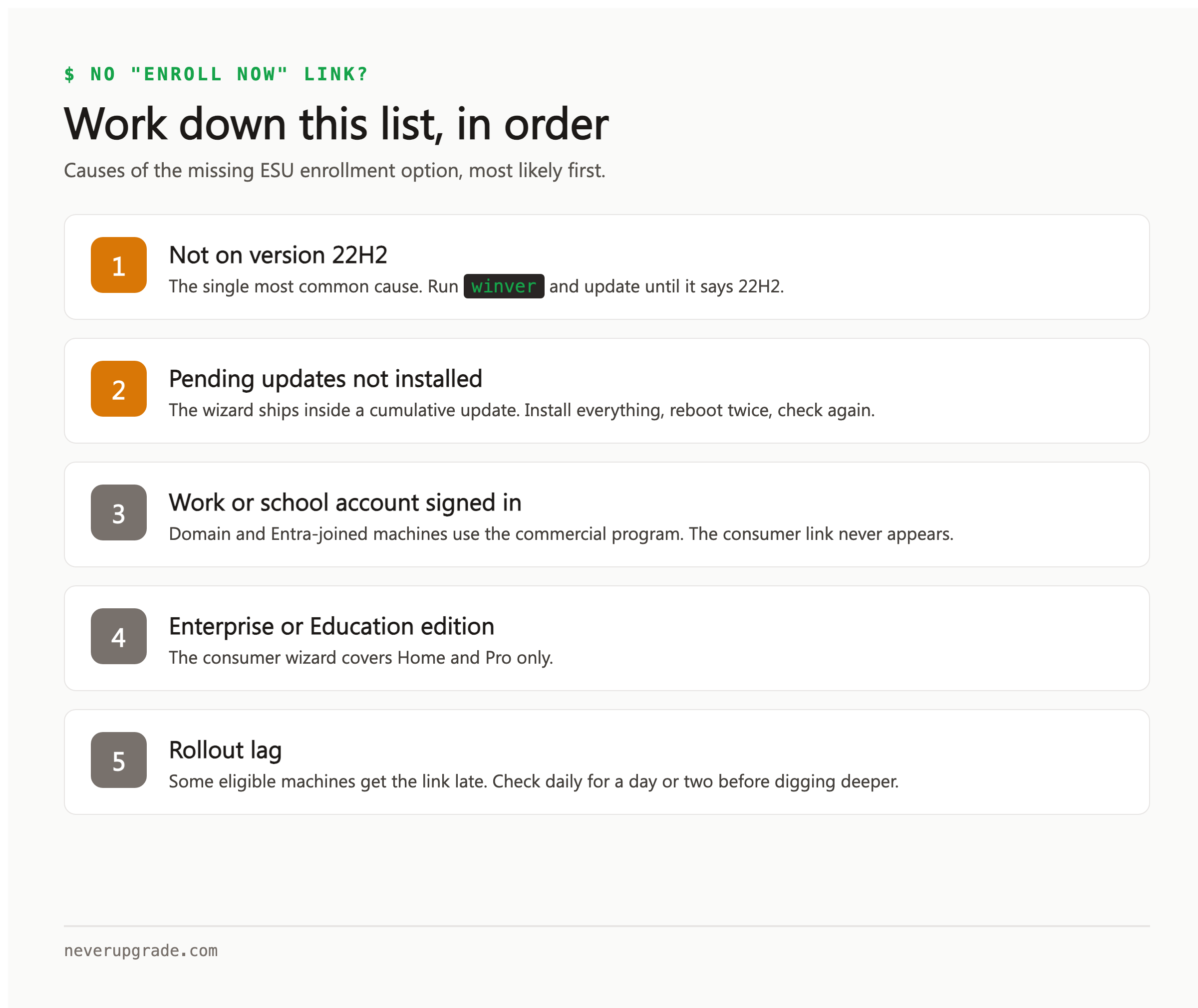
The “Enroll now” link not appearing is the most common failure, and the cause is usually one of these, in order of likelihood:
- Not on 22H2. Check
winveragain. This is the cause more often than anything else. - Pending updates. The enrollment wizard itself ships inside a cumulative update. Install everything pending, reboot twice, check again.
- Signed in with a work or school account. Domain-joined and Entra-joined machines route through the commercial ESU program instead; the consumer link will never appear. Ask whoever manages the domain.
- Edition mismatch. Enterprise and Education editions are commercial-ESU territory. The consumer wizard covers Home and Pro.
- Rollout lag. A small number of eligible machines simply get the link late. Give it a day or two of update checks before assuming anything is broken.
For the “Something went wrong” error inside the wizard: sign out of the Microsoft account in Settings, sign back in, and retry. If it persists, run the Windows Update troubleshooter (Settings > Update & Security > Troubleshoot) and retry once more. The error is almost always account-session or update-cache related, not a real eligibility problem.
How to verify you are actually enrolled
The wizard’s confirmation screen is not the thing to trust. Check twice:
- Windows Update page: after enrollment it reads “You’re enrolled in Extended Security Updates” where the enroll link used to be.
- The patches themselves: after the next Patch Tuesday (second Tuesday of the month), Settings > Update & Security > Windows Update > View update history should show a new cumulative update dated after October 2025. That is the only proof that matters.
If the banner says enrolled but no post-2025 patches ever arrive, re-run the Windows Update troubleshooter and check update history again the following month.
Frequently asked questions
Can I enroll in extended security updates without a Microsoft account?
No. Microsoft requires the account for all three routes, including the paid one. The practical workaround is to sign in once for enrollment and then return to your local account; the updates keep flowing.
Is enrolling in Windows 10 ESU free?
Two of the three routes cost nothing: syncing settings via Windows Backup, or redeeming 1,000 Microsoft Rewards points. The $30 one-time option exists for people who want neither. All three deliver identical updates until October 12, 2027.
I enrolled last year. Do I need to re-enroll for the 2027 extension?
No. When Microsoft extended the program in June 2026, existing enrollments carried over automatically. Confirm with the update-history check above; you should see patches continuing past October 2026 with no action on your part.
NeverUpgrade covers keeping unsupported software alive, safely. If it still works, keep it working, with your eyes open.