So can I use Windows 10 after end of support? Yes, you can. Your PC will not lock, brick, or refuse to boot on any date. What ends is patch delivery from Microsoft. Support technically ended October 14, 2025, but a free consumer ESU program now runs through October 13, 2027, and enterprises can pay through October 2028. The real question is not whether Windows 10 keeps running. It is whether you have the discipline to run it safely once patches stop arriving.
Below: what actually changes on the calendar, what genuinely gets more dangerous, and what a reasonable hardening plan looks like if you stay.
What Actually Stops Working on Windows 10 End of Life Support (Almost Nothing)
Here is the boring truth about Windows 10 end of life support. On the day of expiry, nothing visible happens to your PC. It boots. Your printer prints. Excel opens. Solitaire still runs.
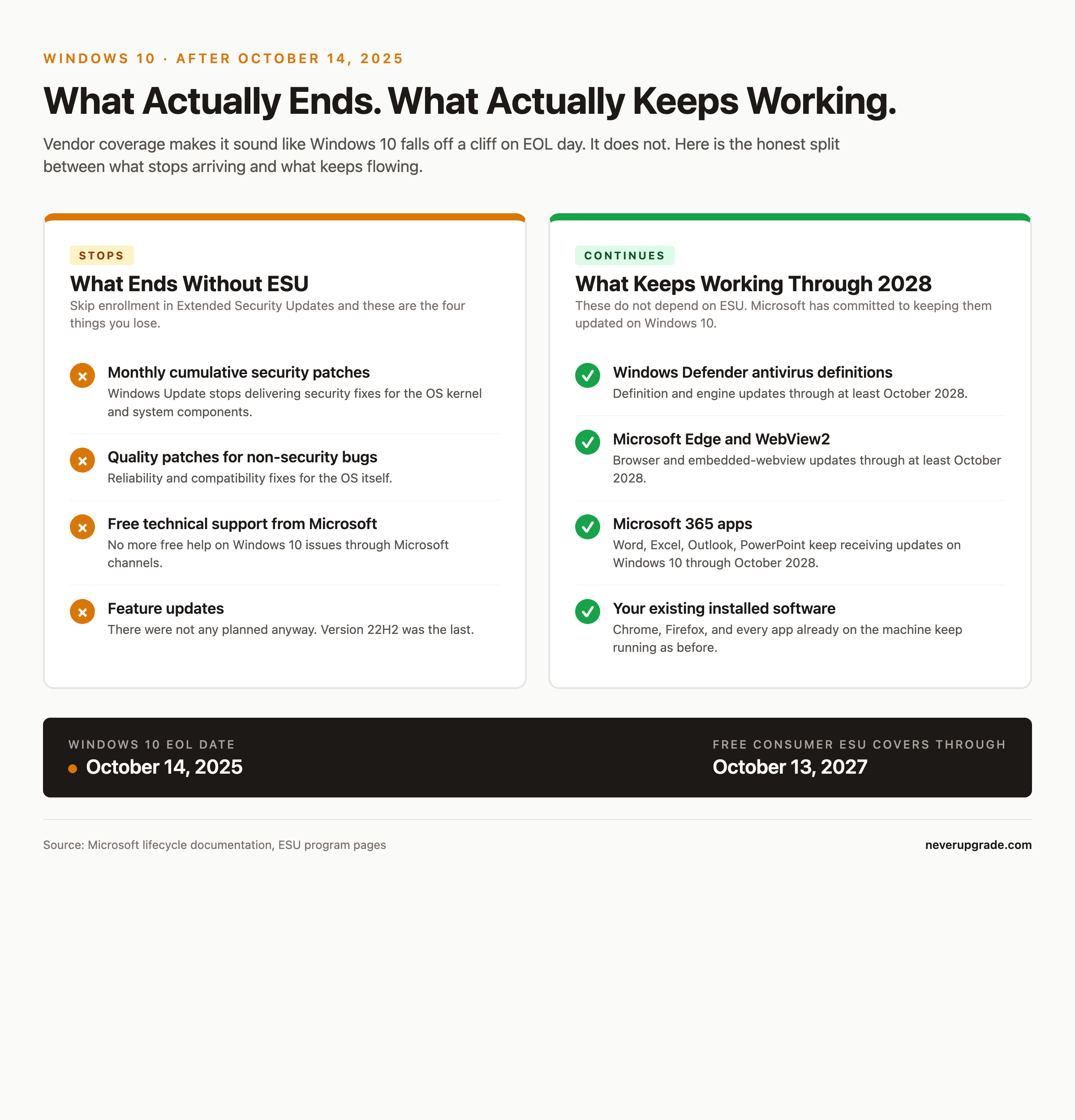
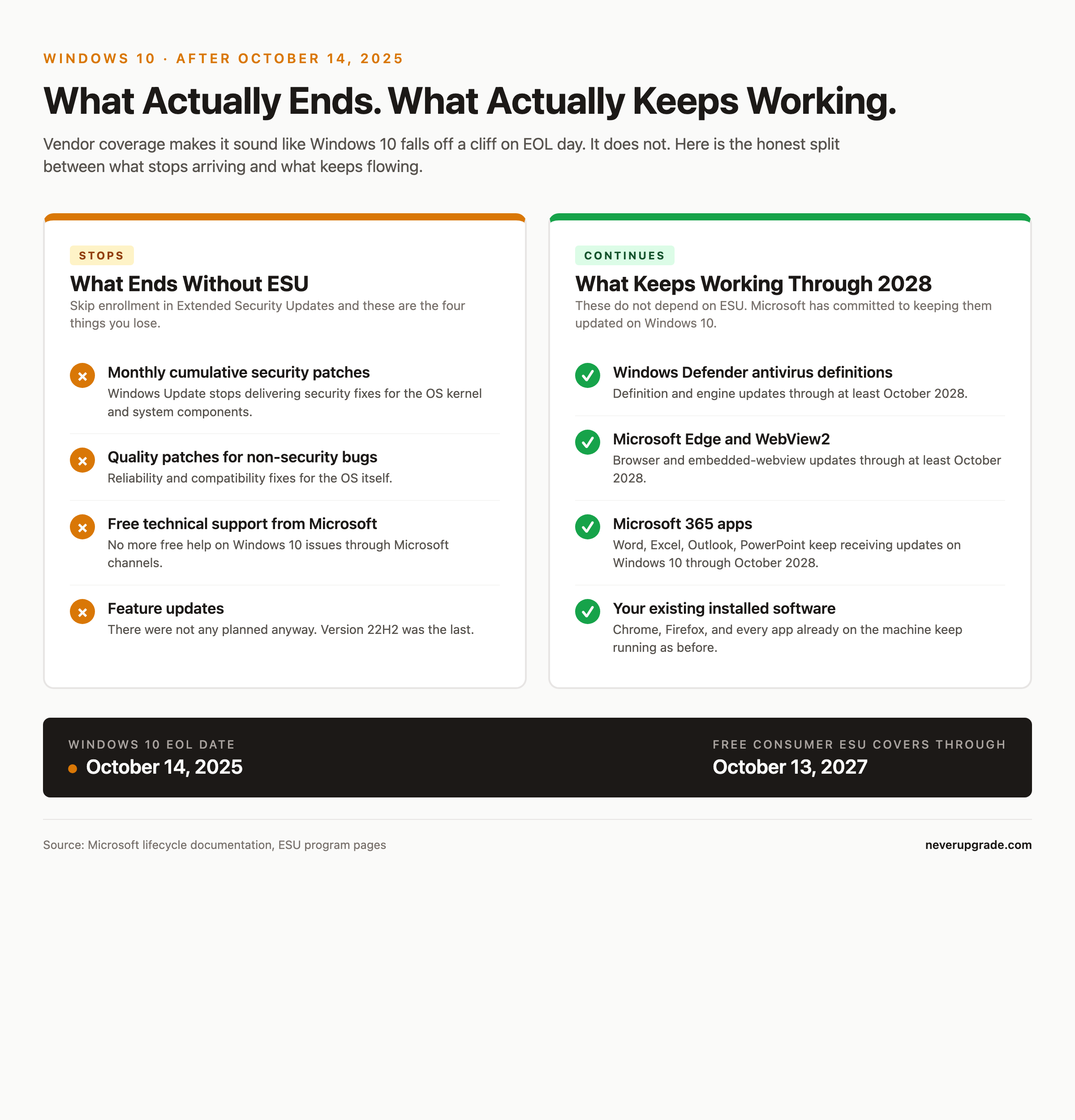
These things did NOT stop on October 14, 2025:
- The kernel does not degrade or slow down.
- Windows Defender antivirus definitions keep flowing through at least October 2028.
- Microsoft Edge and WebView2 continue receiving updates through at least October 2028.
- Microsoft 365 apps got a support extension for Windows 10 machines through October 2028.
- Your existing installed software keeps working exactly as before.
What DID stop (unless you enroll in the free consumer ESU program):
- Monthly cumulative security patches from Windows Update.
- Quality patches for non-security bugs.
- Free technical support from Microsoft.
- Feature updates (there were not any planned anyway).
If you enroll in consumer ESU you also get critical and important security patches through October 13, 2027. Enrollment costs nothing if you sync one folder to OneDrive via Windows Backup, you can trade 1,000 Microsoft Rewards points, or you can pay $30 for the year. Our step-by-step guide walks through how to enroll and what to do if enrollment fails. Enterprise ESU is a different animal: yearly fees that roughly double each year, valid through October 2028.
Real Attack Scenarios Versus Vendor FUD
Every vendor and tech blog wants you to picture a burning laptop the moment support ends. That is not how this works. Post-support risk builds slowly and unevenly. Here is what actually matters.
Real threat: unpatched pre-authentication vulnerabilities in exposed services. Think SMB flaws like EternalBlue, or a future one nobody has named yet. If your Windows 10 box has ports 445 or 3389 reachable from the internet, this is your real problem, patches or no patches. Home routers block these by default. Business machines with weird VPN or RDP setups often do not.
Real threat: browser and browser-plugin flaws. These are the single most common initial access vector on desktop machines. Chrome, Firefox, and Edge all keep updating on Windows 10 for the foreseeable future. Microsoft has committed to Edge and WebView2 updates on Windows 10 through at least October 2028.
Real threat: privilege escalation exploits chained after an initial compromise. If a phishing PDF gets code running as your user, the attacker uses a Windows privilege escalation bug to become SYSTEM. Post-EOL those bugs stop getting fixed unless ESU covers them. This is where a Windows 10 box starts diverging in real risk from a patched Windows 11 box, roughly six to eighteen months after patch delivery ends.
FUD to ignore: “your PC will be immediately targeted the day after EOL.” Attackers do not run a cron job against the Microsoft lifecycle page. They exploit what pays.
FUD to ignore: “you will fail PCI compliance.” If you handle card data on that Windows 10 box, yes you have a problem, but you had it in September too. A good QSA has already flagged this.
Windows 10 Hardening Checklist If You Stay
Before you start: back up. Full drive image to an external disk you disconnect afterward. Every serious change below can be reversed only from a backup.
If you plan to keep running Windows 10 through 2027 and possibly beyond, do these ten things, in order.
- Enroll in the free consumer ESU program if you have not already. Settings > Update & Security > Windows Update > Enroll now. Miss the enrollment window and you are on your own.
- Move your daily account to a Standard User, not Administrator. Create a separate admin account for installs. This one change kills a huge fraction of malware families that assume they will inherit admin rights.
- Turn on Controlled Folder Access under Windows Security > Virus & threat protection > Ransomware protection. It is off by default. It blocks unknown processes from writing to Documents, Pictures, and other user folders.
- Enable BitLocker (Pro editions) or a third-party disk encryption on any laptop. If the machine is stolen, this is what stops your data from walking away.
- Switch DNS to a filtering resolver like Quad9 (9.9.9.9) or NextDNS. This blocks the domains most malware calls home to before the payload even runs.
- Set every browser to auto-update, and remove browser extensions you do not actively use. Extensions are the most-abused software supply chain sitting on your machine.
- Uninstall software you no longer use. Old Java runtimes, Flash remnants, PDF readers other than the built-in Edge one, and any “PC cleaner” utility. Attack surface is the sum of installed software.
- Turn off SMBv1 if it is still enabled. Optional Features > More Windows Features > SMB 1.0/CIFS File Sharing Support. Uncheck it.
- Put backups on a separate device, offline at least weekly, and test a restore of one file every month. Ransomware only wins if your backups are reachable from the compromised machine.
- Subscribe to at least one CVE feed for Windows and your major apps. The NIST NVD RSS feed is free. When something bad drops you want to know within a day, not next quarter.
Do these ten and you have moved a Windows 10 machine from “sitting duck” to “less appealing target than the average patched machine on Comcast.”
When Staying on Windows 10 Is Reasonable, and When It Is Not
Reasonable reasons to stay on Windows 10 end of support 2025 and beyond:
- Your machine cannot pass the Windows 11 TPM 2.0 or CPU requirements and you would rather harden than buy new hardware.
- You run legacy software (older QuickBooks Desktop, industry-specific tools, an older Adobe suite you own outright) that breaks or misbehaves on Windows 11.
- The PC is used only for a single well-defined task. A POS terminal, a shop floor machine driving a CNC, a media PC. You can lock it down accordingly.
- You do casual home use, keep good backups, use a modern browser, and the machine is not touching sensitive data.
Reasons you actually should upgrade or replace:
- The machine handles patient data, card data, or any regulated dataset. Compliance frameworks assume vendor patches are current.
- You use it for online banking or business finance on a shared network, and other people (kids, guests) also use the machine.
- You cannot commit to the ten-item hardening list. Half-done hardening is worse than a straight Windows 11 upgrade because it gives you false confidence.
- The machine is a small business’s only production endpoint and you have no plan for a ransomware event.
There is one case where I will tell you flatly to upgrade: if the machine holds your only copy of important data and you do not run regular offline backups. In that scenario “hardening” is a fantasy and Windows 11 (or a new machine) is the honest answer.
Can I Use Windows 10 After End of Support? A Decision Flowchart
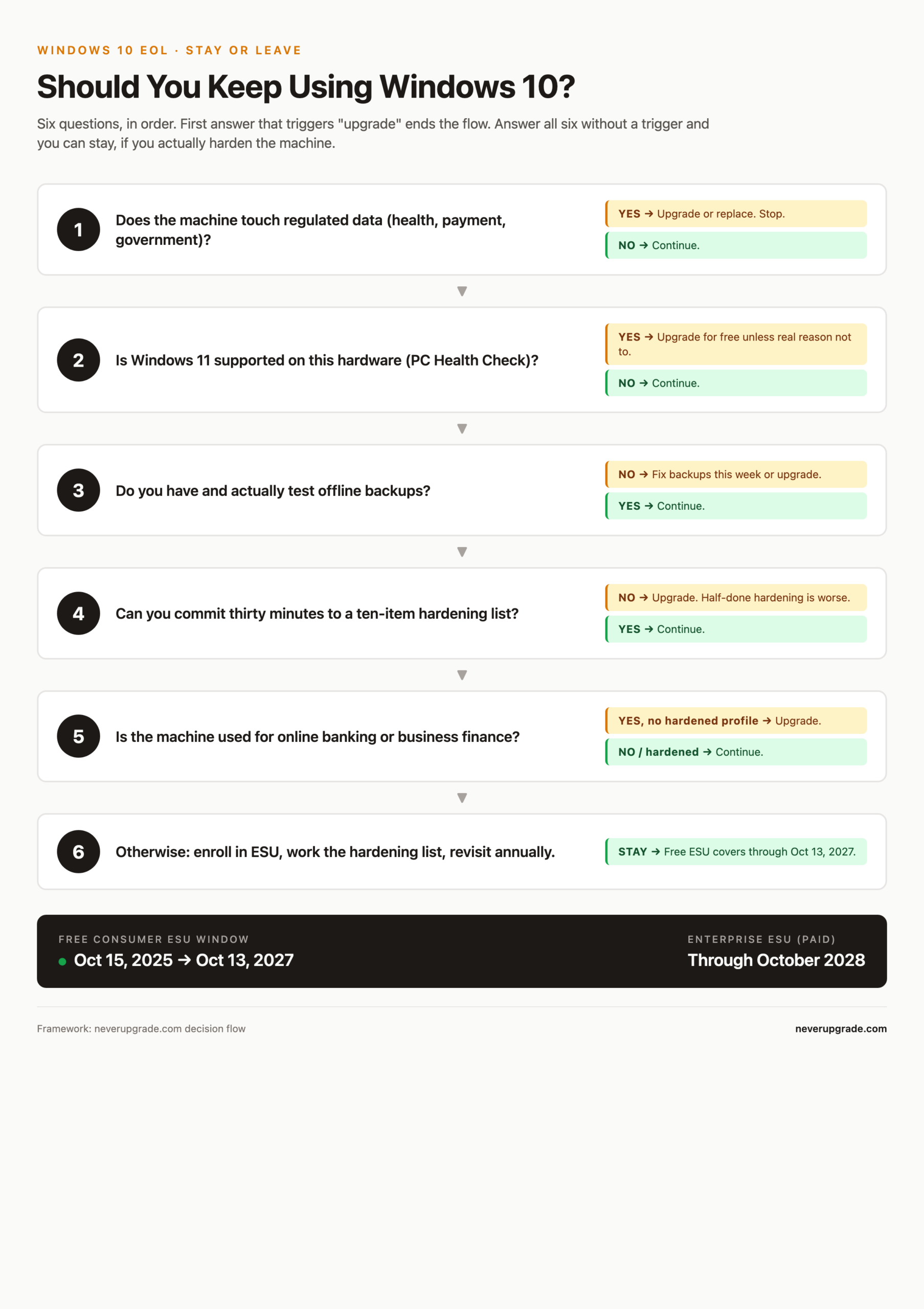
If you want a single decision path, work down this list:
- Does the machine touch regulated data (health, payment, government)? If yes, upgrade or replace. Stop here.
- Is Windows 11 supported on this hardware (run PC Health Check)? If yes, upgrade for free unless you have a real reason not to.
- Do you have and test offline backups? If no, either fix the backup problem this week or upgrade.
- Can you commit thirty minutes to the ten-item hardening list above? If no, upgrade.
- Is the machine used for online banking or business finance? If yes, and you cannot dedicate a separate hardened browser profile plus MFA on every account, upgrade.
- Otherwise, stay. Enroll in ESU. Harden. Revisit the decision when free ESU expires in October 2027.
FAQ
Is it safe to keep using Windows 10 after October 2025?
Safer than most vendors will admit if you enroll in the free ESU program through October 2027 and actually harden the machine. It becomes progressively less safe the longer you skip patches with no compensating controls. “Safe” is a verb, not a state.
Will my Windows 10 PC stop working on any specific date?
No. There is no kill switch. Windows 10 keeps booting and running software indefinitely. The only date-driven change is when your ESU enrollment expires and new security patches stop arriving.
Can I still use Windows 10 in 2028 or later?
Technically yes, and enterprise ESU customers will still be receiving patches through October 2028. For everyone else, you are running an unpatched kernel by late 2027 unless you jump to a paid or third-party patch relay. At that point the hardening list stops being optional and stops being sufficient for anything sensitive.
Bottom Line
You asked can I use Windows 10 after end of support, and the answer is a plain yes if you enroll in ESU, harden the machine, and stop pretending it is 2020. If any part of that sentence sounds like more work than you want to do, upgrade to Windows 11 or replace the hardware. Choose your discipline and stick to it.