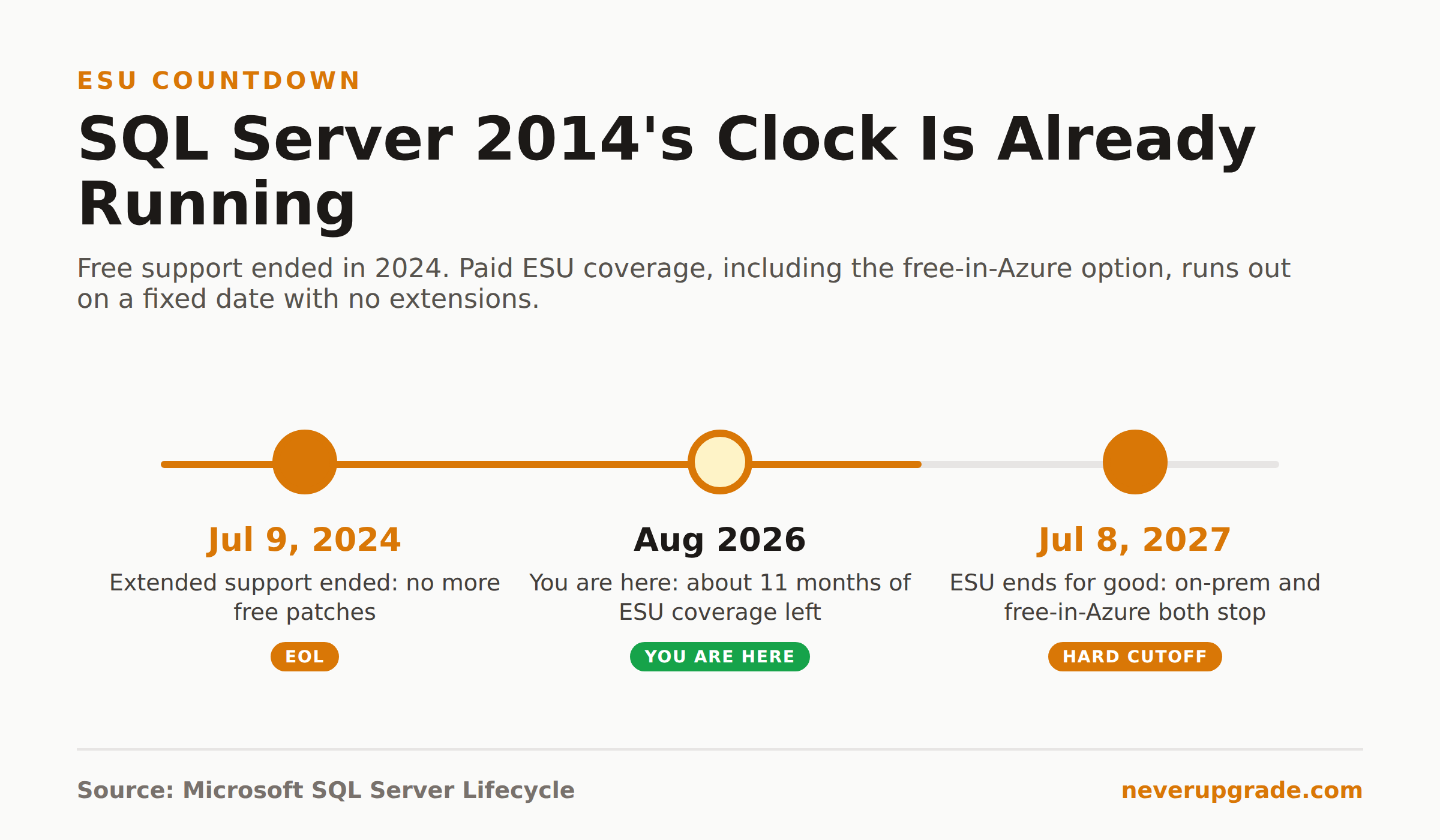
SQL Server 2014 reached the end of extended support on July 9, 2024. Microsoft stopped shipping free security patches, bug fixes, and support tickets for it that day, which means every unpatched instance out there is now running on borrowed time. You have two honest options: pay for Extended Security Updates (ESU) through July 8, 2027, or migrate off it. This article covers both, plus how to do the move without breaking whatever app is bolted to that database.
SQL Server 2014 reached end of support in July 2024
Let’s be precise about what “end of support” actually means, because vendors like to soften the language. As of July 9, 2024, Microsoft no longer:
- Ships security patches for newly discovered vulnerabilities in SQL Server 2014
- Provides bug fixes of any kind
- Accepts support tickets for the product, even if you’re paying for a support plan
That last one surprises people. You can’t call in a favor. If your production database throws an error that support would normally have triaged, you’re on your own unless you’ve bought ESU or moved to Azure.
Here’s the part that should actually worry you: Lansweeper’s telemetry from mid-2026 puts the number of SQL Server installs still running the 2014 release at 17 percent. That’s not a rounding error two years after end of life, that’s a huge chunk of production infrastructure sitting exposed. If you’re one of them, you’re not alone, but “not alone” doesn’t help you when a Critical-rated vulnerability drops and there’s no patch coming to your box.
Also worth knowing: SQL Server 2012 and earlier get nothing. No ESU, no free-in-Azure option, nothing. If you’re still on 2012, skip straight to the upgrade section below, because staying put isn’t actually a choice for you anymore.
The ESU path and the free-in-Azure option
If you can’t migrate before your compliance auditor shows up, ESU buys you time. Here’s what it actually gets you and what it costs.
What ESU includes. Security updates and bulletins rated Critical by the Microsoft Security Response Center, for up to three years past end of support (so through July 8, 2027 for SQL Server 2014). It does not include general bug fixes, feature updates, or unlimited support. Technical support is limited to issues directly tied to an ESU patch itself.
Who’s eligible. Enterprise and Standard editions only, x86 or x64. Express, Web, and Developer editions can’t subscribe on their own (Developer edition gets a pass if you already have ESU on a production instance and you’re using Developer purely for non-production work).
How it’s licensed and billed. ESU is priced per virtual core, with a 4-core minimum per VM, or per physical core if you’re licensing the host. If SQL Server ESU by v-core costs more than covering the whole host by p-core, you can switch to unlimited virtualization at the host level instead. Billing is pay-as-you-go and starts the moment you subscribe, with a one-time bill-back charge to the start of the current ESU term. You need active Software Assurance to buy ESU on-premises at all; Software Assurance itself doesn’t include ESU, it’s a separate subscription on top.
The free option nobody mentions enough. If you deploy SQL Server 2014 on a SQL Server on Azure Virtual Machine, whether that’s a brand-new VM or a lift-and-shift of an existing one, you get ESU coverage for free until ESU availability ends. No Software Assurance requirement, no per-core math. This is the cleanest way to buy three years of breathing room if a full re-platform isn’t realistic right now. The catch: this applies specifically to Azure VMs (IaaS), not to moving the database into a PaaS offering on some other cloud, and it doesn’t extend past the same July 8, 2027 cutoff everyone else gets.
If you don’t have Software Assurance and you’re not willing to move to Azure or connect through Azure Arc, you have no legal path to ESU on-premises. That’s the one case where the honest advice is: stop looking for a workaround and start planning the migration, because there isn’t a cheaper option waiting around the corner.
Upgrade targets: SQL 2019, 2022, or Azure SQL Managed Instance
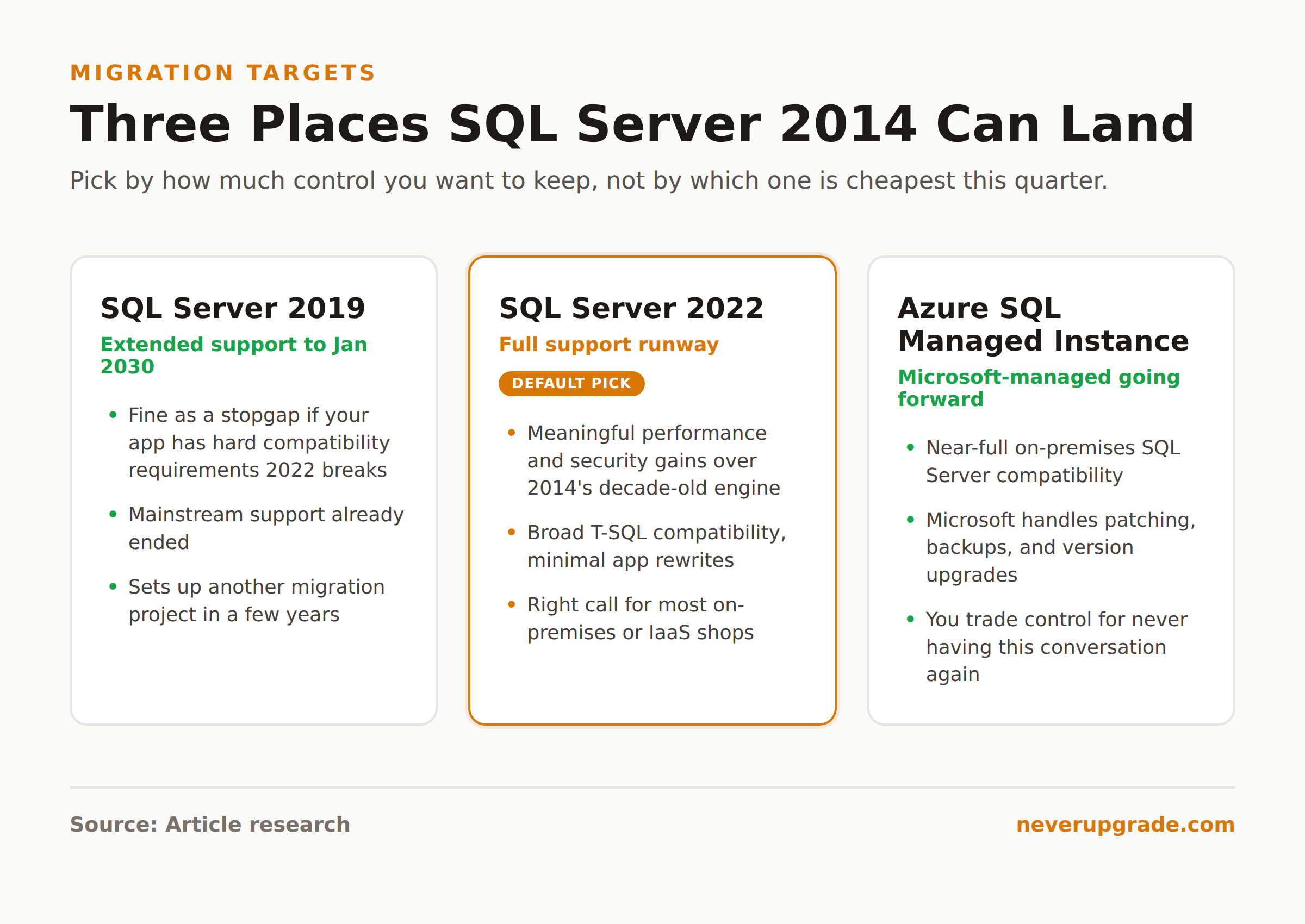
Assuming you’re migrating rather than buying time, you’ve got three realistic landing spots.
SQL Server 2019. Mainstream support already ended; it’s running on extended support until January 2030. Fine as a stopgap if your application has hard compatibility requirements that 2022 breaks, but you’re setting up for another migration project in a few years. Don’t pick this unless you have a specific reason to.
SQL Server 2022. The safe default for most on-premises or IaaS shops. Full support runway, meaningful performance and security improvements over 2014’s decade-old engine, and broad compatibility with existing T-SQL. This is where most 2014 holdouts should land if staying on-premises.
Azure SQL Managed Instance. Near-full compatibility with on-premises SQL Server, but Microsoft handles patching, backups, and version upgrades for you going forward. You trade some control for never having this conversation again. If the appeal of staying on unsupported software was “I don’t want to deal with constant upgrades,” Managed Instance is the closest thing to actually getting that outcome long-term, ironically by moving to the cloud.
Whichever you pick, check compatibility level first. SQL Server 2014 databases run at compatibility level 120. You can restore into 2019 or 2022 and leave the compatibility level where it is initially, which limits how much the query optimizer changes, then step it up once you’ve tested.
Migrating the database without breaking the app
Before you start: back up the database, and verify the backup restores cleanly on a separate test instance before you touch production. This is not optional. A backup you haven’t test-restored is a rumor, not a backup.
- Inventory what’s actually connecting to it. Applications, reporting jobs, linked servers, SSIS packages, anything with a connection string. You cannot migrate what you don’t know exists, and the app nobody remembers is always the one that breaks.
- Run the Data Migration Assistant against your target version. It flags deprecated features, breaking changes, and compatibility issues specific to your databases before you commit to a cutover date.
- Take a full backup and restore it to the target instance, keeping the compatibility level at 120 initially so query behavior doesn’t shift out from under you on day one.
- Point a staging copy of the application at the restored database and run your actual test suite, not just a login check. Legacy line-of-business apps often have hardcoded assumptions about SQL Server behavior that only show up under real usage.
- Bump the compatibility level incrementally (120 to 130, and so on) once staging is stable, testing after each step rather than jumping straight to the target version’s native level.
- Cut over during a maintenance window, with the old 2014 instance left running read-only for a few days as a rollback option before you decommission it.
If the app is old enough that nobody currently on staff wrote it, budget extra time for step 4. That’s where these projects actually go over schedule.
Pairing a SQL move with a Windows Server upgrade
If your SQL Server 2014 instance is sitting on Windows Server 2012 R2 or Windows Server 2016, you’ve got two end-of-support clocks running at once, and it’s worth handling them together instead of twice. Standing up a new VM on current Windows Server hardware and migrating both the OS and the database in one project cuts your total downtime windows in half compared to doing them as separate initiatives six months apart. We’ve covered the Windows Server side of this in detail, including what actually changed in Windows Server 2019 end of life and the current Windows Server 2016 end of life timeline, if you’re weighing which OS version to land the new database on.
If your SQL Server box doubles as a mail-adjacent app server or you’re running Exchange nearby on the same aging hardware refresh cycle, the same logic applies there too, and it’s worth reading in parallel rather than treating each product’s end-of-life date as an isolated fire drill.
FAQ
Is SQL Server 2014 still supported in 2026?
No, not by default. Mainstream and extended support both ended July 9, 2024. The only way to get security patches now is an ESU subscription (available through July 8, 2027) or running the instance on an Azure VM, where ESU is included for free.
Can I get security updates for SQL Server 2014 without paying for ESU?
Yes, one way: deploy or migrate the instance to a SQL Server on Azure Virtual Machine. ESU coverage is included at no extra charge until ESU availability ends for SQL Server 2014. On-premises, there’s no free option; you need Software Assurance to buy ESU.
Can I upgrade SQL Server 2014 directly to SQL Server 2022?
Yes, direct in-place and side-by-side upgrades to SQL Server 2022 are supported from 2014. Run the Data Migration Assistant first to catch breaking changes, and expect to step the database compatibility level up gradually after the restore rather than jumping straight to 160.
Either way, the clock that matters is July 8, 2027. That’s when ESU coverage for SQL Server 2014 stops entirely, free-in-Azure included. Pick your path before then, not after.