Windows Server 2012 disk cleanup gets riskier once the OS is out of support: you cannot trust a “just reinstall it” recovery plan if a cleanup script goes wrong, so every step needs to be reversible before you run it. This guide covers the built-in tools that still work, the folders you can safely empty, and the ones that will take your file server down if you touch them.
Before you start: back up the server, or at minimum snapshot the VM (if it is virtualized) and export a full System State backup with wbadmin. Disk cleanup on a box you cannot easily rebuild is not the place to skip this. If your recovery plan is “reinstall Server 2012 from media,” you probably do not have media that still activates, so back up like this server is irreplaceable, because at this point it basically is.
Why disk cleanup is riskier on an unsupported server
On a server still under Microsoft support, a botched cleanup is annoying: you open a case, you get a hotfix, you move on. Server 2012 went end of life in October 2023, and Server 2012 R2 followed it in October 2023 as well (same date, different SKU). No hotfixes are coming for either one anymore, extended security updates aside.
That changes the math on every “just delete it” answer you find on forums. A corrupted WinSxS store on a supported OS gets fixed with a DISM command that pulls a repair source from Windows Update. On an unsupported OS, that repair source may not exist anymore, or the update catalog behind it has been pruned. You are cleaning a filesystem with no safety net underneath it.
I have seen an admin nuke C:\Windows\Temp on a live file server with a batch script that did not check for open handles first. Print spooler locked half the files, the script errored out mid-delete, and the print service would not restart until the box was rebooted at 2 AM. None of the deleted files mattered. The 40 minutes of downtime did.
Safe built-in cleanup tools that still work on Server 2012
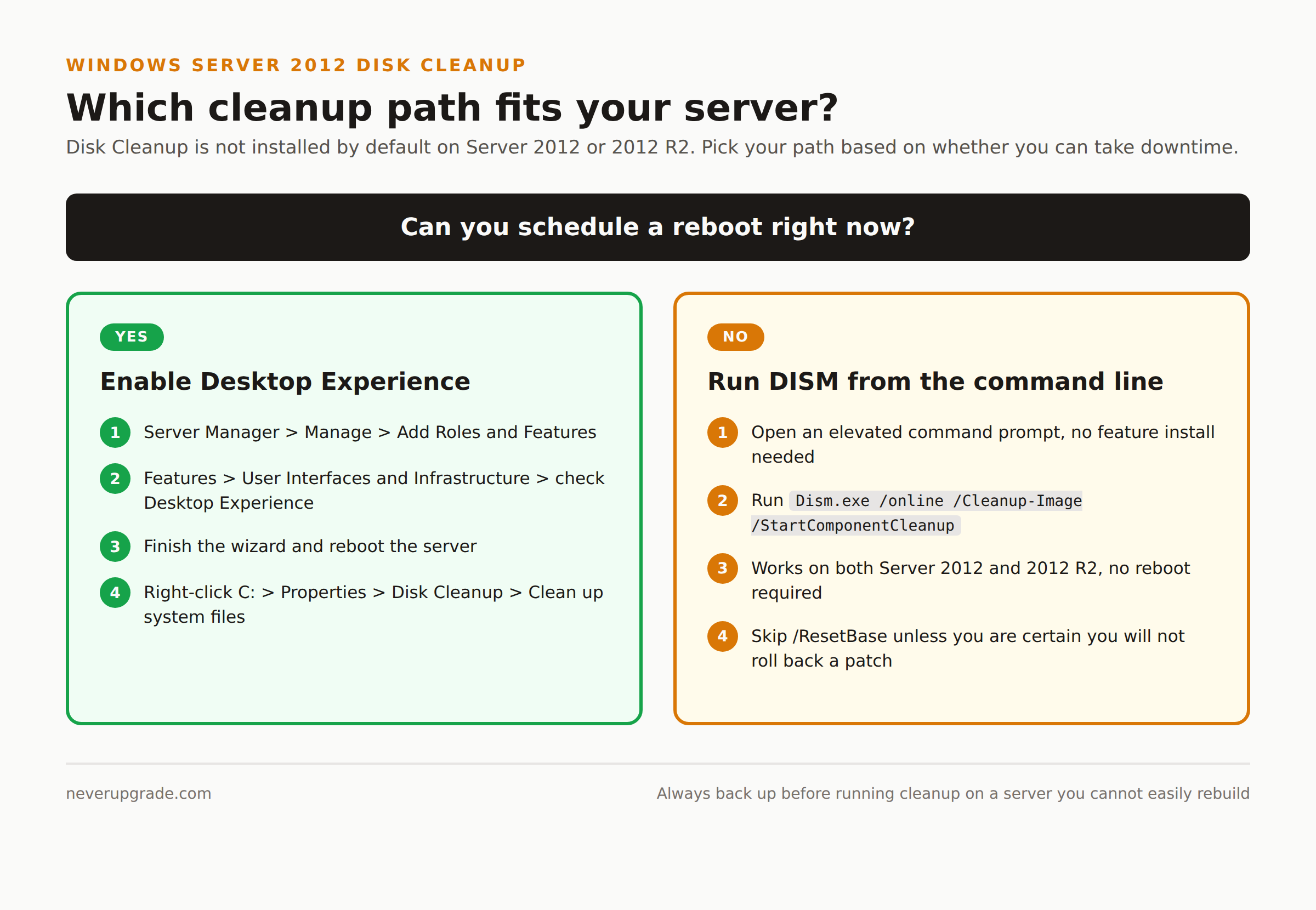
Disk Cleanup (cleanmgr.exe) is not installed by default on Server 2012 or 2012 R2. It ships as part of the Desktop Experience feature, and Microsoft’s own documentation confirms it is missing from a default install of both versions.
To enable it:
- Open Server Manager and go to Manage > Add Roles and Features.
- Click through to the Features page.
- Expand User Interfaces and Infrastructure, check Desktop Experience, and accept the dependent features it pulls in.
- Finish the wizard and reboot. This is a real reboot with real downtime on a production server, so schedule it.
- After reboot, right-click the C: drive in File Explorer, choose Properties, and click Disk Cleanup. Use Clean up system files to get the deeper options, including old Windows Update files.
If you cannot take a reboot right now, or Desktop Experience is not something you want running on a server (it adds a GUI shell and extra attack surface you may not need), you have a command-line option that does not require a feature install: DISM with /StartComponentCleanup.
Dism.exe /online /Cleanup-Image /StartComponentCleanup
This works on both Server 2012 and Server 2012 R2 without touching Desktop Experience, and it is the closer tool to answer “how do I free up disk space on Windows Server 2012” without a reboot. Two flags are worth knowing about, because they are not both available everywhere:
/ResetBaseand/AnalyzeComponentStoreare 2012 R2 additions, not present on the original 2012 release./ResetBaseremoves superseded versions of components permanently, which also means you lose the ability to uninstall any Windows Updates currently installed. Do not run it on a server where you might need to roll back a patch.- Plain
/StartComponentCleanup(no flags) is the safer default on both versions. It clears out superseded components while keeping one prior version around for rollback.
What NOT to delete on a legacy production server
A few folders show up constantly in “free up disk space” guides that do not belong on this list for an unsupported production box:
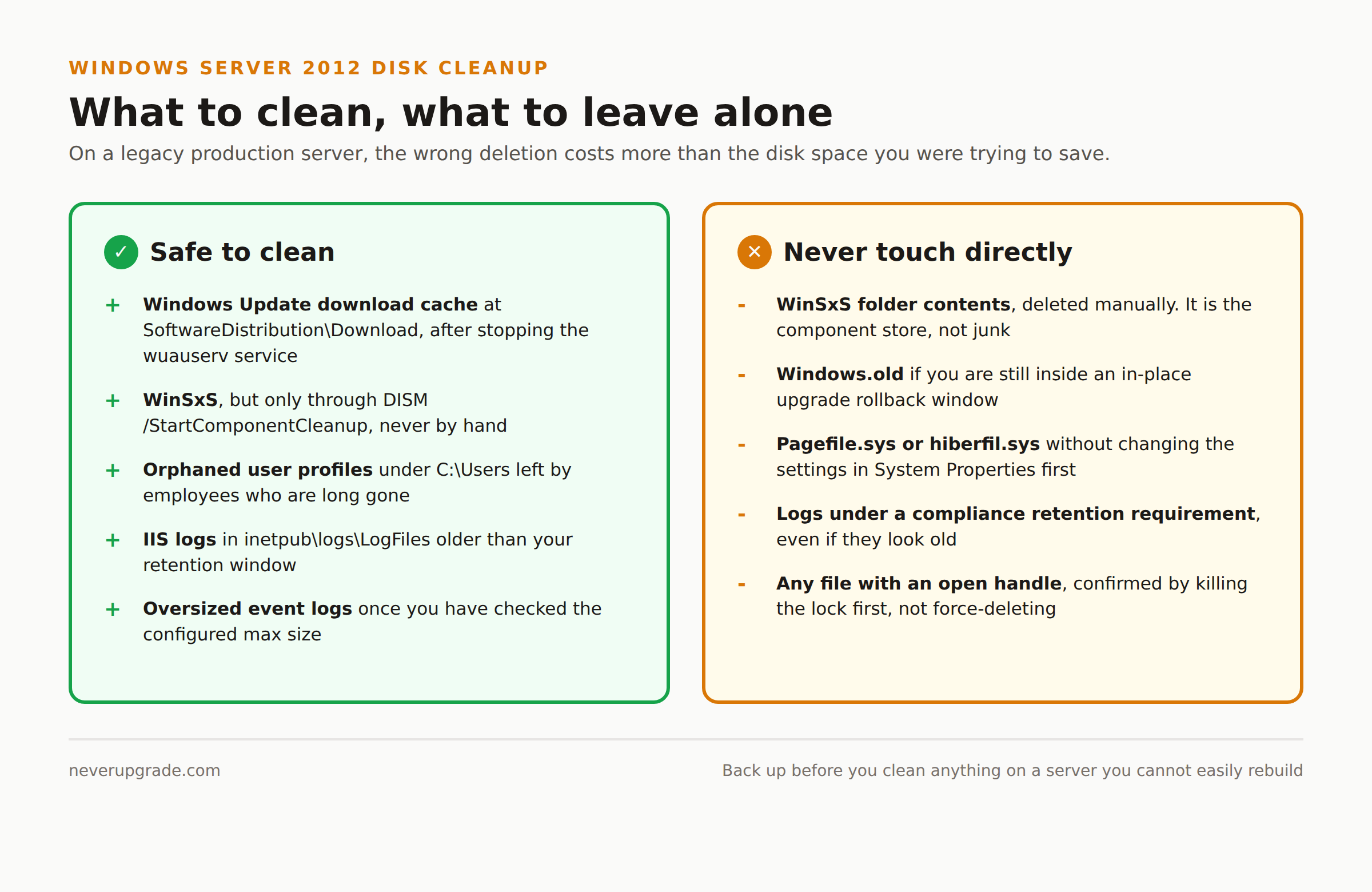
- WinSxS itself. Do not delete files inside it manually, ever, on any Windows version. It is not a junk folder, it is the component store that Windows Update and repair operations depend on. Use DISM, not File Explorer.
- Any
.oldorWindows.oldfolder from an in-place upgrade you might still need to roll back from. If someone attempted a Server 2012 to 2012 R2 in-place upgrade and it is still within the rollback window, that folder is your undo button. - Pagefile.sys and hiberfil.sys, unless you know exactly why you are resizing them and have adjusted the settings in System Properties first rather than just deleting the file.
- Anything in
inetpub\logsor an application’s own log directory if you are under a compliance retention requirement. Legacy line-of-business software on Server 2012 often has audit obligations nobody remembers until an auditor asks for six months of logs that got cleaned up last Tuesday.
Manual cleanup targets: logs, WinSxS, temp profiles, old updates
Once the safe tools are exhausted and you are still short on space, these are the manual targets worth checking, roughly in order of how much space they typically return:
- Windows Update download cache at
C:\Windows\SoftwareDistribution\Download. Stop the Windows Update service first (net stop wuauserv), clear the contents of the Download folder, then restart the service. This is safe because it only holds already-installed update packages, not the update history itself. - WinSxS, cleaned through DISM as described above, never by hand.
- Orphaned user profile folders under
C:\Usersleft behind by employees who left years ago. CheckC:\Users\<name>\NTUSER.DATis not locked (log the account out first) before removing a profile, and confirm with whoever owns the file server that nobody still maps a drive to that profile’s redirected folders. - IIS and application logs older than your retention window, once you have confirmed there is no retention requirement (see above).
C:\inetpub\logs\LogFilesis the usual home for IIS. - Event log files if
%SystemRoot%\System32\winevt\Logshas ballooned past its configured max size and old logs are sitting around uncompressed. Check the max size setting in Event Viewer before assuming this is a real problem versus a normal rotation.
None of this is glamorous work, but it is the actual job on a server nobody has budget to replace yet.
When to stop cleaning and start planning migration
Cleanup buys you time, not a permanent fix. If you are hitting the same disk pressure every three or four months, that is the server telling you something a cleanup script cannot solve: the volume is undersized for the workload it is running now, not the workload it was sized for in 2013.
The honest answer at that point is a storage expansion (extend the VHDX, add a disk, extend the volume) or a migration off Server 2012 entirely. If security exposure is also a factor for this box (internet-facing, handles customer data, or subject to any compliance framework), that tips the decision further toward migration over another round of cleanup. We cover which migration path makes sense for which situation, and the actual pain each one involves, in our guide to Windows Server 2012 migration paths ranked by pain. If you are trying to figure out how much runway you realistically have left on 2012 R2 before that decision gets made for you, see our Windows Server 2012 R2 end of life survival plan.
FAQ
Does Windows Server 2012 have a built-in Disk Cleanup tool?
Not by default. Disk Cleanup (cleanmgr.exe) ships as part of the Desktop Experience feature, which is not installed on a standard Server 2012 or 2012 R2 setup. You either install Desktop Experience (requires a reboot) or use DISM’s /StartComponentCleanup from the command line instead.
Is Disk Cleanup the same thing as defragmenting a drive?
No. Disk Cleanup removes unnecessary files (temp files, old update packages, recycle bin contents) to free up space. Defragmentation reorganizes how existing files are laid out on a mechanical disk to speed up reads. They solve different problems, and defrag is largely irrelevant on SSD or SAN-backed storage anyway.
Why does Disk Cleanup show a “system files” option that needs an extra click?
The basic Disk Cleanup view only scans user-level temp files. Clicking Clean up system files re-scans with admin privileges and exposes the larger categories, most importantly old Windows Update packages, which is usually where the real space is hiding.
A word of caution: none of this replaces monitoring. If you are cleaning this same drive every quarter, set up a free disk space alert now so you are not finding out about the next crunch from an application error at 3 AM.