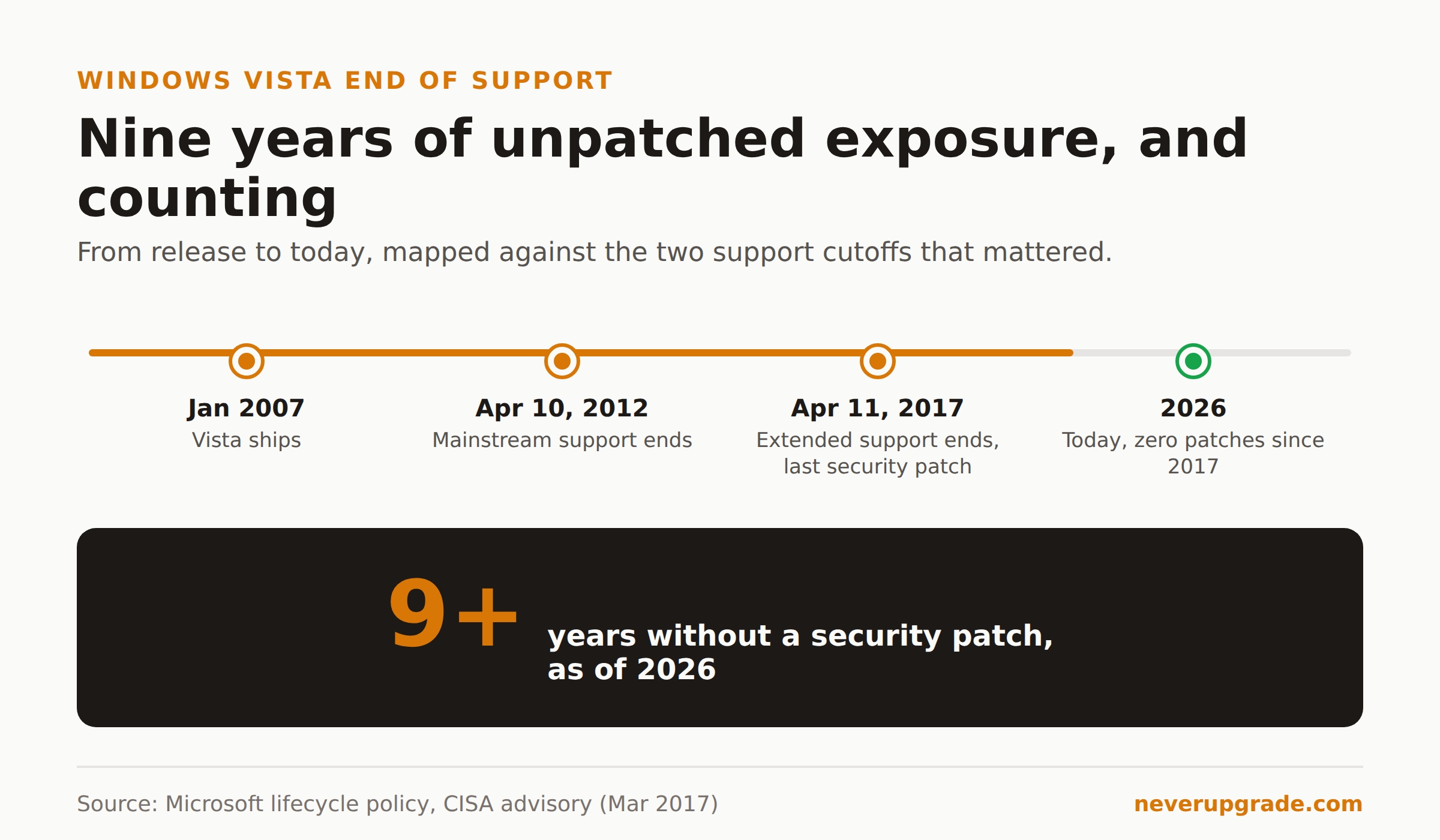
Windows Vista’s extended support ended on April 11, 2017, according to Microsoft’s own lifecycle notice and a CISA advisory published the same month. That means any Vista machine still online today has gone more than nine years without a security patch. No, it is not safe to put a Vista box on the internet in 2026, but “not safe” and “must be destroyed today” are different questions, and this guide is about the second one.
How long Vista has actually been unpatched
Vista shipped in January 2007. Mainstream support ended April 10, 2012. Extended support, the phase where Microsoft still ships security-only fixes, ended April 11, 2017. Do the math and you get nine years and change of zero patches for an operating system that was already showing its age when support stopped.
Compare that to Windows 7, which lost support in January 2020. We wrote a whole guide on running that safely, and even that machine has a five-year head start on Vista in terms of exposure. Vista is a different animal. It predates a full decade of Windows security architecture: no Credential Guard, no modern SmartScreen, a Defender build so old it barely resembles what ships today.
One footnote worth knowing if you’re the sysadmin who has to explain this to a boss: the underlying Vista/Server 2008 kernel branch had one last vendor lifeline through Microsoft’s Premium Assurance program for Server 2008, and that finally closed in January 2026. So even the last, most expensive, most enterprise-only extension of this codebase is now gone. There is no phone number to call anymore.
The real exposure of a 2007-era OS
Here’s the part vendors don’t spell out clearly: it’s not just that Vista stopped getting patches for new vulnerabilities. It’s that the vulnerability research community kept finding holes in Windows for years afterward, and a lot of those flaws exist in code Vista shares with later versions. SMB, RDP, the print spooler, the TCP/IP stack: all of these have had serious, wormable bugs disclosed since 2017, and Vista will never see a fix for any of them because Microsoft isn’t writing one.
Practically, that means:
- Network-facing services are the biggest risk. File sharing, RDP, and any exposed web server on a Vista box are the paths ransomware operators actually use to get in.
- Browsers are a lost cause. Chrome dropped Vista support years ago; Firefox’s last Vista-compatible build is stuck on an old release line with its own pile of unpatched CVEs. There is no safe way to browse the open web from Vista.
- USB and removable media are still a vector. Autorun-style malware from the Vista era never really died, it just moved to less-monitored machines. A Vista box is exactly the kind of less-monitored machine it’s looking for.
None of this means the machine is a ticking bomb sitting in a closet. It means the moment it touches a network or a browser, the odds shift hard against you.
What still runs on it, and why some machines never got replaced
We hear from readers running Vista for one of three reasons, and none of them are “I forgot to upgrade”:
- A CNC machine, medical device, or lab instrument whose control software was certified against Vista and never recertified. Recertification can cost more than the equipment.
- A single legacy application (often accounting, payroll, or a proprietary industry tool) with a hard dependency on a Vista-only driver or a 16-bit installer that won’t run on anything newer.
- A machine nobody remembered was still plugged in. This one is more common than IT departments like to admit. If you’re not sure whether you have one, walk your network closet and check for anything with a green Aero taskbar.
If your Vista box falls into category three, the fix is simple: unplug it, image the drive if you need the data, and move on. Categories one and two are where the isolation checklist below actually matters.
Isolation checklist if you cannot retire the machine yet
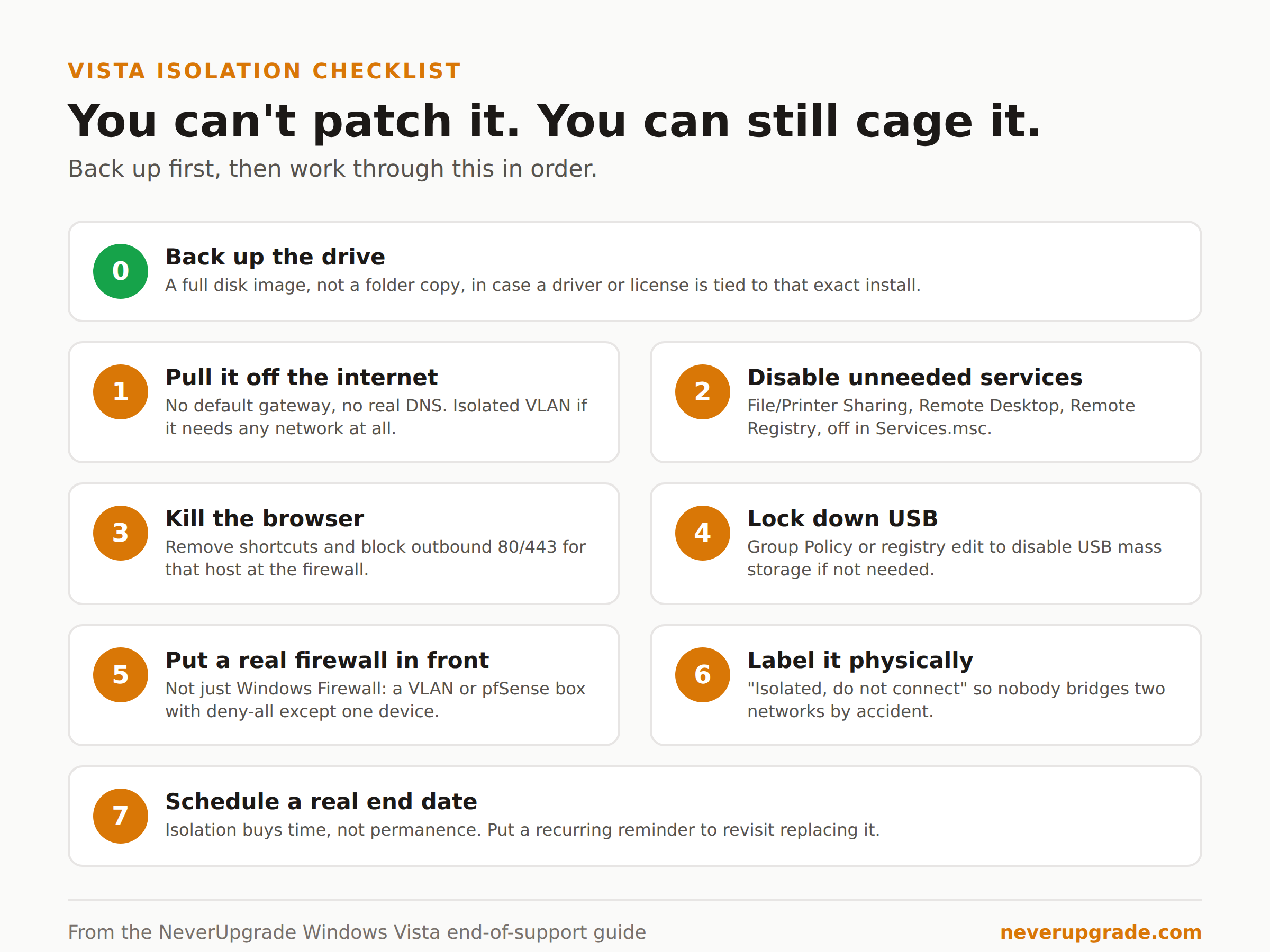
Before you touch anything: back up the drive. A full disk image, not just a folder copy, because you may need to restore the exact environment later if a driver or license key is tied to that install.
Once you’ve got a backup, work through this in order:
- Pull it off the internet entirely. No default gateway, no DNS pointing anywhere real. If the application needs a network at all, put it on an isolated VLAN with no route out.
- Disable every service you don’t need. File and Printer Sharing, Remote Desktop, Remote Registry: turn all of it off in Services.msc. The fewer listening ports, the fewer ways in.
- Kill the browser, permanently. Remove shortcuts, block outbound port 80/443 for that host at the firewall, and if anyone needs to look something up, they use a different machine.
- Lock down USB. Group Policy or a registry edit to disable USB mass storage if the machine doesn’t need removable media for its actual job.
- Put a real firewall in front of it, not just Windows Firewall. A cheap pfSense box or a managed switch VLAN with a deny-all rule to anything except the one device it needs to talk to.
- Physically label it. “Isolated Vista machine, do not connect to network” sounds obvious until someone plugs in a laptop to grab a file and bridges two networks by accident.
- Schedule a real end date. Isolation buys time, not permanence. Put a recurring reminder on the calendar to revisit whether the hardware or software can finally be replaced.
If you’re running this alongside a legacy NAS or an old Windows Server 2008 R2 box, the same isolation playbook applies, and honestly the two problems usually show up in the same building.
When a Vista box genuinely needs to go
Isolation is a mitigation, not a solution, and there are cases where it isn’t enough:
- It’s reachable from the internet, directly or through port forwarding. No isolation checklist fixes that; the machine has to come off Vista or come off the network, full stop.
- It holds customer data, payment information, or anything covered by a compliance regime (HIPAA, PCI-DSS, state breach notification laws). Regulators do not accept “we isolated it” as a defense after a breach, and your cyber insurance policy may not either.
- It’s the only copy of something irreplaceable. If the machine dies, whatever it does dies with it. That’s a business continuity problem independent of security, and it means you need a migration plan regardless of how well you’ve locked the thing down.
- The hardware itself is failing. Vista-era machines are now 15 to 19 years old. Capacitors age out, hard drives die, and when this one goes, you won’t be able to buy a replacement built for the same OS. Plan the migration before the hardware forces your hand.
If any of those apply, the honest move is to start planning the replacement now, isolation checklist or not. That’s the one case where staying put is actually the riskier bet, and we’d rather tell you that than sell you a false sense of security.
FAQ
When did Windows Vista end of support actually happen?
Mainstream support ended April 10, 2012. Extended support, which included security patches, ended April 11, 2017. Both dates come from Microsoft’s own lifecycle policy and were confirmed publicly by CISA at the time.
Can I still get security updates for Windows Vista in 2026?
No. There is no official channel, paid or free, for new Vista security patches. Third-party micropatching services that cover some newer end-of-life Windows versions do not extend back to Vista.
Is it safe to browse the internet on a Windows Vista machine?
No. Every major browser has either dropped Vista support outright or is stuck on an old, unpatched release branch. If the machine needs to stay in service, keep it off the open web entirely and isolated per the checklist above.
If you’re managing a mixed fleet of unsupported systems, our honest risk assessment for Windows 10 after end of support walks through the same isolate-or-retire decision for a much more common case.