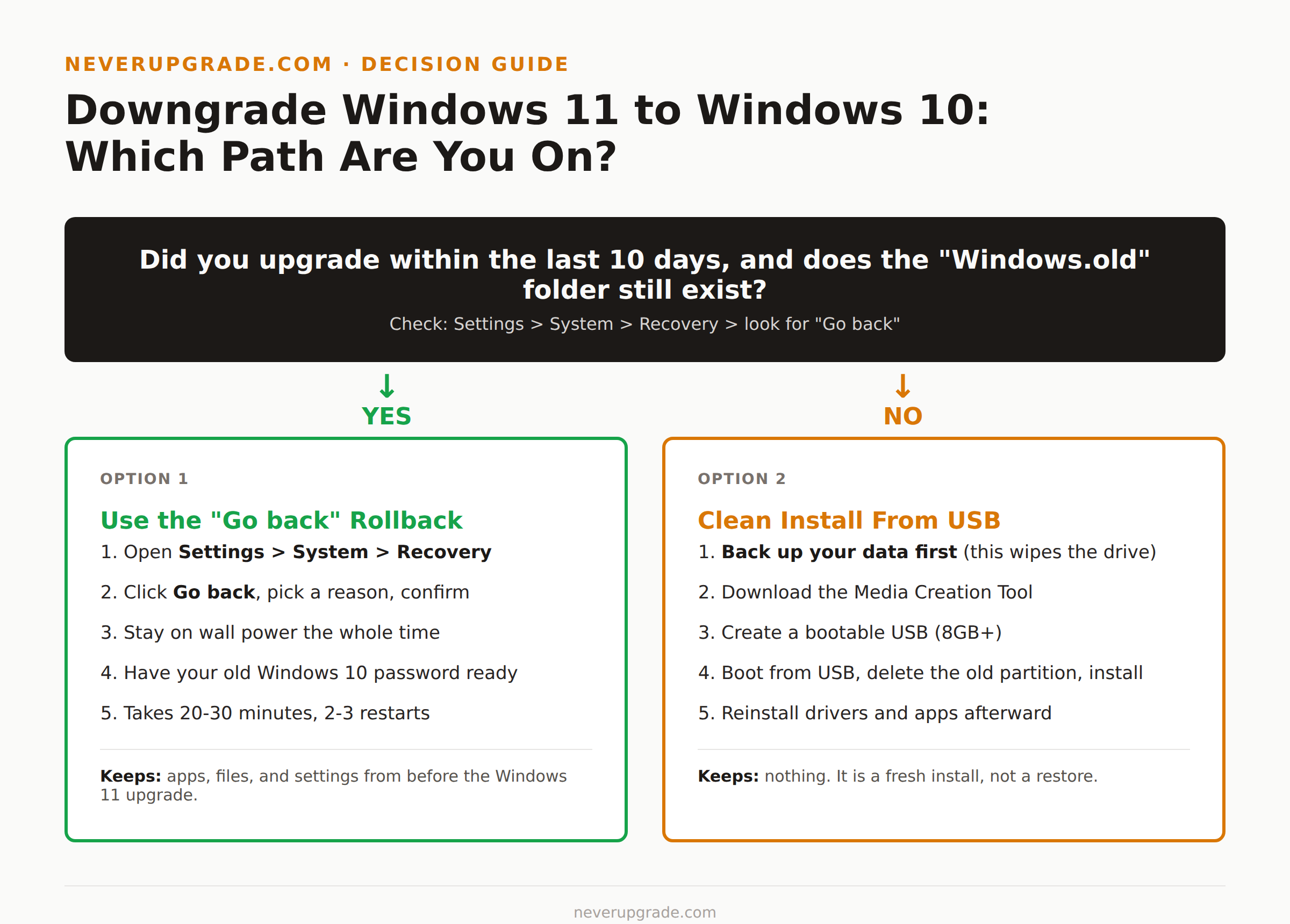
If Windows 11 landed on your machine and you want it gone, you have two paths: the built-in “Go back” rollback, which only works for 10 days after the upgrade, or a clean install from a Windows 10 ISO, which works anytime but wipes the drive. Which one you get depends entirely on whether that 10-day clock has already run out.
Check it first. Open Settings, go to System, then Recovery. If you see a “Go back” option under Recovery options, you’re still inside the window. If it’s missing, you’re doing a clean install. No use reading the wrong half of this guide.
Option 1: The 10-Day Rollback Window
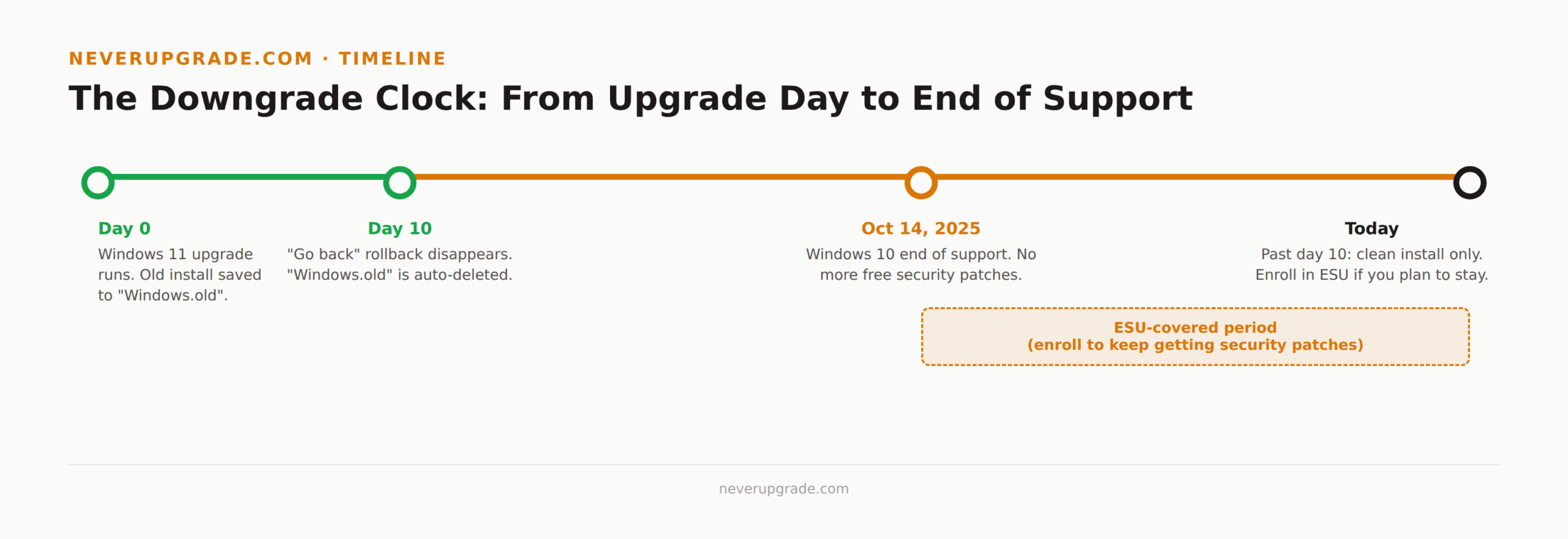
When Windows Update pushes Windows 11 onto a machine (or you click through the “recommended” upgrade prompt), it doesn’t delete your old Windows 10 installation. It moves it into a folder called Windows.old and keeps it there for exactly 10 days. During that window, Windows offers a genuine undo button, not a reinstall, an undo.
Here’s how to use it:
- Open Settings > System > Recovery.
- Under Recovery options, find Go back. If it’s grayed out or missing, the window has closed, skip to Option 2.
- Click Go back, pick a reason (Microsoft asks, it doesn’t matter which you choose), and confirm.
- Leave the machine on wall power. This is not optional. A rollback that loses power partway through can leave you with a system that boots into neither version cleanly.
- The machine restarts two or three times. Budget 20-30 minutes.
- You’ll need to know your Windows 10 sign-in password from before the upgrade. If you don’t remember it, sort that out before you start, not mid-rollback.
What you keep: apps, files, and settings from before the Windows 11 upgrade, in most cases. What you lose: anything you installed or changed after the upgrade to Windows 11. That 10-day-old browser extension or that driver update you applied last Tuesday, gone.
One gotcha that trips people up: if you manually deleted Windows.old to free up disk space, the rollback option disappears immediately, even if you’re still inside the 10-day window. Windows can’t restore what you deleted.
Option 2: Clean Install After the Window Closes
Past 10 days, or Windows.old is gone, there’s no undo button. You’re doing a clean installation, which means wiping the target drive and starting fresh. This is the same process whether you’re on day 11 or day 400.
Before you start: back up your data. A clean install formats the partition. Copy everything you care about to an external drive or cloud storage first. Don’t trust yourself to remember “just the important stuff” at 11pm, back up the whole user folder.
- On a working computer, go to the official Microsoft Windows 10 download page and download the Media Creation Tool.
- Run it, choose Create installation media for another PC, and select ISO file or USB. A USB flash drive of at least 8GB is the simpler option, it boots directly.
- Plug the USB into the machine you’re downgrading and restart it.
- Interrupt the boot sequence to reach the boot menu (the key varies by manufacturer, commonly F12, F2, Esc, or Delete) and select the USB drive.
- Follow the Windows 10 setup prompts. When you reach partition selection, delete the existing Windows partition and let setup create a fresh one. This is the step that erases everything, so confirm your backup is actually complete before you click through it.
- After installation, you’ll need a valid Windows 10 product key or a digital license tied to your Microsoft account. If your machine originally shipped with Windows 10, the license is usually stored in firmware and activates automatically once you’re online.
- Reinstall drivers for anything that doesn’t work out of the box, network adapters and audio are the usual suspects on older hardware. Check the manufacturer’s support page for your exact model rather than relying on Windows Update to find everything.
Expect to lose all apps and settings with this method. It’s a fresh Windows 10 install, not a restore.
Backing Up Before You Roll Back
Whichever path you’re on, do this first:
- Files: copy your user folders (Documents, Desktop, Pictures) to an external drive or cloud storage. Don’t rely on OneDrive sync alone if you’re about to wipe the drive it’s syncing from.
- App license keys: some older software ties licenses to installation state. Note down license keys for anything you’ll need to reinstall.
- Browser data: export bookmarks or confirm your browser account sync is current, since profiles don’t survive a clean install.
- A full system image, if you have the disk space, using Windows Backup and Restore or third-party disk cloning tools. This is the only method that gets you back to exactly where you were, apps included, if the downgrade goes sideways.
Ten minutes of backup work beats a weekend of reconstructing a QuickBooks install from memory. I’ve watched someone lose a client’s accounting file this way, it was recoverable, but it cost a day nobody had.
Keeping Windows 10 Patched With ESU After You Return
Here’s the part most downgrade guides skip: Windows 10 hit end of support on October 14, 2025. Rolling back doesn’t roll back that date. The moment you’re back on Windows 10, you’re running an unsupported OS unless you enroll in Extended Security Updates.
ESU gets you critical and important security patches on a paid (or in some cases free) basis for a defined period after end of support. It does not restore feature updates, general bug fixes, or Microsoft support tickets, security patches only. If you downgraded for compatibility reasons and plan to stay on Windows 10 for more than a few weeks, enroll before you disconnect the safety net that mainstream support used to provide.
We’ve covered enrollment step by step, including the free options, in our Windows 10 ESU enrollment guide.
Stopping the Forced Upgrade From Happening Again
If Windows 11 showed up without you asking for it, that’s Windows Update doing its job as configured, not a bug. Stop it from happening again:
- Pause the specific upgrade. In Settings > Windows Update, if Windows 11 is queued or downloading, you can usually cancel or pause it from there.
- Set your update branch to defer feature updates. In Windows Update > Advanced options, there’s a setting to delay feature updates by a number of days, on Pro editions this can push the upgrade off for months.
- Use the target release version policy, if you’re comfortable with Group Policy or registry edits. Setting
TargetReleaseVersionto your current Windows 10 build tells Windows Update to stop offering anything newer. This is the most reliable block, but it’s also the one Microsoft can override with an out-of-band forced update in rare cases, usually tied to a security issue in the older version. - On managed machines, IT admins should use WSUS or Intune update rings rather than relying on individual machine settings, which is more durable and doesn’t depend on nobody clicking “Upgrade now” by mistake.
None of these are permanent. Microsoft has, at various points, force-pushed upgrades onto machines that had deferral settings configured, usually citing security grounds. Check your update settings every few months rather than assuming a policy you set once will hold forever.
FAQ
Can I downgrade from Windows 11 to Windows 10 without losing my files?
Only within the 10-day rollback window, and only if you haven’t deleted the Windows.old folder. Past that window, a clean install wipes the drive, so back up first.
How long do I have to roll back to Windows 10 after upgrading?
10 days from the date of the Windows 11 upgrade, as long as Windows.old still exists on the drive. Deleting it manually, or running Disk Cleanup with system files selected, removes the option early.
Do I need a product key to reinstall Windows 10?
Usually no, if the machine originally came with Windows 10 or was previously activated on that hardware, the digital license reactivates automatically once you’re connected to the internet during setup. Keep a key handy anyway in case activation doesn’t pick it up automatically.
Is it safe to stay on Windows 10 after downgrading, given it’s past end of support?
It’s safe if you enroll in Extended Security Updates and keep up with patches. Running an unsupported OS with no ESU and no other mitigation is the one case where staying put is genuinely the riskier move, see our honest risk assessment for the full breakdown.