If you migrate Windows Server 2012 R2 to Azure as-is, without touching the operating system, Microsoft treats it as an eligible Azure Virtual Machine and turns on Extended Security Updates automatically, at no extra charge beyond the VM itself, through October 13, 2026. That is the entire pitch. No key to buy, no license SKU to track, no Software Assurance requirement. You just need the VM running in Azure before the clock runs out.
We have walked several small IT shops through a Windows Server 2012 R2 Azure move this year, and the failure pattern is always the same: someone reads “free ESU on Azure” as a marketing line, skips the prep work, and ends up with a replication job that stalls at 40 percent because nobody checked disk layout first. This is the version of the guide that assumes you will actually do it.
Why the Azure lift-and-shift gets you free ESUs through October 2026
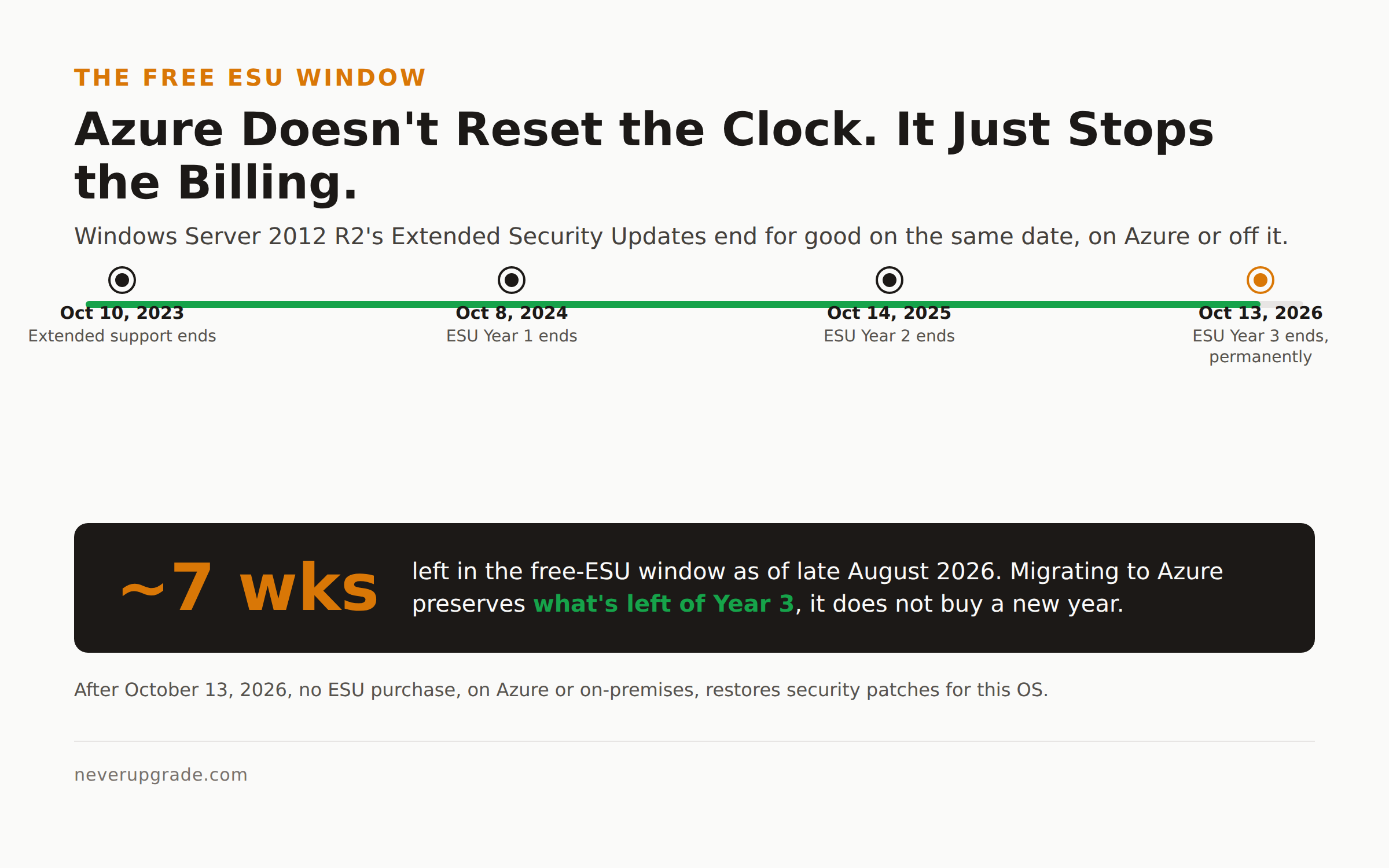
Windows Server 2012 and 2012 R2 left mainstream and extended support on October 10, 2023. Since then, Microsoft has sold Extended Security Updates in three annual blocks: Year 1 ran through October 8, 2024, Year 2 through October 14, 2025, and Year 3, the last one that will ever exist for this OS, runs through October 13, 2026. After that date, no amount of money buys you another patch. Full stop.
On-premises, each of those years costs 100 percent of the server’s full license price, per year, and you cannot buy Year 2 without having already bought Year 1. That adds up fast on anything bigger than a single box.
On Azure, the same three years of ESU coverage are free. Not discounted, free, bundled into the cost of the VM itself. Microsoft’s own FAQ is blunt about it: “Extended Security Updates are free for VMs in Azure,” and Software Assurance is explicitly not required to get them (you only need SA if you also want to stack Azure Hybrid Benefit on top for licensing discounts). This applies to Azure Virtual Machines, Azure Dedicated Host, Azure VMware Solution, Nutanix Cloud Clusters on Azure, and the Azure Stack HCI family.
The catch, and it is a real one: this only covers what’s left of the ESU window. Migrate now, in late August 2026, and you get about seven weeks of coverage before Year 3 expires anyway. It is not a way to reset the clock. It is a way to stop paying for what’s left of it, and to buy yourself breathing room to actually retire the OS instead of firefighting a license purchase every October.
Prep: inventory, sizing, and Azure Hybrid Benefit
Before you touch Azure Migrate, get honest answers to four questions. Skipping this step is why replication jobs die halfway through.
- What edition, exactly? Standard and Datacenter behave differently for Azure Migrate compatibility. Run
Get-WindowsEdition -Onlineif you are not certain. Azure Migrate’s discovery appliance has had spotty support for plain Windows Server 2012 (non-R2). R2 is the version this whole play assumes; if you’re on plain 2012, confirm compatibility before you commit a date. - How much disk, and is any of it dynamic disks or software RAID? Azure Migrate replicates block-by-block. Exotic storage (dynamic disks, third-party volume managers, an unrecognized boot partition) is the single most common cause of a replication job that hits 100 percent and then fails to boot.
- What’s actually installed? SQL Server, IIS with legacy ISAPI filters, a line-of-business app with a hardcoded UNC path, whatever it is, list it. Azure Migrate’s dependency analysis maps network dependencies automatically, but it won’t tell you your billing software checks the C: volume label.
- Do you have Software Assurance or an equivalent Server Subscription already? If yes, Azure Hybrid Benefit lets you apply that license toward the Azure VM’s compute cost instead of paying the Windows Server rate baked into the VM price. It’s separate from the free ESU, but it’s real money, often 40 percent or more off the VM meter.
Right-size while you’re at it. Azure Migrate’s built-in assessment will recommend a VM size based on actual performance data if you let discovery run for at least a few days before you migrate. Do not just match vCPU and RAM 1:1 with the old hardware. Most 2012 R2 boxes we have seen were sized for a physical server bought in 2013 and have been running at 15 percent utilization ever since.
The migration itself with Azure Migrate, step by step
Here is how to migrate Windows Server 2012 R2 to Azure once prep is done. Before you start: back up. Take a full VM-level backup or snapshot before replication begins, independent of whatever Azure Migrate is doing. Replication is not a backup, and if the source server needs to keep running production while you migrate, you want a rollback point that has nothing to do with the tool you’re trusting for the first time.
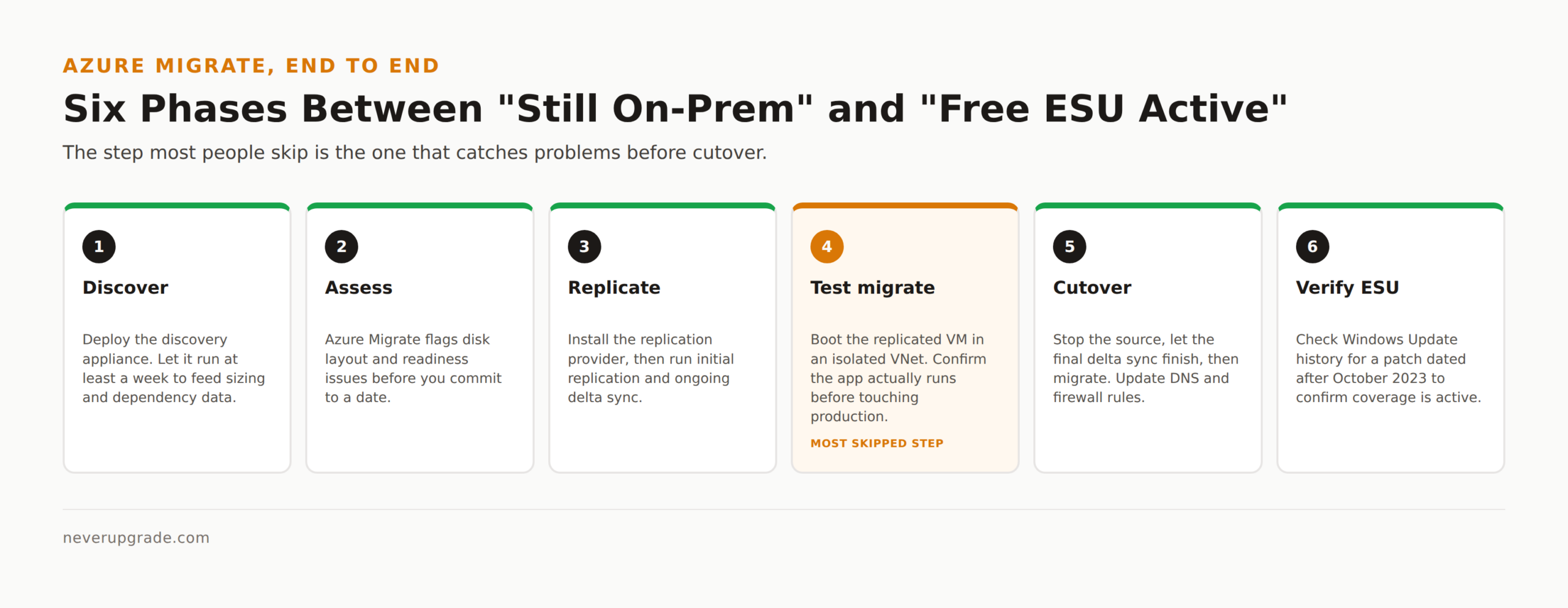
- Create an Azure Migrate project in the Azure portal, in the region you actually want the VM to land in. You cannot change region after migration without doing it all again.
- Deploy the Azure Migrate discovery appliance as a VM on your existing hypervisor (VMware or Hyper-V), or register a replication appliance for physical servers. It needs outbound internet to reach Azure; Azure does not need to reach in.
- Let discovery run for at least a week. This feeds the sizing recommendation and the dependency map from the prep step above.
- Run the assessment. Azure Migrate flags readiness issues before you commit, including disk layout warnings. This is the checkpoint that catches most of what would otherwise fail mid-replication.
- Install the replication provider on the source (provider agents for Hyper-V; agentless or agent-based for VMware).
- Start replication. Initial replication copies the full disk and can take hours to a couple of days. Delta sync after that is incremental and much faster.
- Run a test migration first, into an isolated Azure VNet that does not touch production. Boot it, log in, confirm the app works. Optional in the tooling, mandatory in practice.
- Schedule the cutover. Stop the source workload (or accept a short window of missed writes), let the final delta sync complete, then migrate. Azure spins up the real VM from the replicated disk.
- Update DNS, firewall rules, and anything with the old server’s IP hardcoded, because something will have it hardcoded.
If you would rather change the OS while you’re at it, Azure Migrate now supports an in-place upgrade during the move, taking 2012 R2 straight to 2016, 2019, or later as part of the same process. That is a legitimate path if you have the testing time. It is also a second variable in a migration that already has enough of them; we generally recommend lifting and shifting as-is first, confirming the app runs, and upgrading the OS as a separate project once the ESU clock has stopped being the emergency.
Verifying ESUs are applied after the move
Do not assume it worked. Confirm it.
- In the Azure portal, open the VM’s Updates or Guest + host updates blade and check Windows Update is set to pull from Microsoft Update, not a WSUS server that no longer exists.
- Run
wmic qfe listor check Windows Update history for a patch dated after October 2023. If it’s there, ESU is active. - Azure applies ESU automatically to eligible VMs configured to receive updates. No key to activate, no enrollment step, unlike the Azure Arc route for on-premises servers, which does require enrollment and bills monthly.
- If patches aren’t showing up, the usual cause is a leftover WSUS group policy from the source environment. Check
gpresult /rand clear any inherited update-source policy pointing at a decommissioned server.
Cost control so the Azure bill does not surprise you
The VM meter, not the ESU, is where your money goes, and a few decisions up front keep it predictable.
- Right-size, then downsize again after 30 days. Azure Advisor shows actual utilization once the VM has run for a month. Most lift-and-shift migrations land a size larger than they need.
- Apply Azure Hybrid Benefit if you have eligible licensing. It’s a checkbox at VM creation, and the single biggest lever most people leave unused.
- Use a Reservation or Savings Plan for anything running more than a year. Pay-as-you-go is for workloads you’re planning to retire; a 1-year or 3-year reserved instance cuts compute cost meaningfully for anything staying put.
- Deallocate the test-migration VM from step 7 once cutover is confirmed. Easy to forget, and it bills the whole time it sits idle.
- Set a budget alert in Cost Management on day one, before the bill surprises you instead of after.
None of this is exotic. It is the same discipline you would apply to any Azure spend, and skipping it is how “free ESU” migrations end up costing more than the license would have.
FAQ
Is Windows Server 2012 R2 still getting updates?
Only if it is covered by Extended Security Updates, either purchased on-premises or free through an eligible Azure migration. Mainstream and extended support both ended October 10, 2023. Without ESU coverage, a 2012 R2 box has been receiving zero security patches since then, regardless of what Windows Update shows in the UI.
Can I migrate Windows Server 2012 R2 to Azure without upgrading the OS first?
Yes, and for most shops this is the right order of operations. Lift-and-shift the VM as-is, confirm the ESU coverage kicked in and the application still works, then treat an OS upgrade to 2016, 2019, or later as a separate, lower-pressure project once you are not racing an end-of-support deadline.
Can I upgrade directly from Windows Server 2012 R2 to 2022?
Not in one hop, on-premises. Microsoft’s supported in-place upgrade path goes through an intermediate version. If you are migrating to Azure anyway, Azure Migrate’s newer in-place upgrade option during migration can take you further in a single pass, but test it in an isolated VNet before you trust it against a production workload.
If you decide the Azure route is not the right fit, we ranked the full set of options, including doing nothing, in Windows Server 2012 Migration Paths Ranked by Pain. And if you have not settled on whether to migrate versus buy on-premises ESU at all, start with Windows Server 2012 R2 After End of Life: Your 2026 Survival Plan.