Office 2019 end of support arrived on October 14, 2025, the same day Microsoft cut off Office 2016. Your apps did not stop working. These are perpetual licenses, so Word, Excel, PowerPoint, and Outlook keep opening on Windows exactly as they did the day before. What stopped is the flow of security patches, bug fixes, and technical support. That is the whole risk in one sentence: the software still runs, but any vulnerability discovered after that date stays unpatched forever.
Here is the part the upgrade-now crowd skips. You can keep Office 2016 and 2019 in service safely for a good while longer if you harden the install and understand two deadlines that matter far more than the support date: Outlook talking to Microsoft 365, and the read-only switch Microsoft flipped on the Mac versions in July 2026. We will cover both, plus the exact hardening steps, and the honest cases where you really should just pay up.
What Office 2019 end of support actually changed on October 14, 2025
Microsoft’s own support page is blunt about it: “Support for Office 2016 and Office 2019 ended on October 14, 2025.” After that date, three things go away.
- Security fixes. No more patches for newly discovered vulnerabilities in Word, Excel, Outlook, and the rest. This is the one that matters.
- Bug fixes and feature updates. Whatever quirks shipped in your build are permanent now.
- Technical support. No phone or chat help, and most of the online help articles get retired over time.
What does not go away is the software itself. A perpetual Office 2019 license on Windows is yours. Microsoft is not reaching into your PC to switch off Excel. Anyone who tells you the apps “expire” is confusing Windows with the Mac situation we get to below.
So the real question is not “does it still run.” It runs. The question is how exposed you are while it does, and how long you can sensibly keep it that way. That is the same calculus we walked through for the desktop OS in our honest risk assessment of running Windows 10 after end of support, and the logic carries straight over to Office.
The Outlook connectivity cliff (the deadline that already passed)
If you only use Office to open local Word and Excel files, skip this section. You are fine for years.
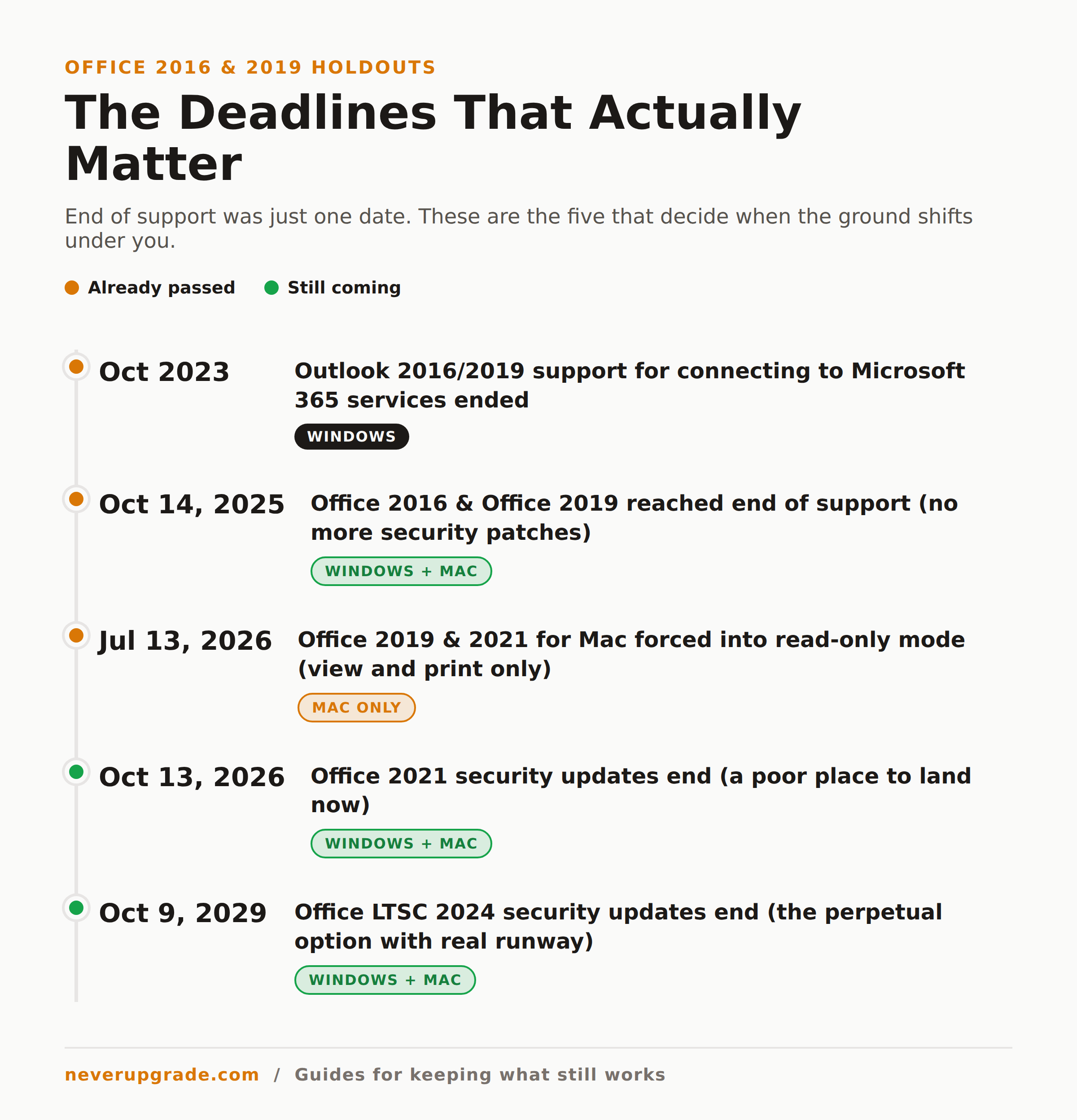
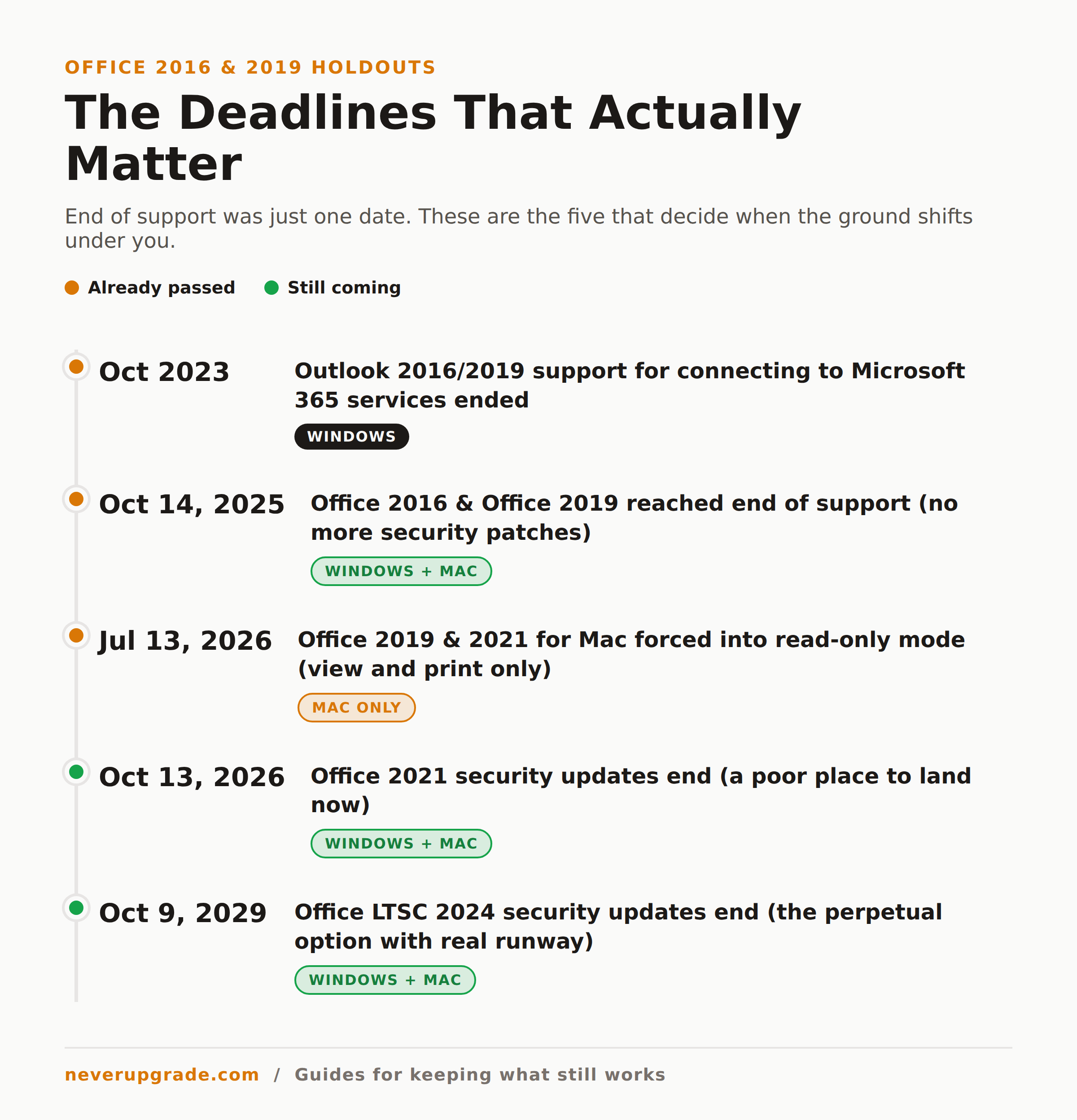
If you use Outlook 2016 or 2019 to connect to a Microsoft 365 mailbox or Exchange Online, pay attention. Microsoft ended support for Office 2016 and 2019 clients connecting to Microsoft 365 services back in October 2023, two full years before the apps themselves went end of support. Connectivity is not hard-blocked today. Your Outlook probably still syncs. But it is no longer tested or validated against the service, which means Microsoft can change something on their end at any time and your mail simply stops flowing, with no obligation to fix it and no support line to call.
We have watched this exact pattern break older Outlook clients before: everything works for months, then a server-side change lands and a dozen users can’t send mail on a Monday morning. If your mailbox lives in Microsoft 365, treat Outlook 2016/2019 as living on borrowed time regardless of the perpetual license. Move to a supported mail client (even the free Outlook for Windows or a browser) while keeping the rest of the suite. You do not have to replace all of Office to fix the mail problem.
How to harden an unsupported Office install
This is the part nobody writing about Office 2016 end of support bothers to explain. They just say “upgrade.” Here is what actually reduces your risk if you are staying put.
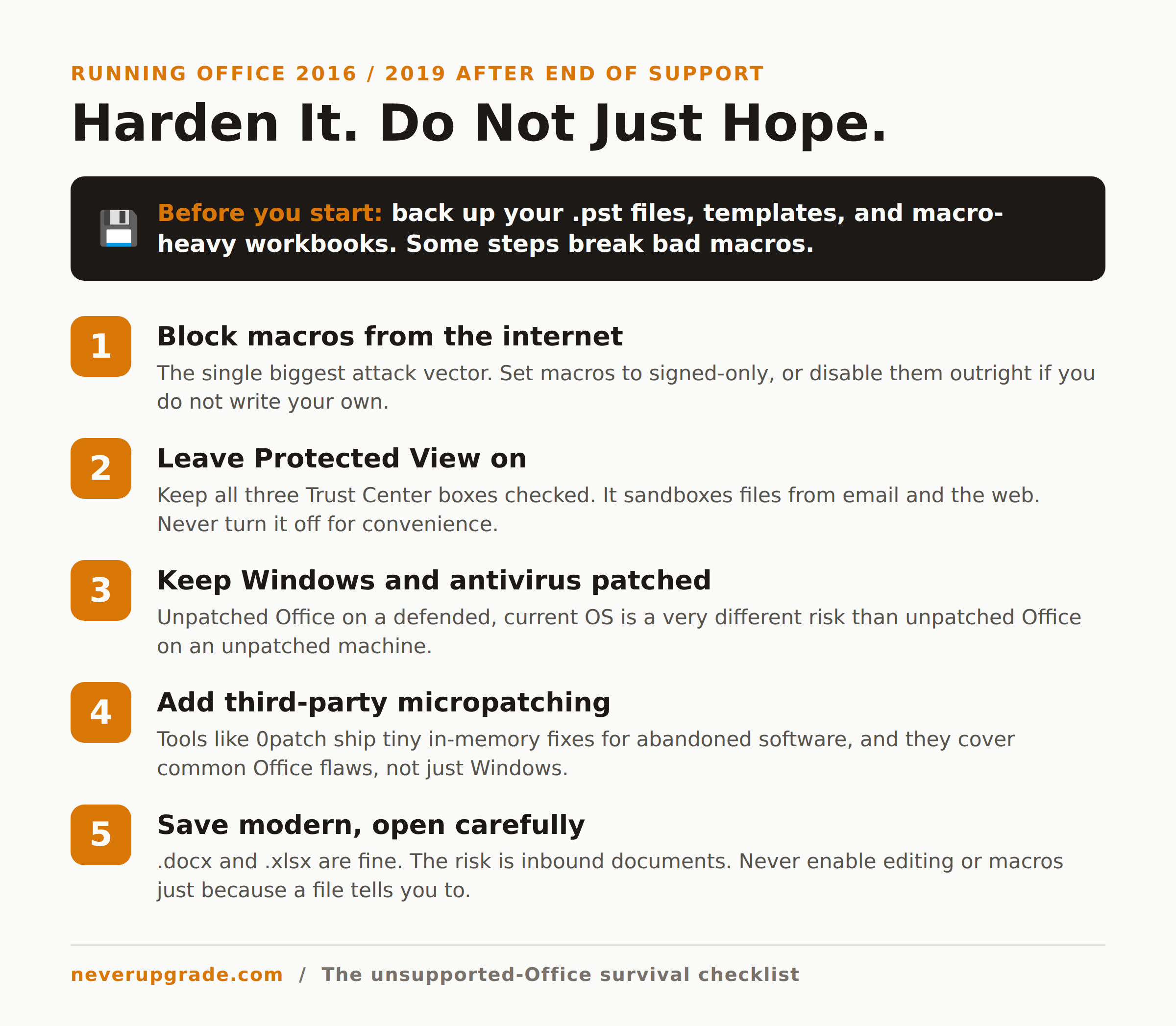
Before you start: back up. Copy your .pst files, your templates, and any macro-heavy workbooks to external storage before you change security settings. Some of the steps below will break badly written macros, and you want a clean rollback.
- Block macros from the internet. The single biggest attack vector against old Office is a booby-trapped document from email. In each app, go to File > Options > Trust Center > Trust Center Settings > Macro Settings and set it to “Disable all macros with notification,” or better, “Disable all macros except digitally signed macros.” If you do not write your own macros, disable them outright.
- Leave Protected View on. Protected View opens files from the internet and email attachments in a sandbox. Under Trust Center > Protected View, keep all three boxes checked. It is on by default. Do not let anyone talk you into turning it off for convenience.
- Keep the operating system and antivirus current. An unpatched Office on a patched, defended Windows is a very different risk than an unpatched Office on an unpatched Windows. Microsoft Defender still updates its definitions independently of Office. If you are also running an end-of-life Windows, that compounds the exposure fast.
- Consider third-party micropatching. Tools like 0patch ship tiny in-memory fixes for specific vulnerabilities in software the vendor has abandoned, and they cover common Office flaws, not just Windows. We dug into how well that actually works in our 0patch review. It is not a full replacement for vendor patches, but for a known exploited bug it buys real protection.
- Save in modern formats and be picky about what you open. The
.docxand.xlsxformats are fine. The risk is not your files, it is documents arriving from outside. Do not open Office attachments you were not expecting, and never enable editing or macros on one just because a document tells you to.
None of this is heroic. It is the same discipline any sane admin runs anyway. The difference is that with an unsupported Office, this discipline is the whole defense rather than a backstop behind Microsoft’s patches.
The Mac read-only trap: the one deadline you cannot harden around
Here is where the “your license is yours forever” promise falls apart, and it is worth being precise so you know whether it hits you.
On July 13, 2026, Microsoft pushed Office 2019 and Office 2021 for Mac into a reduced-functionality, read-only state. You can open, view, and print your documents. You cannot create or edit them. Microsoft blamed an expiring digital certificate. Owners who paid a one-time fee for a “permanent” license understandably called it what it looks like: a perpetual license quietly turned into a viewer to push people onto subscriptions. The backlash was loud, and fair.
Two things you need to know about it:
- This is the Mac versions only. Office 2019 and 2021 on Windows are not affected by the July 2026 change. Windows perpetual installs keep full edit functionality. If you are on Windows, the hardening steps above are your plan and this deadline does not touch you.
- On the Mac, there is no setting to harden around it. This is not a security question, it is a license enforcement question. If you are running Office 2019 or 2021 on a Mac and you need to keep editing, your options are LibreOffice, a newer perpetual Office, or a Microsoft 365 subscription. There is no fourth door.
If nothing else, let this be the reminder that “perpetual” means whatever the vendor decides it means once the software phones home. We do not say that to scare you off. We say it so you plan with your eyes open.
Perpetual alternatives if you are ready to move
Not everyone wants to fight this. If you would rather land somewhere supported without renting your office suite forever, you have two honest choices.
LibreOffice is free, open source, and reads and writes Word and Excel formats well enough for most day-to-day work. It is the right answer for a home PC, a spare machine, or anyone whose documents are not full of complex macros. Complex Excel models and heavy Word formatting do not always survive the round trip perfectly, so test your real files before you commit the whole office.
Office LTSC 2024 (or Office 2021) is a one-time purchase, just like 2019 was. Office 2021 gets security updates through October 13, 2026, which is nearly here, so it is a poor place to land now. Office LTSC 2024 is supported through October 9, 2029, which buys you real runway. LTSC editions come through Microsoft volume licensing and are built for locked-down environments rather than heavy cloud collaboration, which suits the kind of shop that is reading this in the first place.
When the subscription actually wins
We think the upgrade treadmill is mostly a racket. We also think honesty beats ideology, so here are the cases where Microsoft 365 genuinely is the right call, no contrarianism required.
- Your mail lives in Exchange Online and your users live in Outlook. Once you are fighting the connectivity cliff for a whole team, the subscription that keeps Outlook supported is cheaper than the Monday-morning outages.
- You collaborate in real time on shared documents. Co-authoring, comments, and version history in the cloud are things perpetual Office simply does not do. If that is your actual workflow, pay for it.
- You are on Mac and need to keep editing. After July 13, 2026, this one is nearly decided for you. LibreOffice or a subscription.
- You cannot commit to the hardening discipline above. If nobody is going to manage macro settings and keep Windows patched, an unsupported Office on an unmanaged machine is a genuine liability. In that case, supported and boring wins.
For everyone else, a hardened Office 2016 or 2019 on a patched Windows box is a perfectly reasonable place to be for a couple more years. Just do it on purpose, not by accident.
Frequently asked questions
Can I still use Office 2019 after support ended?
Yes. Office 2019 is a perpetual license, so on Windows the apps keep working normally after the October 14, 2025 end-of-support date. You stop receiving security patches and technical support, so the smart move is to harden the install (disable internet macros, keep Protected View on, patch Windows) rather than run it wide open.
Is Office 2016 or 2019 safe to use in 2026?
It is reasonably safe if you treat it as unsupported software and defend it accordingly: a patched operating system, current antivirus, macros locked down, and caution with email attachments. The risk rises over time as unpatched vulnerabilities accumulate, so it is a “manage it deliberately” situation, not a “set it and forget it” one.
What is the difference between Office 2019 and Office LTSC 2024?
Both are one-time-purchase perpetual licenses rather than subscriptions. The key difference is the support window: Office 2019 ended support on October 14, 2025, while Office LTSC 2024 is supported with security updates through October 9, 2029. If you want a perpetual Office that is still patched, LTSC 2024 is the current option.