Office 2013 reached end of life on April 11, 2023, which means it has now been running without a single security patch for over three years. It still opens, it still saves files, and for a lot of small shops it’s still the thing quietly running payroll or invoicing. Whether that’s “safe” depends on what you mean by safe: safe from crashing, probably. Safe from the exploit kits written specifically for unpatched Office macros, no.
Here’s the honest answer: you can keep running Office 2013 in 2026, but only if you’ve deliberately reduced what it’s exposed to. If you haven’t done that yet, this is the checklist.
The Office 2013 End of Life Date (April 11, 2023) and What Actually Stopped
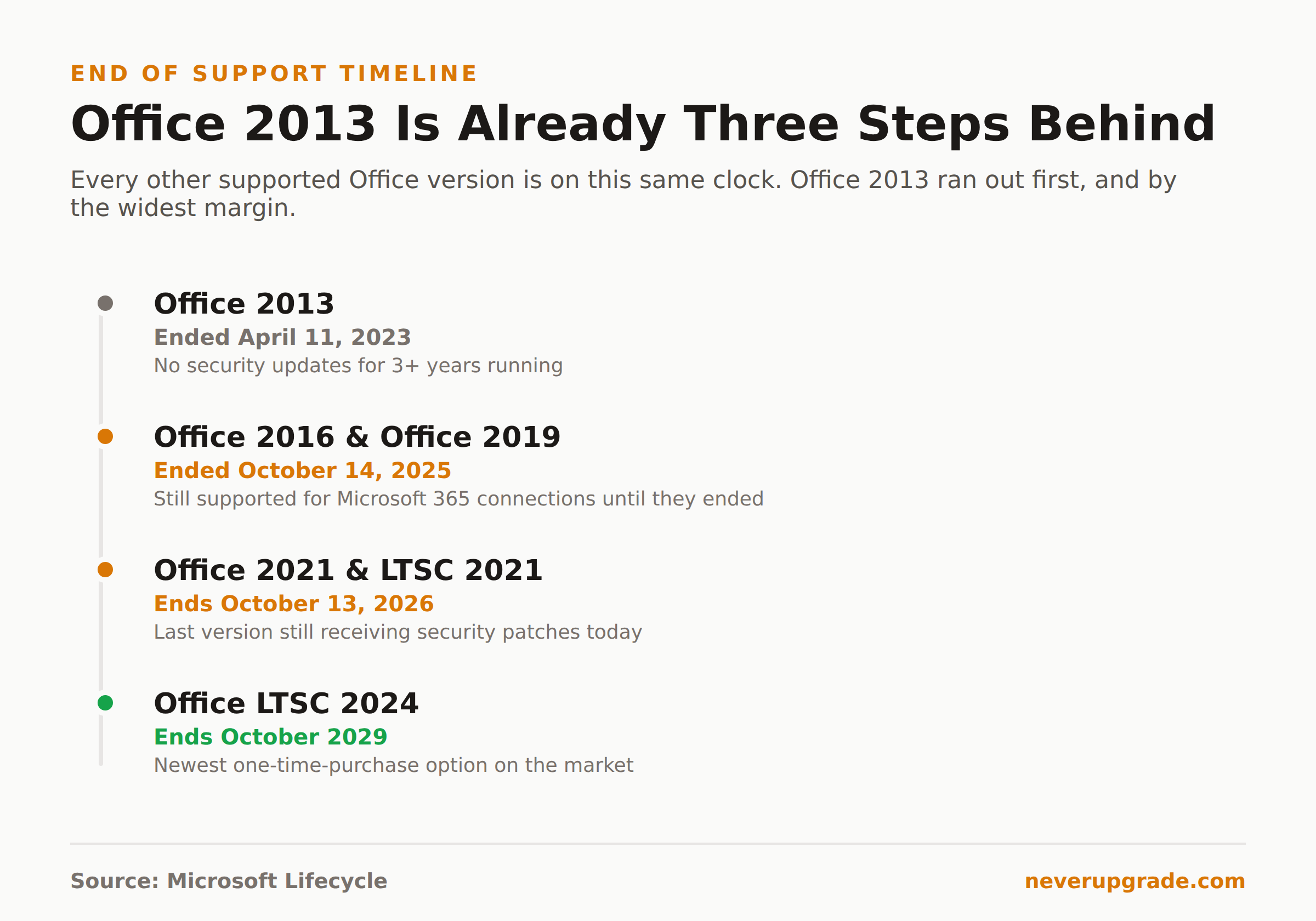
Microsoft’s own end-of-support page puts the date plainly: April 11, 2023, ten years after release, per the Fixed Lifecycle Policy. That’s not a soft deadline or a “recommended” cutoff. It’s the day the update pipe closed.
What stopped that day:
- Security updates. No more patches, ever, for any vulnerability found in Word, Excel, PowerPoint, Outlook, or Access 2013.
- Bug fixes. Whatever quirks or crashes you’re living with now are permanent.
- Technical support. Microsoft won’t take your call about Office 2013 anymore.
What didn’t stop: the software runs. Office 2013 will keep opening on Windows 10 and, unofficially, on Windows 11, for years. Nobody flips a kill switch on end of life. That’s exactly what makes it dangerous, people mistake “still works” for “still fine.”
The Real Risk of Running Office 2013 Three Years Unpatched
Three years is the number that should worry you, not the fact that it’s unsupported in the abstract. Every serious Office vulnerability disclosed since April 2023 (and there have been dozens, several rated critical for remote code execution through malicious documents) landed on 2016, 2019, 2021, and Microsoft 365 as a patch. Office 2013 got nothing. Every one of those holes is still open on your machine today.
The realistic attack path isn’t some nation-state zero-day. It’s a phishing email with a rigged .docx attachment that exploits a macro or memory-corruption bug patched in every supported version two years ago. Office 2013 has no such patch and never will. If that machine touches email or the open internet at all, it’s a standing target.
The mitigation isn’t complicated, it’s just deliberate: air-gap what you can, lock down what you can’t.
Compatibility Landmines: Newer File Formats and Microsoft 365 Connection Cutoffs
Security aside, Office 2013 is also going to start failing you functionally, and this is where people get blindsided.
Microsoft 365 connectivity. Microsoft’s own lifecycle notice states it directly: customers connecting to Microsoft 365 with an Office 2013 client “may experience performance or reliability issues,” and lists exactly which products are still supported for that connection: Microsoft 365 Apps, Office LTSC 2021, Office 2019, and Office 2016. Office 2013 is conspicuously absent from that list. If your business runs Exchange Online or SharePoint Online, Outlook 2013 is the first thing that starts dropping connections, throwing certificate errors, or just failing to sync, and Microsoft has no obligation to fix it.
Newer file formats and functions. Excel has shipped dynamic array formulas, XLOOKUP, and a pile of new functions since 2013. Open a modern .xlsx built with any of those in Excel 2013 and you’ll get #NAME? errors instead of a working spreadsheet, because 2013 has no idea what the function is. Word and PowerPoint files built with newer co-authoring or cloud-linked features have the same problem in reverse: they degrade gracefully, but “degrade” is doing a lot of work in that sentence.
Neither of these breaks overnight. They break the first time a client, vendor, or coworker sends you something built on a newer stack, and you won’t know until it happens.
Upgrade Paths: Office 2019, Office 2021, or Microsoft 365
If you’re going to move off 2013, three real options exist. Here’s the honest tradeoff on each.
- Office 2019 (one-time purchase, perpetual license). Already end of support as of October 14, 2025, so this is a short-term stopgap at best, not a real destination. We covered the details in our Office 2019 end-of-support guide. Skip it unless you’re getting it essentially free.
- Office 2021 / Office LTSC 2021 (one-time purchase, perpetual license, no cloud features). This buys you support until October 13, 2026, which as of this writing is barely more than a year out. Fine as a bridge, not a long-term home. See our full Office 2021 end-of-support breakdown before you buy.
- Microsoft 365 (subscription). Continuously patched, no cliff-edge end date, and the only option that guarantees ongoing Exchange Online and SharePoint compatibility. It’s also a recurring bill forever, which is the whole reason NeverUpgrade exists. If your business genuinely depends on Office for client-facing documents or lives in Exchange Online, this is the one case where paying the subscription is the honest answer, not a sales pitch.
If none of those fit and you just need a document editor with zero ongoing cost, LibreOffice is worth a serious look for anyone not locked into Outlook or complex Excel macros. It won’t be a drop-in replacement for a macro-heavy accounting workbook, so test before you commit.
A Safe-Use Checklist If You’re Not Migrating Yet
Before you start: back up every document, template, and macro-enabled workbook you rely on. Office 2013 will eventually stop opening on whatever OS you’re running it on, and you do not want to discover that the week you needed a file.
- Disconnect it from Exchange Online and SharePoint Online where you can. Use a supported Outlook client (2016 or later, or the free Outlook web app) for anything that touches Microsoft 365, and keep 2013 for local, offline document work only.
- Turn off macros from the internet. File > Options > Trust Center > Trust Center Settings > Macro Settings, and disable everything except digitally signed macros you control. This one setting stops the majority of real-world Office exploits.
- Keep Protected View on. It’s on by default; don’t disable it “for convenience.” It sandboxes documents from untrusted sources before they can touch anything else on the machine.
- Patch the operating system underneath it, aggressively. Office 2013’s vulnerabilities are unpatched, but many of the exploits that use it as an entry point still depend on OS-level behavior. A fully patched Windows 10 or 11 install closes some of those doors even when Office itself can’t.
- Isolate the machine. If Office 2013 only exists to open old client files or run a legacy macro, put it on a machine (or a VM) with no email client and no general web browsing. The less that machine touches the internet, the less the missing patches matter.
- Save everything in modern formats going forward, even from the old version, so the files themselves aren’t tied to software you’ll eventually have to retire anyway.
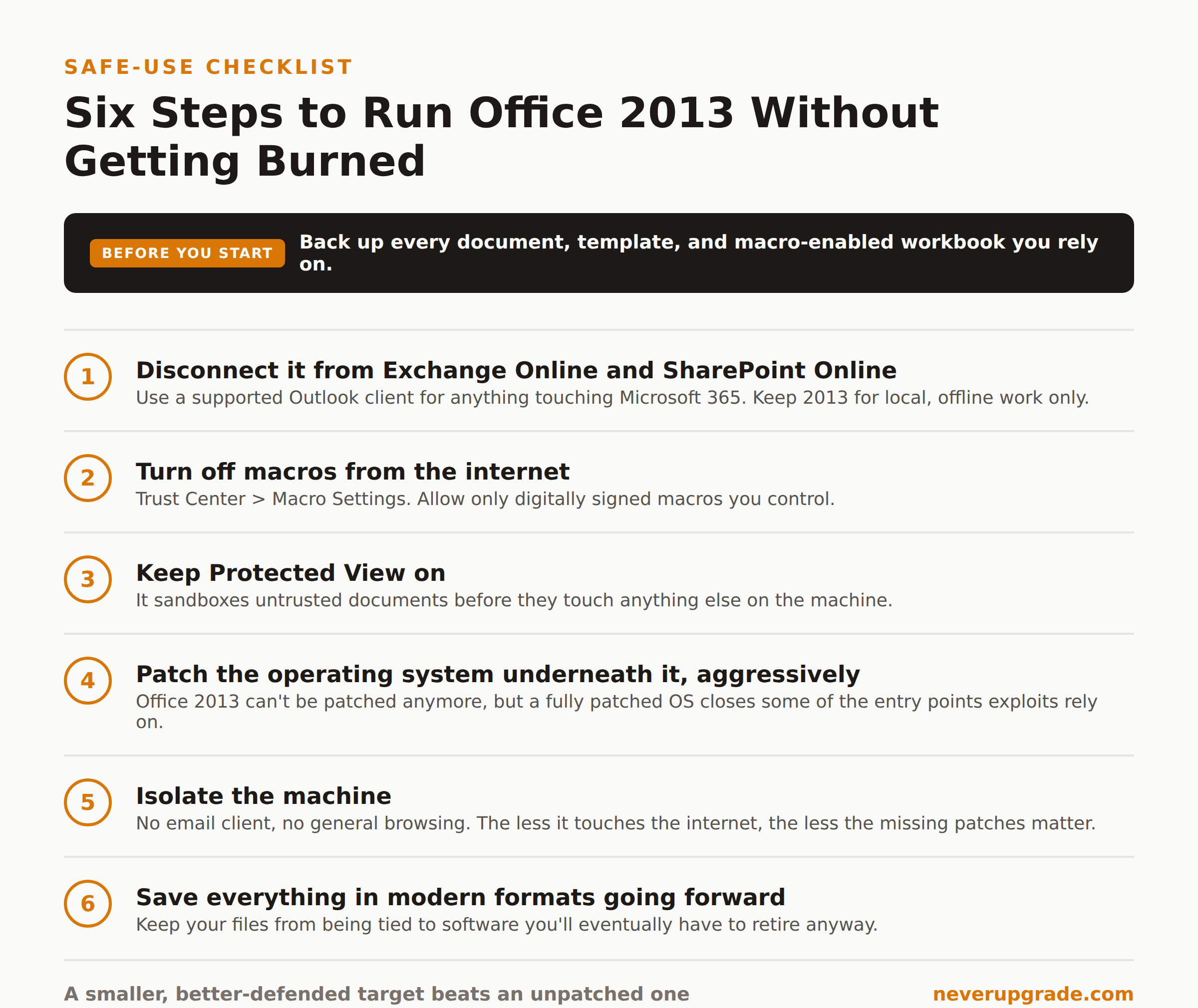
None of this makes Office 2013 secure. It makes it a smaller, better-defended target, which is the realistic goal for software Microsoft stopped patching three years ago.
FAQ
Can Office 2013 still be installed?
Yes, if you still have the installer and a valid product key, Office 2013 will install on supported Windows versions. Microsoft has not pulled activation for existing licenses. What you won’t get is a working download link from Microsoft’s own site in most cases, so hang onto your original installer media.
Can I transfer my Office 2013 license to a new computer?
It depends on which license type you bought. Retail (boxed or downloaded standalone) licenses are generally transferable to a new PC as long as you deactivate on the old one first. OEM licenses that came preinstalled on a specific machine are tied to that hardware and typically cannot move. Check your original purchase terms; this isn’t something NeverUpgrade can override for you.
Will Office 2013 run in Windows 11?
In most cases, yes, it installs and runs, but it is not officially supported on Windows 11, and Microsoft won’t troubleshoot problems that show up there. Expect the occasional dialog box glitch or scaling issue on high-DPI displays. If it’s mission-critical, test it on a spare machine before you migrate your main one to Windows 11.
Is there a way to permanently buy Microsoft Office?
Yes: Office LTSC (2021 or 2024) and Office Home & Student are one-time-purchase, perpetual-license options that don’t require a subscription. They get security updates for a fixed support window rather than continuous feature updates. It’s the closest thing Microsoft still sells to what Office 2013 used to be, just with a shorter clock attached.