A windows 11 tpm bypass still works in September 2026, but the rules have shifted since the original tricks went viral back in 2021. Two methods remain reliable on current builds: the Rufus-modified installer and a three-key registry edit called LabConfig. One old favorite, the setup.exe /product server trick, is dead, and Windows 11 25H2 added a live hardware recheck that catches some bypasses mid-upgrade instead of at first boot.
Before you start: back up your data. Any move that skips a hardware check carries a slightly higher chance of a failed install than the sanctioned path. Get your files onto an external drive or cloud backup first, every time.
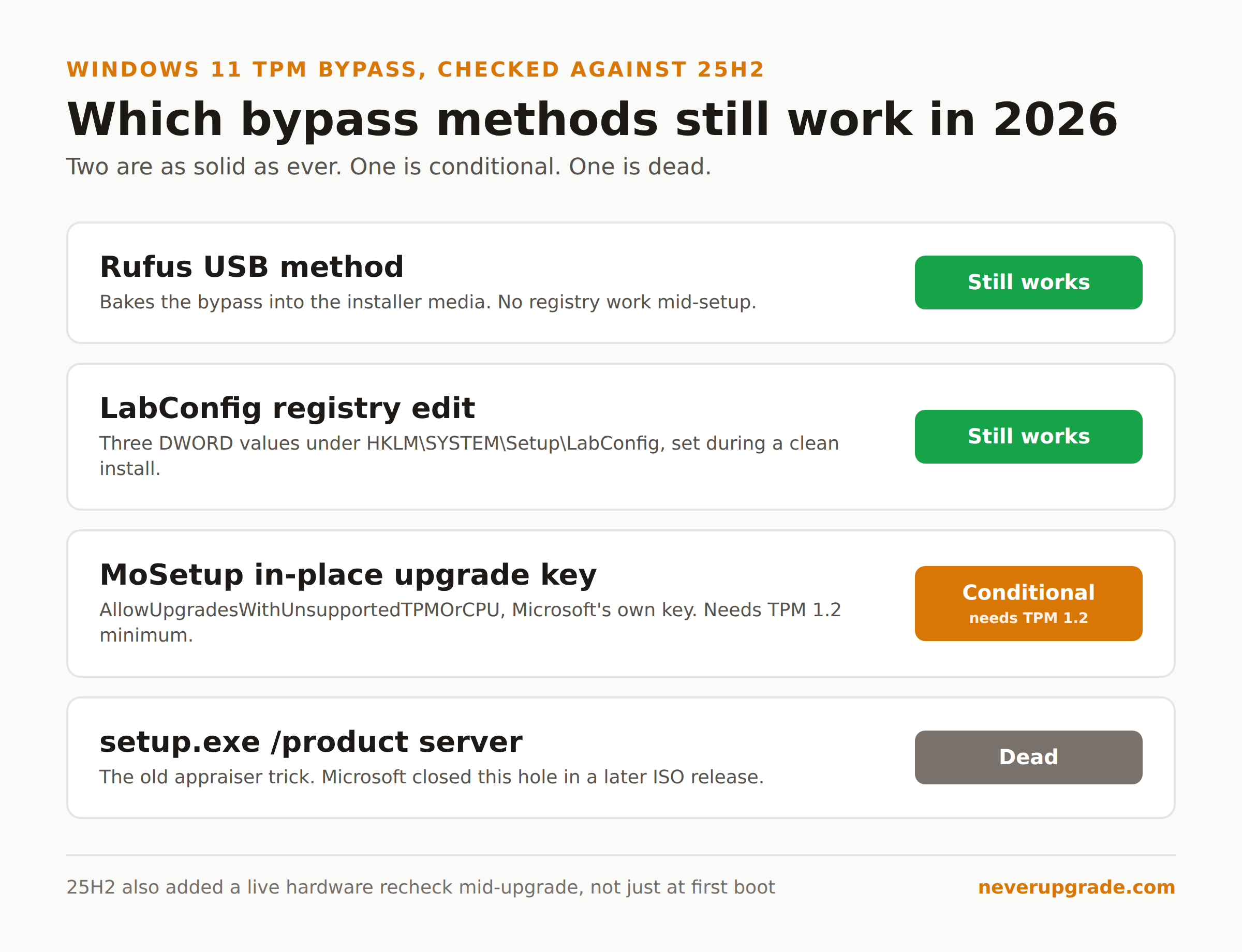
Quick Answer: Which Bypass Methods Still Work
Here is the current state of play, checked against Windows 11 25H2:
- Rufus USB method: Works. Still the easiest option and the one most people mean when they search windows 11 bypass tpm rufus.
- LabConfig registry edit (clean install): Works. Same three DWORD values that have worked since Windows 11 launched.
- MoSetup in-place upgrade key (Windows 10 to 11): Works, but only if your machine has at least TPM 1.2. A total no-TPM box needs Method 1 or 2 instead.
setup.exe /product server: Dead. Microsoft closed this one in a later ISO release. If a video or forum post from 2022 or 2023 tells you to use it, skip it.
We already published the exhaustive walkthrough of all three methods, including the CPU-generation floor that no registry key can fix, in our full guide to bypassing Windows 11 requirements. This article assumes you have the basics and focuses on what changed and how to tell if your specific setup will survive the next feature update.
Method 1: Bypassing TPM with Rufus
Rufus bakes the bypass into your installation media, so there is no mid-setup registry work.
- Download the official Windows 11 ISO from Microsoft’s site.
- Grab the current version of Rufus (rufus.ie) and open it.
- Plug in a USB drive of at least 8 GB. Rufus erases it, so use a blank one.
- Point Rufus at your downloaded ISO and click Start.
- When the “Windows User Experience” dialog appears, check the box for “Remove requirement for 4GB+ RAM, Secure Boot and TPM 2.0.”
- Let Rufus finish writing, then boot the target machine from that USB and install normally.
No regedit, no interruptions mid-install. This is the version I hand to anyone who gets nervous around the registry.
Method 2: The LabConfig Registry Edit
Use this when you are doing a clean install from a stock Windows 11 USB and hit the “This PC can’t run Windows 11” wall.
- On the error screen, press Shift + F10 to open a command prompt.
- Type
regeditand press Enter. - Navigate to
HKEY_LOCAL_MACHINE\SYSTEM\Setup. - Right-click Setup, choose New, then Key, and name it
LabConfig. - Inside
LabConfig, create DWORD (32-bit) values namedBypassTPMCheck,BypassSecureBootCheck, andBypassRAMCheck, each set to1. - Close the command prompt, click back in the installer, then continue. The check no longer blocks you.
If your CPU generation is what’s failing rather than TPM, add a fourth value, BypassCPUCheck, also set to 1. That one is the least dependable of the four: a CPU that physically lacks the instruction sets 24H2 and later require will still fail, registry key or not.
What You Give Up By Bypassing
None of this is a free lunch. The trade you’re actually making:
- Feature updates get unpredictable. Monthly cumulative security patches install fine on bypassed hardware, roughly the same rate as supported machines. Annual feature updates (24H2, 25H2, and whatever comes after) are the coin flip: sometimes they walk right through, sometimes they hard-stop on the same check you already beat and demand you repeat the bypass.
- You lose Microsoft’s safety net. Support can and will decline to help an unsupported configuration. You’re the only IT department this machine has.
- The watermark stays. A “System requirements not met” note sits in Settings and, on some builds, the desktop. Cosmetic, but it never goes away on its own.
- TPM-backed security features stay off. BitLocker device encryption tied to the hardware TPM and some Windows Hello Enhanced Sign-in features either won’t enable or fall back to weaker protection.
What Microsoft Has Changed to Block Bypasses
This is the part that actually changes year to year, so it’s worth revisiting even if you read the original bypass guides in 2021 or 2022.
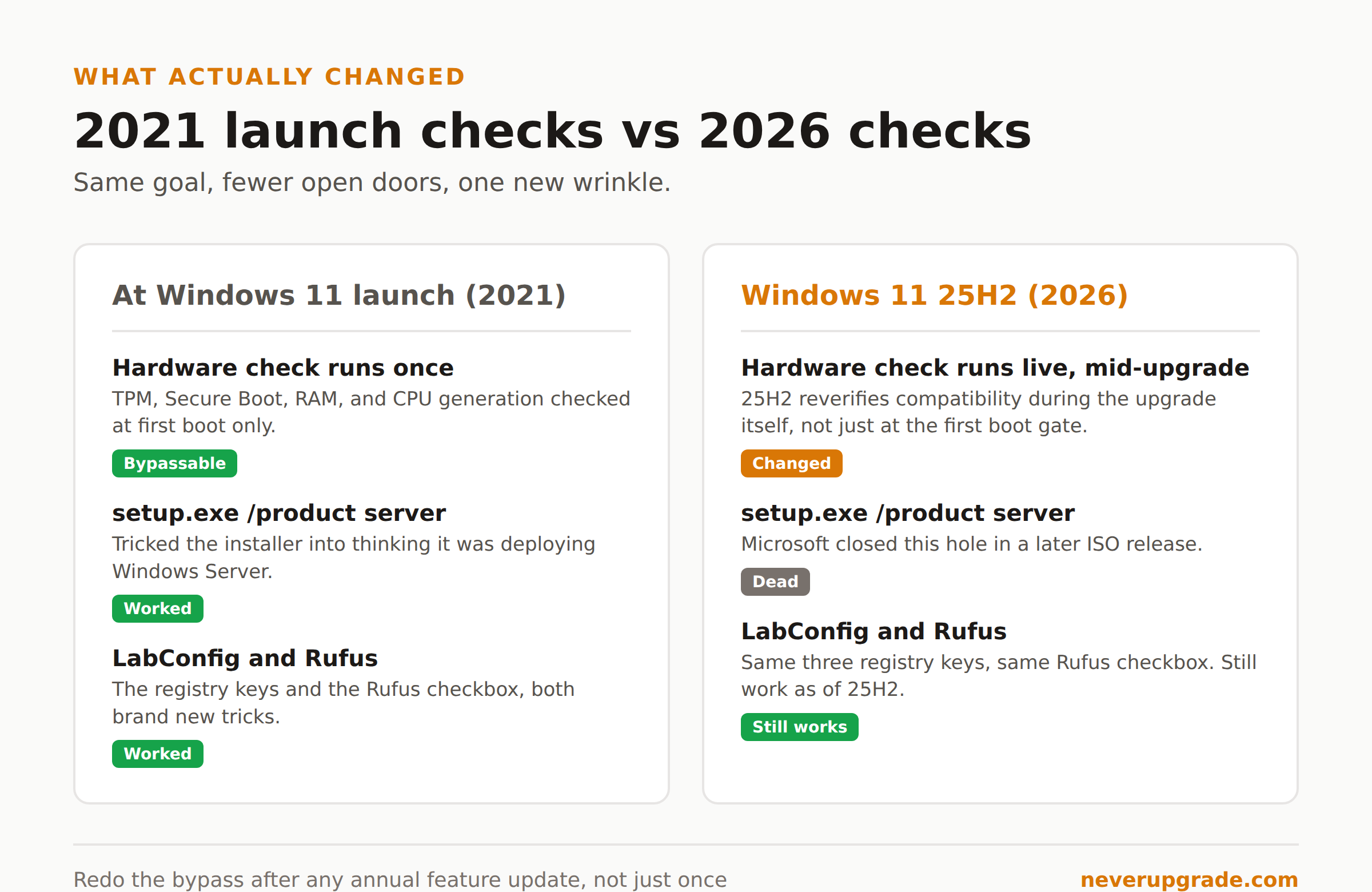
The setup.exe /product server trick is gone. This was an older method that tricked the installer into thinking it was deploying Windows Server, which skipped the consumer hardware checks entirely. Microsoft patched the installer to close that door in a newer ISO release, and it no longer works on current media. If you find a guide recommending it, check the publish date; anything before 2023 is probably stale on this point.
25H2 checks your hardware live during the upgrade, not just at the start. Community documentation around the popular bypass scripts on GitHub notes that 25H2 “reverifies compatibility live, not just believing what the upgrade assistant says.” Practically, that means a registry flag that satisfied the initial eligibility gate can still get caught partway through if the installer re-runs its hardware probe. The workaround people report is running setup from a mounted ISO with the /product server era tricks replaced by the LabConfig keys set before setup starts, or adding the /Compat IgnoreWarning switch when launching setup.exe for an in-place upgrade.
How to tell if your bypass will hold for the next update: check your current build number under Settings > System > About. If you’re already on 25H2 and installed cleanly with LabConfig or Rufus, you’re on the version doing live checks and your existing install already passed them, so you’re fine until the next annual release. If you’re still on 24H2 and planning to jump straight to whatever ships after 25H2, budget time to redo the registry keys or Rufus USB rather than assuming Windows Update will carry you through quietly.
Cumulative monthly updates are not the risk here. It’s specifically the big yearly feature upgrade where Microsoft has room to add a new check, and history says they will keep doing exactly that.
Frequently Asked Questions
Does the Windows 11 TPM bypass still work in 2026?
Yes. The Rufus method and the LabConfig registry edit both work on current Windows 11 builds, including 25H2. The one method that’s dead is the older setup.exe /product server trick, which Microsoft closed off.
Will a Windows 11 feature update undo my TPM bypass?
It can. Monthly security updates are not the issue, but the big annual feature updates sometimes re-run the hardware check. If that happens, you repeat the same bypass (Rufus USB or LabConfig keys) against the new installer and continue. Back up first, since a failed feature update on unsupported hardware is exactly the scenario where you don’t want to be improvising a recovery.
Is there a completely official way to skip the TPM 2.0 requirement?
Closer to official than the others: Microsoft’s own support documentation describes the AllowUpgradesWithUnsupportedTPMOrCPU registry value under HKEY_LOCAL_MACHINE\SYSTEM\Setup\MoSetup, used for in-place upgrades from Windows 10. It still requires at least a TPM 1.2 chip and Microsoft’s language explicitly states unsupported devices aren’t guaranteed future updates, so “official” doesn’t mean “unconditionally supported.”
Where This Leaves You
If your hardware is already running a bypassed Windows 11 install, check your build number, confirm you’re current, and note the date so you remember to re-check before the next annual feature update lands. If you’re weighing whether to bypass at all versus staying put, our risk assessment for staying on Windows 10 past end of support covers the other side of that decision. And if a bypassed upgrade ever goes sideways on you, rolling back to Windows 10 is a documented path, not a dead end.