Here is how to dual boot Linux and Windows 10: shrink your Windows partition to free up space, install Linux into that free space, and let the Linux installer set up a boot menu that lets you pick an operating system every time the machine powers on. You keep Windows 10 exactly as it is. You get Linux on the same disk. Nothing gets erased, and you can walk it back if you hate it.
That last part is why we push dual boot over a clean wipe for anyone still nervous about leaving Windows 10 behind. You do not have to trust that Linux will run your scanner, your accounting software, and that one ancient utility your workflow depends on. You just boot back into Windows when something is missing. This is the low-risk way to move from Windows 10 to Linux at your own pace instead of Microsoft’s.
We have run this setup on everything from a 2013 ThinkPad to a shop-floor PC that controls a vinyl cutter. It works. It also breaks in exactly one predictable way, and we will show you how to fix that too.
Why Dual Boot Beats Going Cold Turkey for Windows 10 Holdouts
Windows 10 hit end of support on October 14, 2025. No more free security patches from Microsoft unless you paid into the Extended Security Updates program. Plenty of people are looking at Linux as the exit, and they should. But “wipe the drive and install Ubuntu” is advice from people who do not have to answer for it when your label printer stops working on Monday morning.
Dual boot solves the real problem, which is not technical. It is trust. You need proof that Linux handles your daily work before you commit. A dual-boot machine gives you that proof with a safety net still attached.
There are real costs. You give up disk space to a second operating system. You add a boot menu you have to click through. And Windows updates will occasionally stomp on your Linux boot menu, which sounds scary until you have fixed it once. We will get there.
If you have never touched Linux at all, start with our walkthrough on how to install Linux on a Windows 10 PC to pick a distribution first, then come back here for the dual-boot layout. And if you are still deciding whether you even need to leave, our honest risk assessment of running Windows 10 past end of support lays out what you are actually exposed to.
Disk Space and Partitioning Prep
You need free space on your drive before Linux has anywhere to live. Two rules keep this from going sideways.
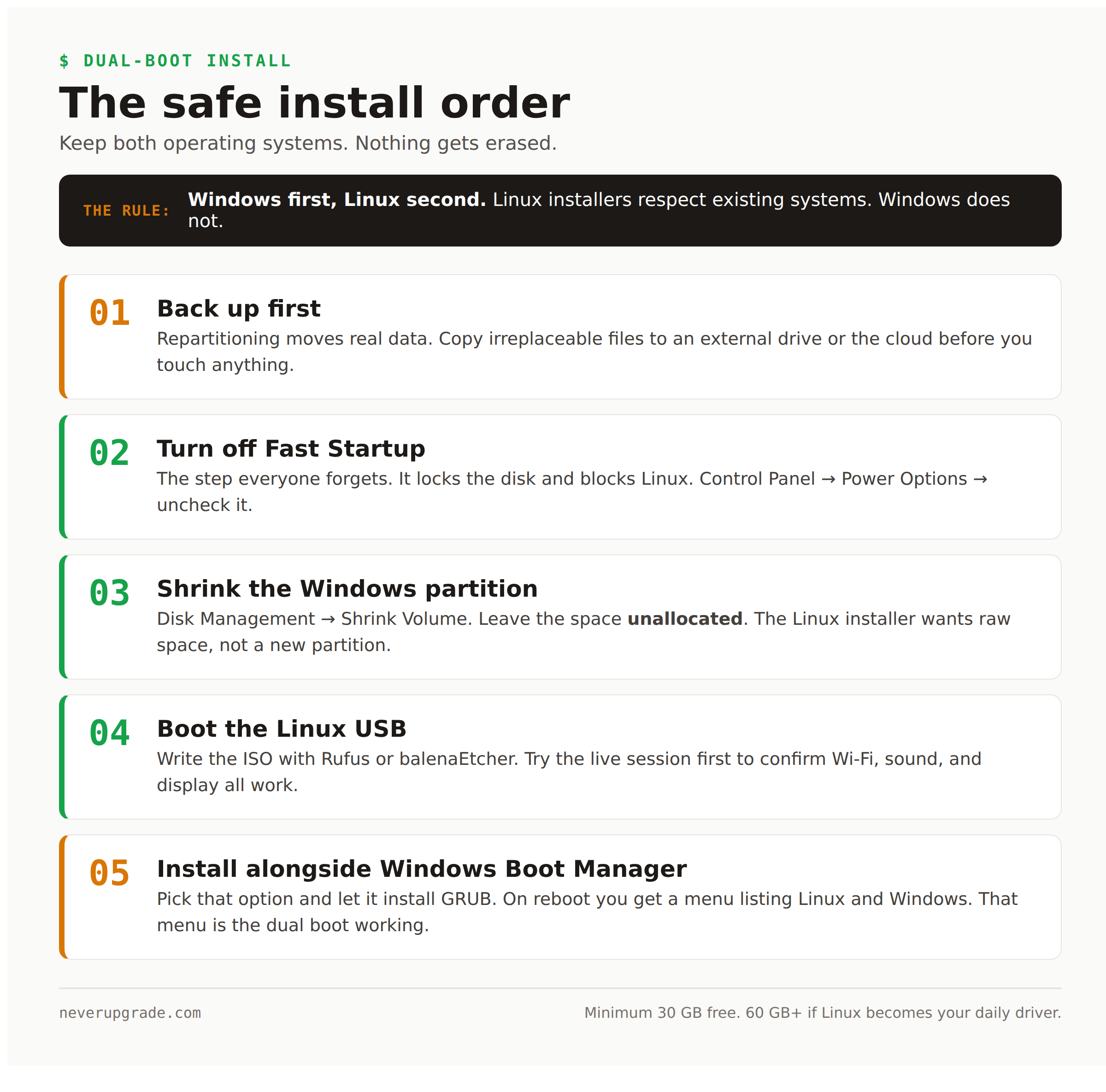
Before you start: back up. Repartitioning moves real data around. It almost always works. “Almost” is why you copy your irreplaceable files to an external drive or the cloud first. Do not skip this because the odds are good. Back up.
Here is the prep, in order:
- Check your free space. You want at least 30 GB free for a comfortable Linux install, 60 GB or more if you plan to actually live in it. Ubuntu and Linux Mint each want about 25 GB minimum, and a cramped Linux partition is a miserable place.
- Turn off Fast Startup. This is the step everyone forgets. Fast Startup leaves Windows in a half-hibernated state that locks the disk, and Linux will refuse to safely mount it. Go to Control Panel > Power Options > Choose what the power buttons do > Change settings that are currently unavailable, then uncheck “Turn on fast startup.” Save.
- Shrink the Windows partition. Open Disk Management (right-click Start > Disk Management), right-click your C: drive, choose Shrink Volume, and enter the amount in MB you want to free up. 40000 MB is roughly 40 GB. Leave that space unallocated. Do not create a new partition here. The Linux installer wants raw unallocated space.
- Disable BitLocker if it is on. Encrypted drives and new bootloaders do not mix well. If BitLocker is active, suspend or disable it before you install, and keep your recovery key somewhere safe.
One judgment call from experience: if Disk Management refuses to shrink past the halfway point even though you have plenty of free space, it is because unmovable system files are sitting near the end of the disk. Run a defrag, disable hibernation with powercfg /h off from an admin command prompt, and try again. That clears it about nine times out of ten.
The Safe Install Order for Dual Boot
The order matters. Install Windows first, Linux second. You already have Windows, so you are in the right sequence. Linux installers are polite about existing operating systems. Windows is not, which is why you never install it last.
Here is the safe path:
- Make a Linux USB installer. Download the ISO for your distribution (Linux Mint and Ubuntu are the easiest first choices), then write it to an 8 GB or larger USB stick with Rufus on Windows or balenaEtcher on any platform.
- Disable Secure Boot in the BIOS, or don’t. Ubuntu and Mint both boot fine with Secure Boot on these days. If your install USB will not boot at all, enter BIOS setup (usually F2, F10, or Del at power-on) and turn Secure Boot off. That is the fix for a USB that the machine flat refuses to see.
- Boot from the USB. Restart, hit the boot-menu key (often F12), and select your USB drive. Try the live session first to confirm Wi-Fi, sound, and display all work before you install anything.
- Run the installer and choose “Install alongside Windows Boot Manager.” This is the whole game. The installer detects Windows, offers to install next to it, and drops Linux into your unallocated space automatically. It resizes nothing you did not already free up. If you do not see that option, you either skipped the shrink step or Fast Startup is still on.
- Let it install GRUB. GRUB is the boot menu. When install finishes and you reboot, you should see a menu listing your Linux distribution and “Windows Boot Manager.” Pick either one. That menu is the dual boot working.
If everything booted and you can reach both operating systems, you are done with the hard part. The rest is knowing how to fix the one thing that predictably breaks.
Fixing the Bootloader When Windows Updates Break It
Here is the failure mode nobody warns you about. You dual boot happily for a month. Then a Windows feature update installs, the machine reboots, and it goes straight into Windows with no menu at all. Linux looks gone.
It is not gone. Windows updates sometimes reassert the Windows Boot Manager as the default and skip GRUB. Your Linux partition is untouched. You just need to point the firmware back at GRUB. This is annoying, not fatal.
The clean fix, in order:
- Boot your Linux USB installer again and start the live session (Try, not Install).
- Install and run Boot Repair. On Ubuntu or Mint, open a terminal and run:
sudo add-apt-repository ppa:yannubuntu/boot-repairsudo apt update
sudo apt install boot-repair
boot-repair
- Choose “Recommended repair.” It reinstalls GRUB and restores the boot menu. Ninety percent of broken dual-boot menus come back with this one button.
- Reboot and confirm the menu returns. You should see GRUB again with both systems listed.
If you would rather prevent it, some people set GRUB as the permanent default in the BIOS boot order after install, which survives most Windows updates. It is not bulletproof, because a major update can still reset firmware boot entries. Keep that Linux USB in a drawer. Treat Boot Repair as routine maintenance, not an emergency.
When to Finally Delete the Windows Partition
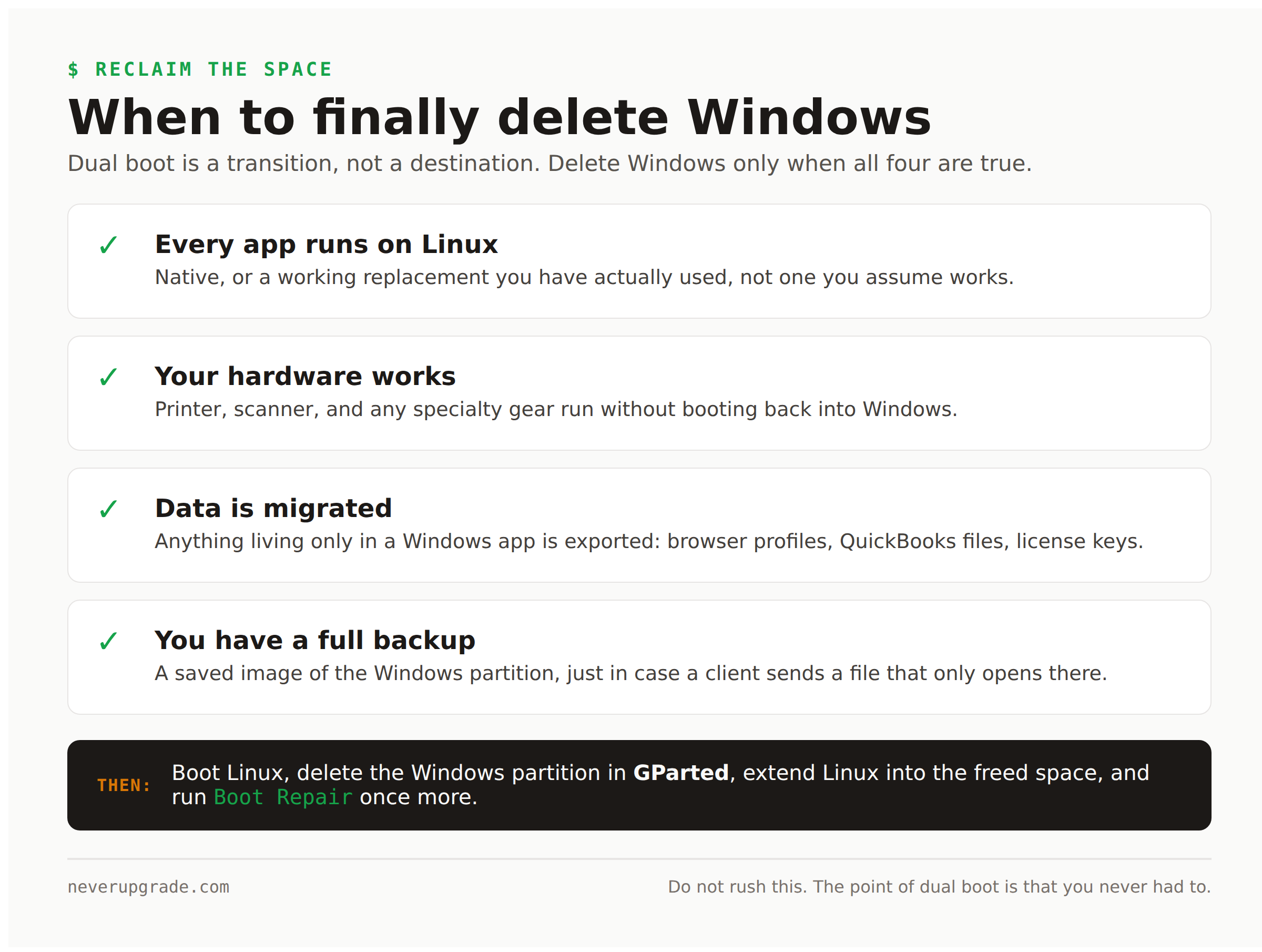
Dual boot is a transition, not a destination. At some point you will notice you have not booted Windows in weeks. That is your signal.
Before you delete anything, run this honest checklist:
- Every piece of software you need runs on Linux, or has a working replacement you have actually used.
- Your printer, scanner, and any specialty hardware work without booting Windows.
- You have exported or migrated anything living only in a Windows app: browser profiles, QuickBooks files, license keys.
- You have a full backup of the Windows partition, just in case a client sends you a file that only opens there.
When all four are true, reclaiming the space is straightforward: boot Linux, open GParted, delete the Windows partition, and extend your Linux partition into the freed space. Then run Boot Repair one last time so GRUB stops looking for a Windows that no longer exists.
Do not rush this. The whole point of dual boot is that you never had to. Keep Windows around for a season, prove Linux to yourself, and delete it only when keeping it around is pure habit.
Frequently Asked Questions
Is it safe to dual boot Windows 10 and Linux?
Yes, dual booting is safe when you back up first and follow the install order. The two operating systems live in separate partitions and do not interfere with each other’s files. The only common hiccup is Windows updates occasionally hiding the Linux boot menu, which Boot Repair fixes in a few minutes.
Can you run Windows and Linux at the same time?
Not with a dual boot. You pick one at startup and reboot to switch. If you need both running together, use a virtual machine instead, though that costs performance and is a different setup than dual boot.
How much disk space do I need to dual boot Linux with Windows 10?
Plan for at least 30 GB of free space for Linux, and 60 GB or more if it will become your main system. Ubuntu and Linux Mint each need roughly 25 GB minimum to install and update comfortably.
Ready to Make the Move on Your Own Terms
Dual boot is the sane way off Windows 10. You keep your safety net, you test Linux against your real work, and you delete Windows only when you are ready and not one day sooner. Nobody is forcing the timeline but you.