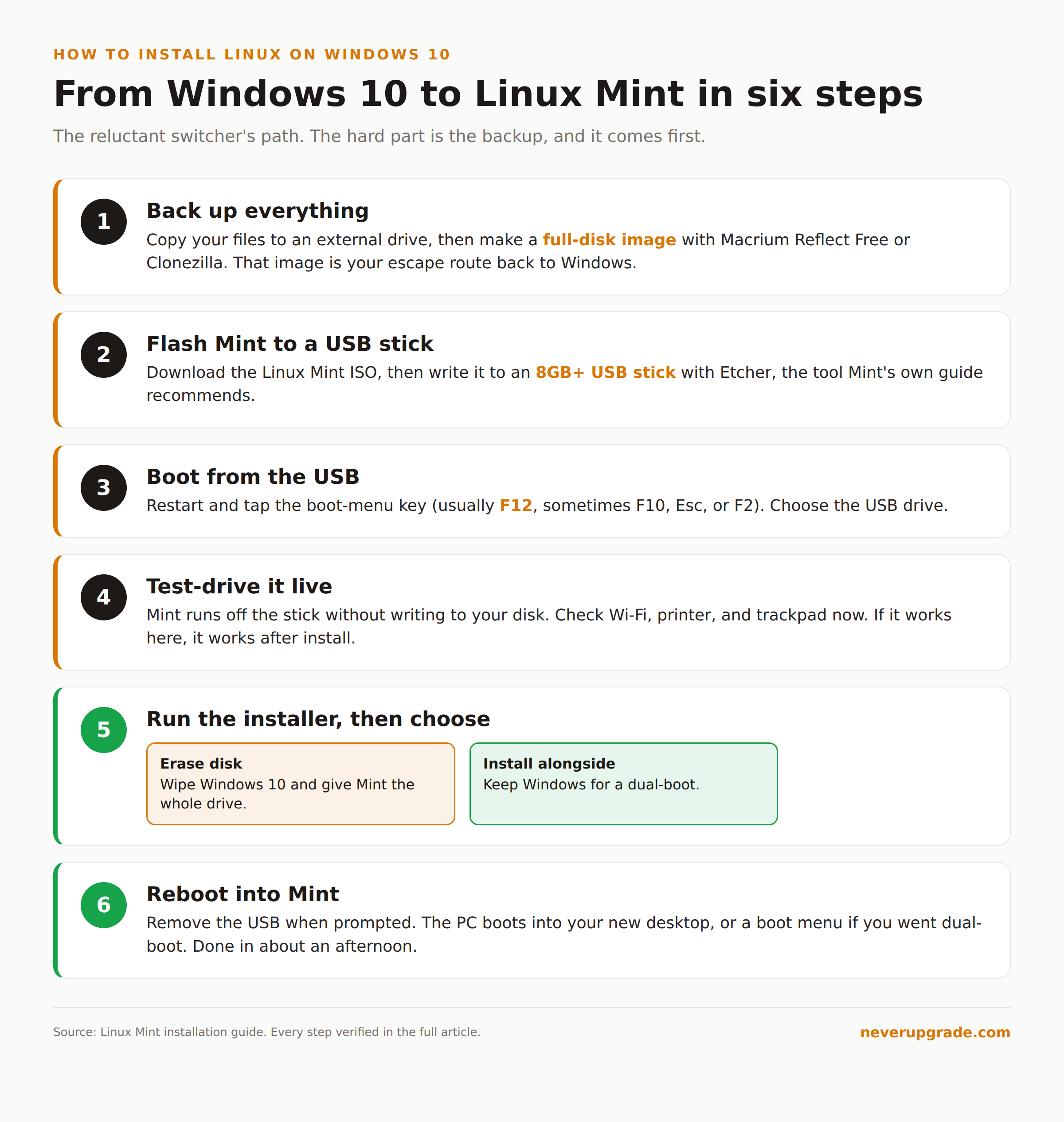
The short version: to install Linux on Windows 10, you back up your drive, write a Linux Mint image to a USB stick with Etcher, boot from that stick to test-drive Mint without touching your hard disk, and then run the installer if you like what you see. The whole thing takes an afternoon, and you can wipe Windows entirely or keep it in a dual-boot. This guide walks the reluctant switcher through every step, and it is honest about the two or three cases where you should not do this at all.
We are writing this for people who did not want to be here. Windows 10 hit end of support on October 14, 2025. Your PC still works fine, Microsoft would like you to buy a new one, and you would like Microsoft to leave you alone. Linux is how you do that, and Mint is the version of Linux that will annoy you the least.
Why wsl --install does not install Linux on Windows 10
Search how to install Linux on Windows 10 and the first answer you get, from Google’s AI summary and from Microsoft’s own docs, is wsl --install. Ignore it.
WSL (Windows Subsystem for Linux) runs a Linux command line inside Windows 10. It is a genuinely useful tool for developers. It does nothing for the problem you actually have. Your host operating system is still Windows 10, still out of support, still not getting security patches. Running Linux inside an unpatched Windows is like putting a good lock on a door with no wall around it.
If your goal is to get off unsupported Windows, you want Linux on the metal: booting your PC straight into Linux, with Windows either gone or demoted to a dual-boot option. That is what it means to install Linux on Windows 10 hardware for real, and it is what the rest of this guide covers.
Which distro for Windows 10 refugees (Mint, not Arch)
There are hundreds of Linux distributions. For someone leaving Windows 10, the correct answer is Linux Mint, and it is not close.
Mint boots to a desktop that looks and behaves like Windows 7: a start menu in the bottom left, a taskbar, a system tray, a file manager you already know how to drive. It ships with a browser, a media player, and an office suite that opens your Word and Excel files. Updates are a single click. You will not touch a terminal unless you want to.
Skip the distros the internet will push at you:
- Ubuntu is fine, but its default desktop rearranges everything you know. Mint is built on Ubuntu and fixes exactly that.
- Arch is for people who enjoy configuring an operating system as a hobby. Not you, not today.
- Kali keeps surfacing in these searches thanks to one popular tutorial. It is a security-testing tool, not a daily driver. Skip it.
Mint comes in three flavors that differ only in the desktop: Cinnamon (the default, most polished), MATE (lighter), and Xfce (lightest, best for old or slow hardware). On anything made in the last ten years, pick Cinnamon.
You want roughly 4GB of RAM and 20GB of free disk to be comfortable; Mint will technically run in 2GB, but do not fight it on a machine that thin. Grab the Xfce edition instead if your PC is genuinely ancient.
Back up first: the full-disk image
Read this section twice. The install process asks your PC to erase and repartition its drive. Get it wrong, or hit a power cut at the wrong second, and the data is gone.
Before you go further:
- Copy your personal files (documents, photos, the whole
C:\Users\youfolder) to an external drive or cloud storage, and open a few from the copy to confirm they survived. - Make a full-disk image of the Windows 10 drive with a tool like Macrium Reflect Free or Clonezilla, onto a separate external disk. This is what lets you put Windows back exactly as it was if you change your mind next week.
- Export anything locked to this machine: browser bookmarks, saved Wi-Fi passwords, software license keys, email account settings.
The file copy protects your data. The disk image protects your escape route. Do both.
Try before you commit: the live USB
Mint has a feature that removes almost all the risk from switching: a live USB. You boot the whole operating system off a USB stick, run it at full speed, and never write a byte to your hard drive. If your Wi-Fi, printer, and trackpad all work in the live session, they will work after you install, and if something is broken you found out before wiping anything.
You need a USB stick of 8GB or larger (its contents get erased) and the tool Etcher, which is what the official Mint installation guide recommends.
- Download the Linux Mint ISO from linuxmint.com. Pick the Cinnamon edition unless you chose otherwise above.
- Download and install Etcher from etcher.balena.io, then run it.
- In Etcher: click Flash from file and select the Mint ISO, click Select target and choose your USB stick (check the drive letter twice), then click Flash. Give it a few minutes.
- Leave the stick plugged in and restart the PC. As it boots, tap the boot-menu key for your machine (usually F12, sometimes F10, Esc, or F2) and choose the USB drive.
- Mint loads to a desktop. Poke around. Open the browser, play a video, connect your printer. Nothing you do here is permanent.
If the PC ignores the USB and boots straight back into Windows, you likely need to disable Fast Startup in Windows and, in some cases, Secure Boot in your BIOS. That is the most common snag, and it is a five-minute fix.
How to install Linux Mint on Windows 10, step by step
Once the live session convinces you, installing is straightforward. There is an “Install Linux Mint” icon sitting on the live desktop. Double-click it.
- Language and keyboard. Pick yours. Click Continue.
- Multimedia codecs. Tick the box to install them. This is what makes video and audio “just work” later.
- Installation type. This is the decision that matters:
- Erase disk and install Linux Mint wipes Windows 10 entirely and gives Mint the whole drive. Cleanest option once you have committed.
- Install alongside Windows 10 sets up a dual-boot, so you pick an operating system each time you power on. Choose this if a single Windows-only program is keeping you tethered.
- Confirm and write changes. The installer shows exactly what it will do to the disk. Read it. This is the point of no return, and it is why you made the image in the last section.
- Time zone and user account. Create your username and a real password. Let it finish copying files, which takes ten to twenty minutes on most machines.
- Restart and remove the USB. The PC reboots into your new Mint desktop, or into the boot menu if you went dual-boot.
That is the entire path from Windows 10 to Linux. The hard part was the backup, and you already did that.
Your Windows software: what has a Linux answer and what doesn’t
This is where honesty matters more than cheerleading. Most everyday software has a clean Linux equivalent. A few genuinely do not, and pretending otherwise is how people end up furious a week later.
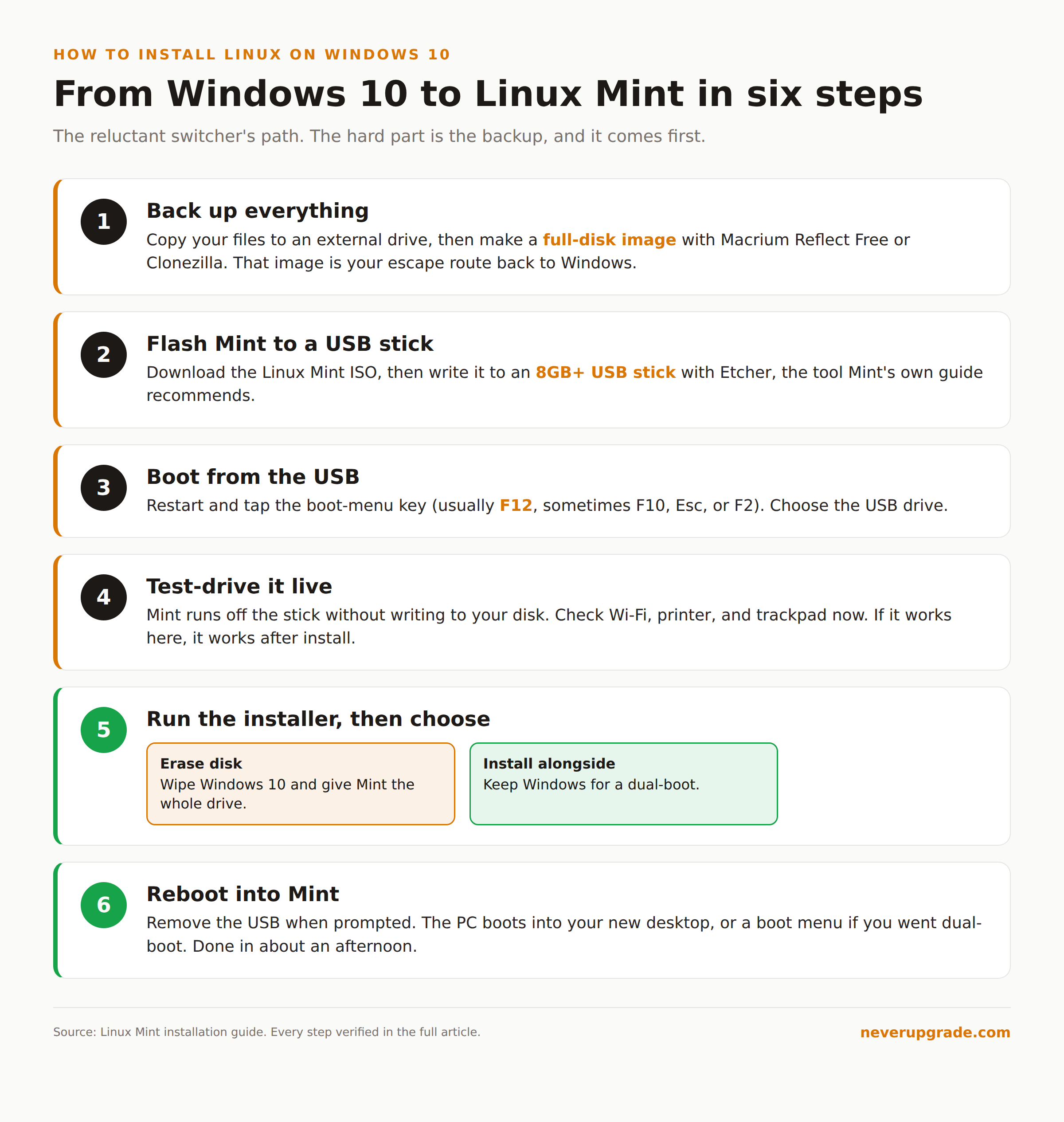
Has a Linux answer:
- Office documents: LibreOffice ships with Mint and reads and writes .docx and .xlsx files. For anything collaborative, Microsoft 365 and Google Docs run in the browser.
- Browsing, email, video calls: Firefox and Chrome run natively. Zoom, Slack, and Discord all have Linux apps.
- Photos and media: GIMP, Darktable, and VLC cover most of it.
Does not, or not cleanly:
- QuickBooks Desktop: there is no native Linux build. If your business runs on it, that alone can be a reason to stay put, and we have written separately about running QuickBooks Desktop without a subscription.
- Adobe’s suite (Photoshop, Premiere): no native Linux version. The alternatives are good but they are not Adobe.
- A specific line-of-business or industry app: the kind of thing your accountant, your CNC machine, or your medical practice depends on. Check for a Linux version or a browser version before you switch, not after.
The realistic move for a lot of people is dual-boot: Mint for daily work, Windows kept on the side for the one program that has no substitute. Just remember that the Windows side is still unsupported, so keep it offline or patched by other means.
When you should not switch (the honest upgrade case)
We think the upgrade treadmill is mostly a racket. We also think switching to Linux is the wrong call for some of you, and we would rather say so.
Stay on Windows, at least for now, if any of these is true:
- Your livelihood depends on a Windows-only app with no Linux or browser version.
- You are not the person who will troubleshoot a printer driver at 8pm, and nobody in the building is.
- The machine is a work PC governed by an IT policy that is not yours to override.
If that is you, switching distros does not solve your problem, it relocates it. The better path may be to buy yourself covered time on Windows instead. Weigh it honestly with our risk assessment of staying on Windows 10, and look at whether paid Extended Security Updates or third-party micropatching buys you enough runway to switch on your own schedule instead of Microsoft’s.
Linux is a great answer. It is not the only answer, and anyone who tells you it is has never had to support a real office.
FAQ
Can I install Linux from Windows 10 without a USB stick?
Not cleanly. There used to be tools that installed Linux into a file on your Windows drive, and they caused more broken boots than they were worth. The reliable way to install Linux from Windows 10 is the live USB method above, and a USB stick costs a few dollars.
Will installing Linux delete my files and Windows?
Only if you tell it to. The “Erase disk” option wipes everything, including Windows and your files, which is why you back up first. The “Install alongside Windows 10” option keeps Windows and your files and sets up a dual-boot. Either way, the installer shows you exactly what it will do before it writes anything.
Is Linux Mint actually safe to use after leaving Windows 10?
Yes, and that is the point. Linux Mint gets free security updates for years, delivered the same one-click way as everything else. Moving from an unsupported Windows 10 to a current Mint release puts you back on a system that is actively patched.